

Editing with AI Chat
Edit your converted section by describing the change in plain language using the Composer's AI Chat tab.
AI Chat requires UiChemy Pro. On Free, this tab is visible but clicking it shows an "AI Chat" upgrade screen instead of a working chat, "Build and edit any widget just by chatting," with three points: Chat to build (describe a widget in plain English and AI builds or edits it), Bring your own AI (connect Claude, Codex, Gemini, or OpenCode), and Or use WordPress AI (use the AI provider already set up on your site), plus an Upgrade to Pro button. See Free vs Pro.
The AI Chat tab lets you edit your converted section by describing the change in plain language, no menus or code. It's the easiest way to fix, restyle, or extend what came out of a conversion, and it can even build new layouts that were never in your Figma file.
To open it, select a Composer widget in Elementor, go to the Style tab, and in the Composer section click Chat next to Edit With AI.
AI Chat runs on your own AI, which you connect once, either through a CLI tool or a WordPress AI Connector. There's nothing to connect for the conversion itself; this is only for chatting to edit your widget.
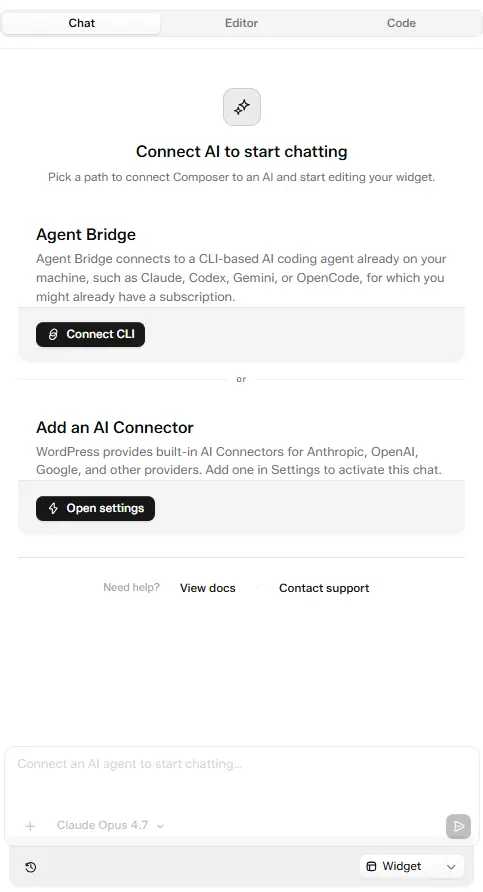
Connect AI to start chatting: Agent Bridge or Add an AI Connector
Connect AI to start chatting
The first time you open Chat, it shows "Connect AI to start chatting" with two paths. Pick whichever fits how you work.
Stuck before you even connect? The same screen has a Need help? row at the bottom with View docs and Contact support links.
Choose your model
Once connected, the model selector at the bottom of Chat lets you pick which model to use, grouped into CLI and WP Connectors tabs (for example, the CLI tab lists your available Claude models).
Screenshot: the model picker showing the CLI and WP Connectors tabs.
Make a change
Once connected, the Chat tab opens with a short question, three quick-start buttons, and a "Describe a change or paste / drop an image..." box. What you see depends on the block:
- Empty block: it asks "What do you want to build?", shows Building in an empty block, and offers Add a hero section, Add a pricing table, and Add a contact form.
- Block with content: it asks "What do you want to change?", shows which element you're editing, and offers two quick changes for that element plus Fix for mobile.
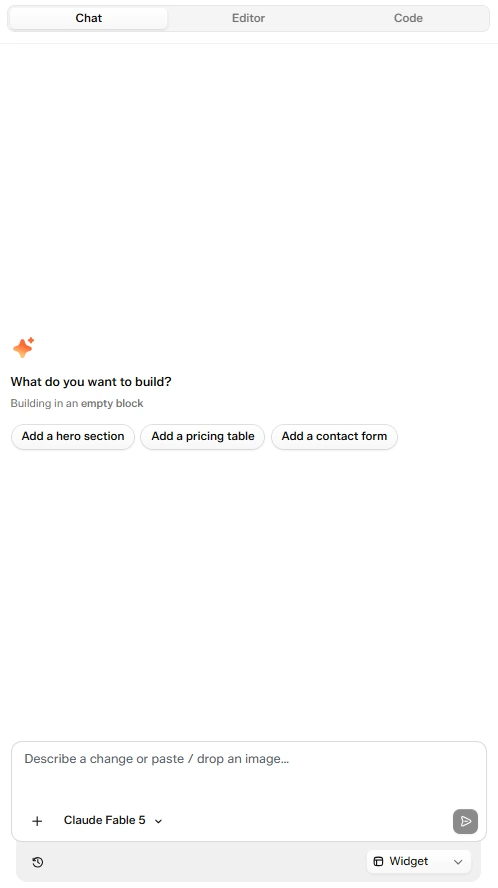
Chat on an empty block, with quick-start buttons to build a section
- Choose what to change. Click + at the bottom-left of the chat box and choose Pick an element to select one on the canvas, or Draw on the canvas to mark an area freehand, then add an optional note and click Send. You can also just describe it.
- Say what you want. Type your request, or click a quick-start button, for example Add a hero section on an empty block or Change text color on existing content. To guide it with a picture, paste or drop an image, or choose + → Attach image.
- Set the scope. Click the scope dropdown at the bottom-right of Chat (it shows Widget by default) and pick what the AI can work on:
- Widget: the AI only sees and edits the selected block. Use it for changes to one section.
- Page: the AI can see and edit every block on the page. Use it for changes across sections, like matching colors everywhere.
- Send. The change lands as editable output you can still adjust in the Editor or Code tabs.
A history icon at the bottom-left of the chat bar opens your past conversations with this widget, so you can pick up an earlier thread instead of starting over.
Use Your Site's Global Styles
A toggle on the chat composer bar attaches your site's Global Style colors and typography to every message, so the AI prefers your existing variables and classes over raw hex values when it writes CSS. Turn it on when you want new sections to stay on-brand automatically; turn it off if you're prototyping something intentionally different.
What you can ask it to do
- Repair a section that didn't come out right.
- Restyle it (colors, spacing, corners, shadows, layout).
- Add motion and hover effects.
- Build an entirely new layout that was never in your Figma file.
The cleanup Classic Mode used to leave for you becomes a single sentence.