

Build and Edit a Page
Add elements and ready-made sections, edit them with the Design panel, check each device, and publish a page in the UiChemy Composer Page Builder.
This is the everyday flow: add a section, change its content, check the other screen sizes, publish.
1. Add a Section
Open the Add panel
Click Add section in the sidebar, or use the Add section button at the end of the page.
Pick a section
Choose the Sections tab, pick a category such as Hero or FAQ, and click a section. Hover a section to see where it will land, for example "Adds after Hero split".
Add elements if you need them
The Elements tab has single pieces: Heading, Text, Button, Image, Video and Icon (Basic), Columns, Spacer and Divider (Layout), and Badge, Card and List (Content).
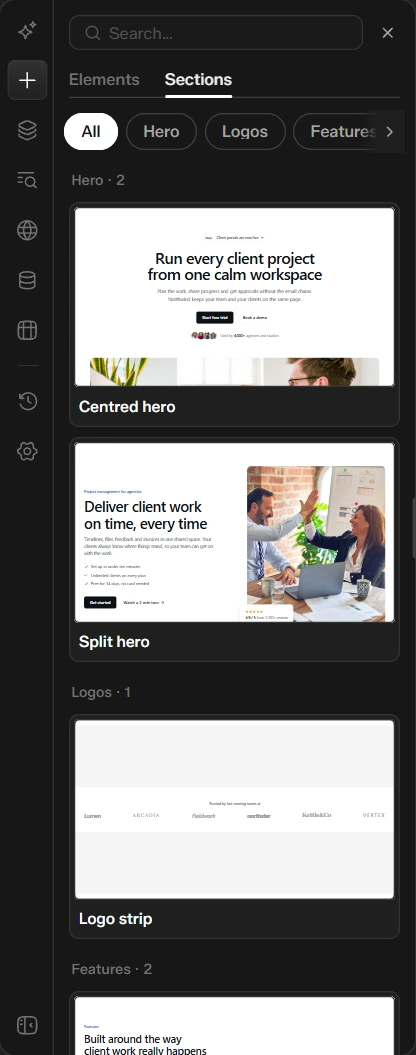
Use the Search box at the top of the panel to find a section or element by name. See Ready-Made Sections for the full list.
2. Edit It
Click a section on the canvas. Its CSS class shows above it, for example .faq-accordion, and the right panel opens on Design.
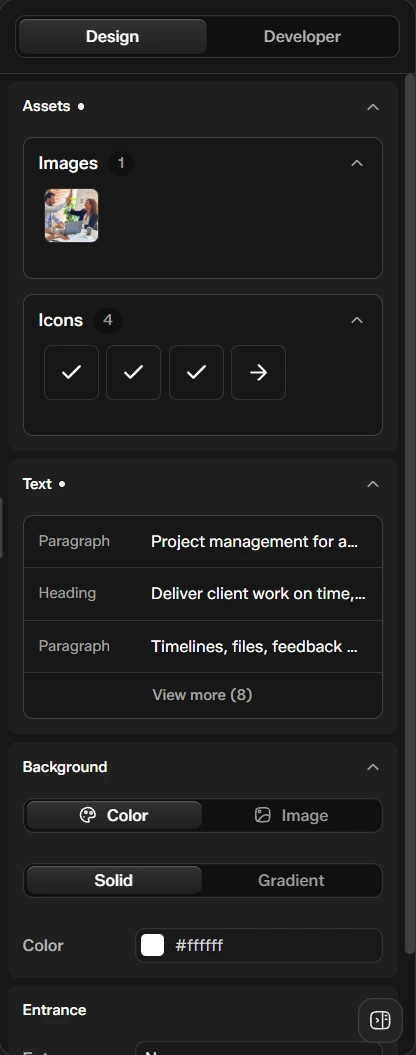
In Design you change what visitors see:
- Assets: the images, icons and videos in the section.
- Text: headings, paragraphs and links. Click View more to see the rest.
- Background: Color or Image, then Solid or Gradient.
- Entrance: pick an entrance animation, or leave it on None.
You can also click any element on the canvas to edit it directly. Use Esc to select its parent.
3. Work With the Structure
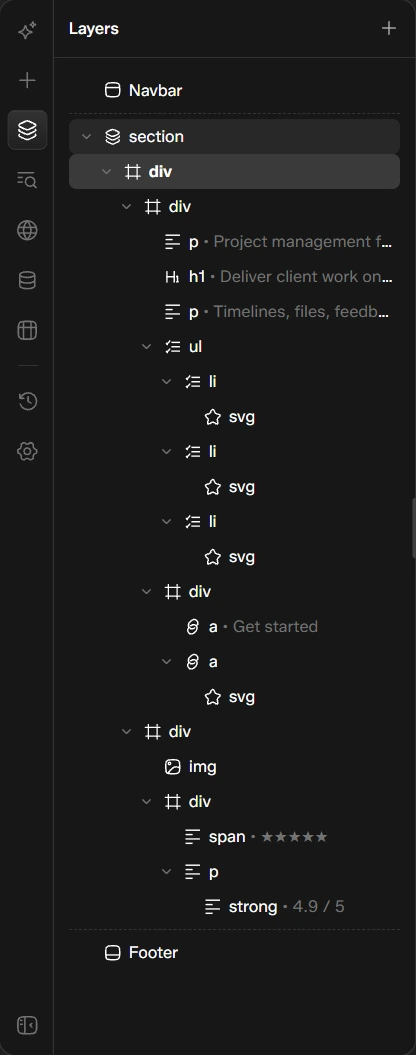
Open Layers in the sidebar to see the page as a tree. Click a layer to select it on the canvas.
Use the shortcuts in A Tour of the Builder to copy, cut, paste, duplicate and move sections. Paste works across pages.
4. Go Further in Developer View
Switch the right panel to Developer when you want control over classes, layout, spacing, typography, borders and more.
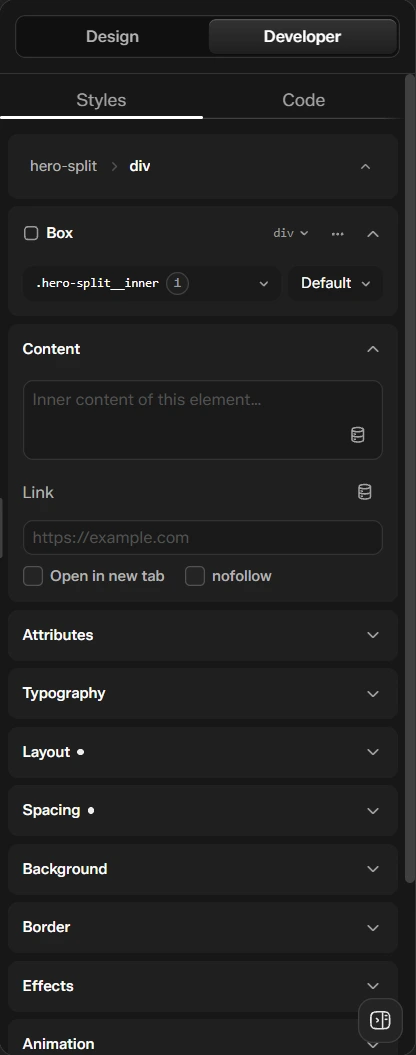
The Code tab shows the HTML, CSS and JavaScript of the page. Use Ctrl+/ to open it quickly.
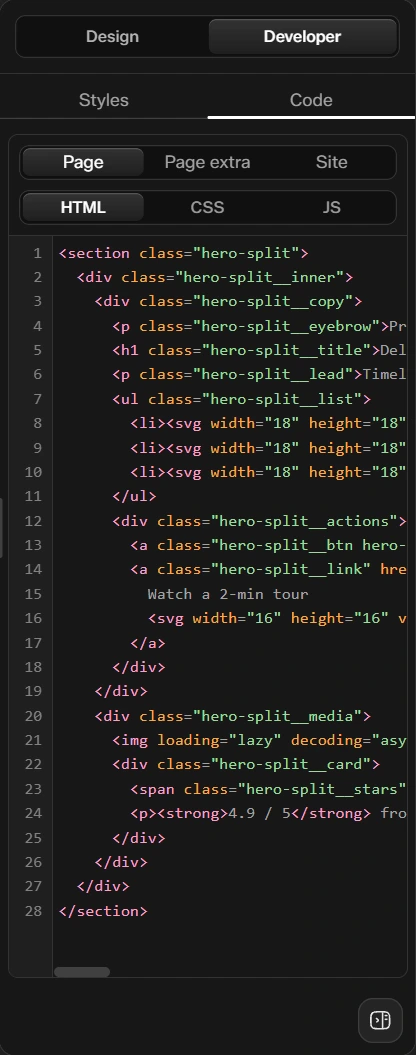
The two views follow the same idea as in the Composer widget. See Design vs Developer Mode.
5. Check Each Device
Click the Breakpoint button in the top bar and choose Desktop, Tablet or Mobile. The canvas resizes so you can check and adjust each one.
6. Set the Page Layout
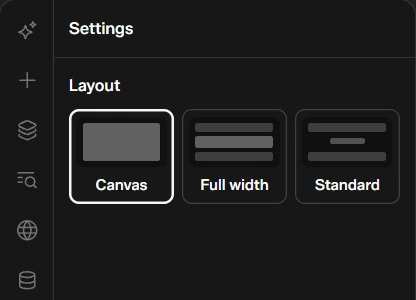
Open Settings in the sidebar. Layout controls how the page sits inside your theme:
| Layout | What the page shows |
|---|---|
| Canvas | Only your builder content, full width. No theme header, page title or footer |
| Full width | Your theme's header and footer, with your content full width between them |
| Standard | Your theme's header, the page title, your content in a boxed width, and the theme footer |
7. Save, Preview and Publish
- Save with
Ctrl+S, or choose Save now from the arrow beside Publish. - Preview opens the page as visitors see it, in a new tab.
- Publish takes the page live.
If something goes wrong, use Undo, or open History to see your Actions and restore an earlier Revision.
Use Edit with UiChemy to come back later. Edit the page in the builder, not in the block editor, or the block editor changes will not show on the site.