

Designs and the UiChemy Design Block
Create a design in UiChemy for EmDash, publish it, and show it on a page or post with Edit with UiChemy or the UiChemy Design block.
A design is a page you build in the UiChemy editor. It shows on your site once it is published and placed on a page or post.
Pre-release. UiChemy for EmDash is at version 0.2.0. It comes ready to use on sites you publish from AI Website Creator as HTML + EmDash. The standalone package (@uichemy/emdash) is not published to npm or the EmDash plugin registry yet, so the manual install steps will change.
Create a Design From a Page
This is the quickest way. The page gets a design made for it.
Add a page
In the EmDash admin, go to Pages and click Add New. Type a title, for example About Us.
Click Edit with UiChemy
The button is in the top right of the page screen. UiChemy creates a draft design for the page and opens the editor. It starts with your title and the line "Start building this page with UiChemy."
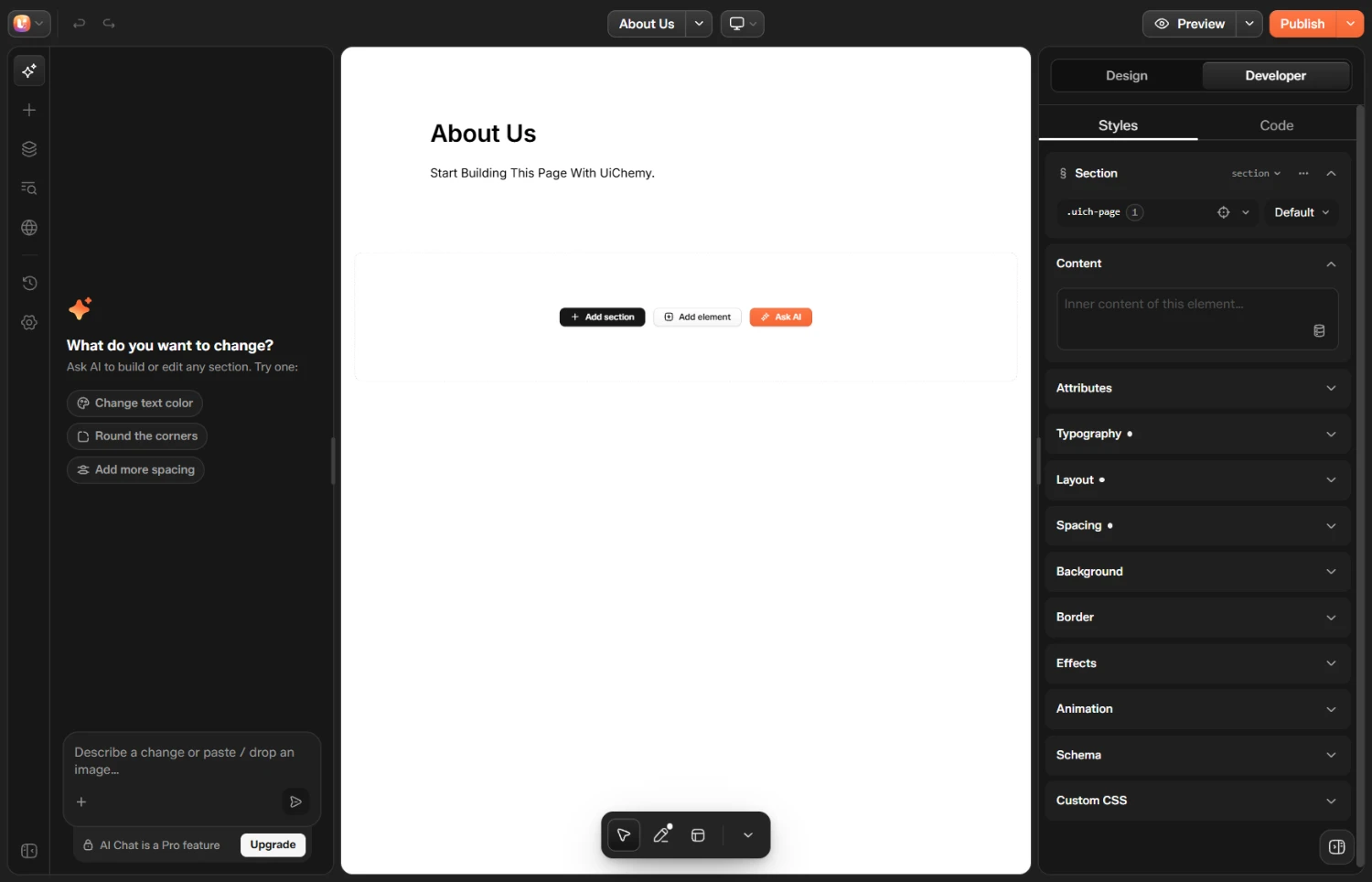
A new design in the editor, with Add section, Add element and Ask AI
A design stays a draft until you publish it. Visitors only see published designs.
Add Content
- Click Add section in the left rail, or the Add section button on the page.
- In the Sections tab, pick a category such as Header, Hero or Logos, then click a section. The Elements tab has single pieces to drop in.
- Click anything on the page to edit it. The panel on the right opens on Design.
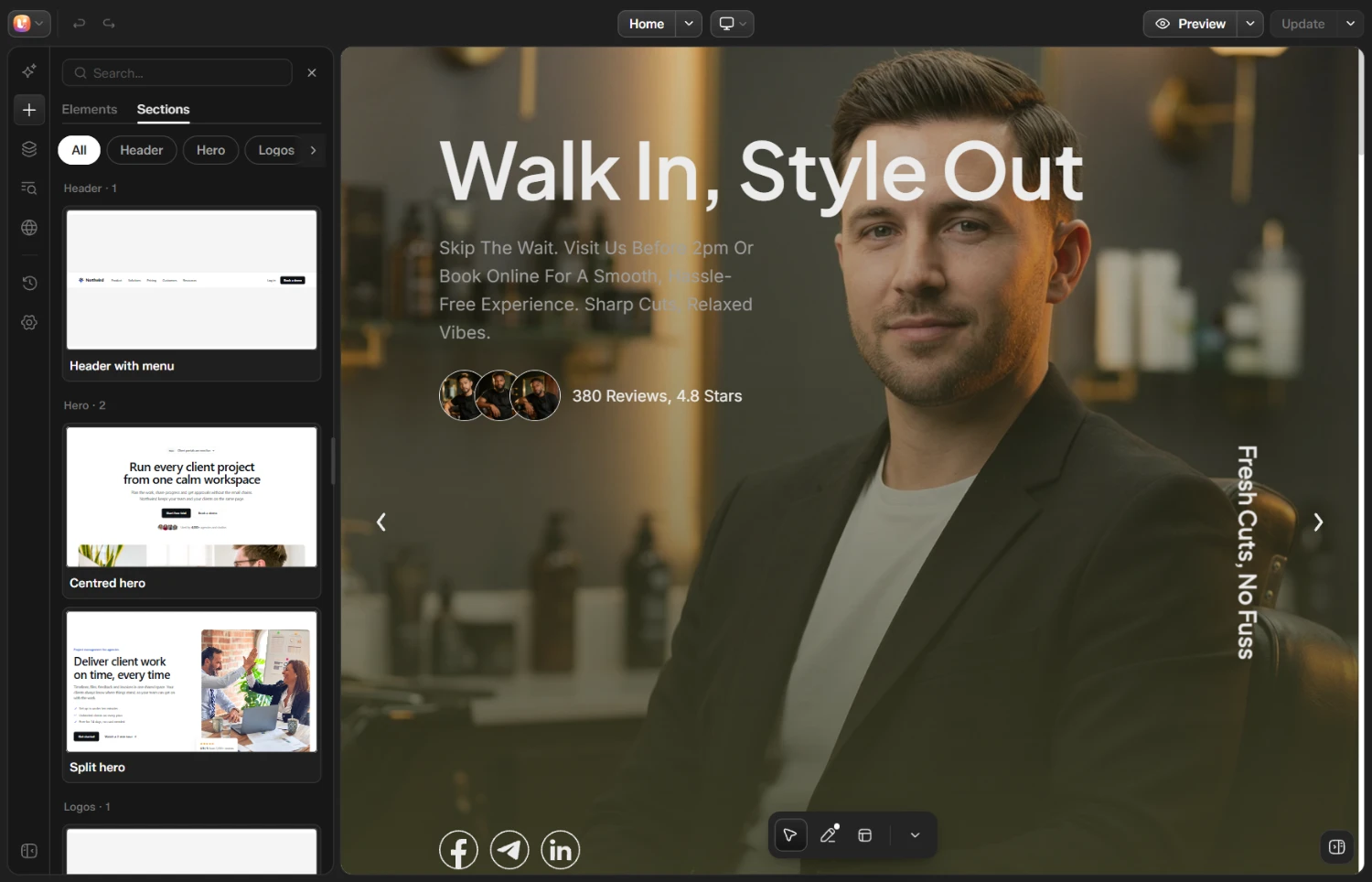
The Add section panel with ready-made sections
Publish
Click Publish in the top right. When it finishes, the button changes to Update. Open the page on your site to see your design.
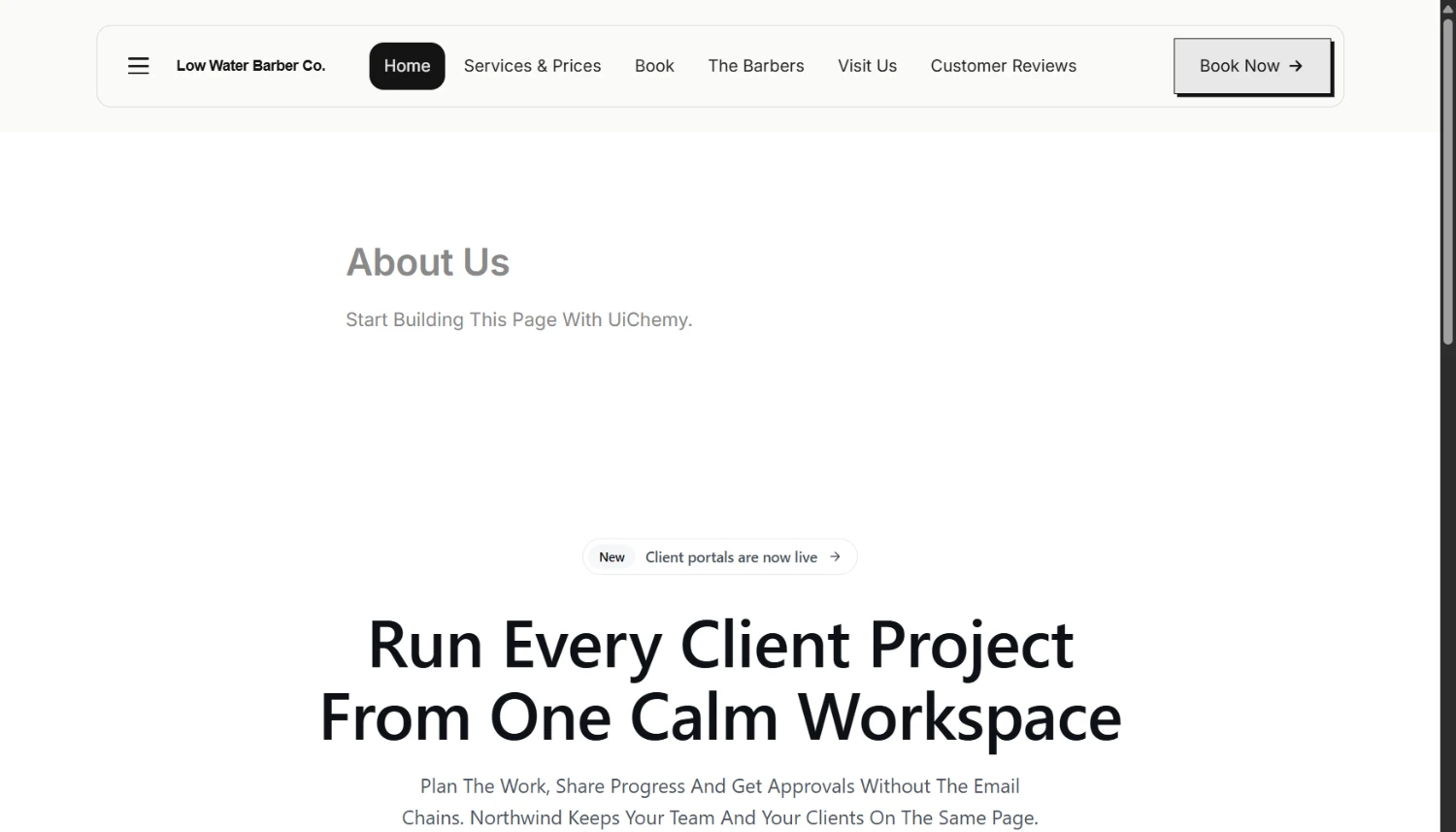
The published page on the site
From then on:
- Update saves your changes to the live page.
- The arrow beside it has Save now and Switch to draft. Switch to draft takes the design off the site.
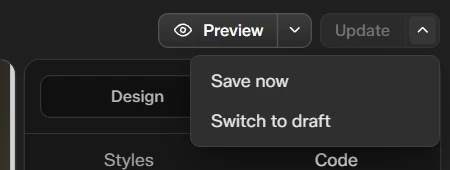
The Update menu
Open a Design Again
In Pages, click the UiChemy icon in the Actions column. Inside a page, click Edit with UiChemy in the top bar.
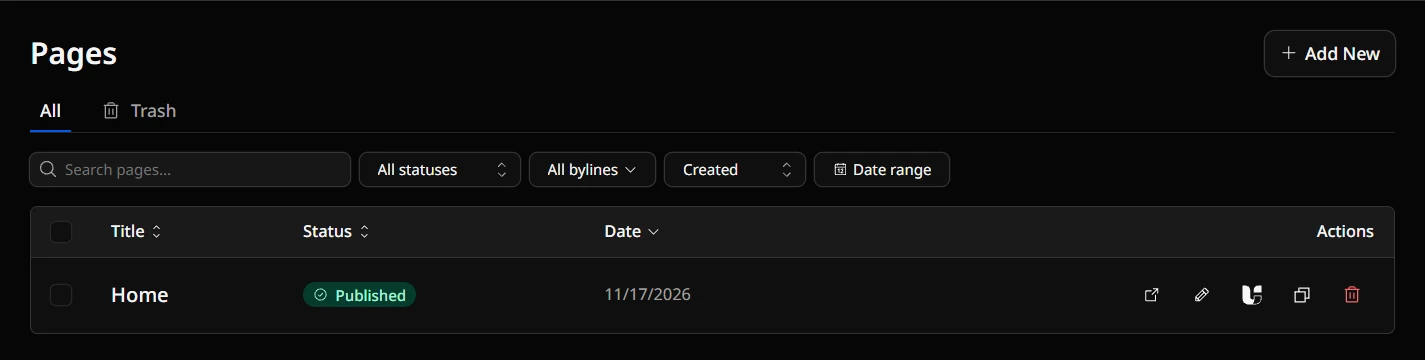
The UiChemy icon in the Actions column of the Pages list
On a page that has no design yet, Edit with UiChemy creates one and opens it.
Place a Design on a Page
Pages made with Edit with UiChemy already show their design. To show a design on another page or post, add the UiChemy Design block.
Type a slash
In the content of a page or post, type / and then uichemy. Choose UiChemy Design, "Place a UiChemy design".
Pick the design
In Insert UiChemy Design, choose a design from the Design list and click Insert.
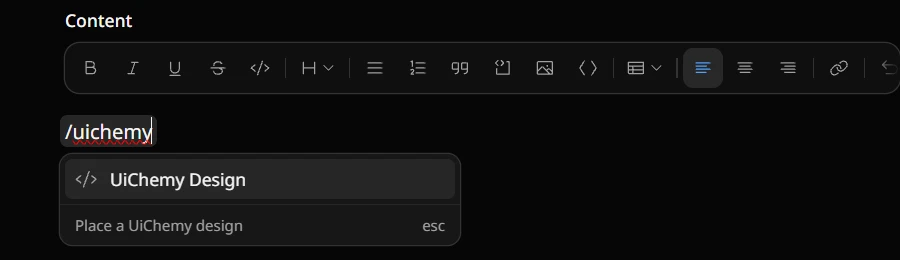
Choosing UiChemy Design from the slash menu
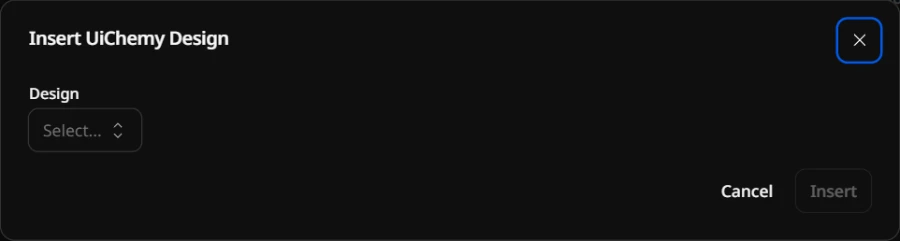
The Insert UiChemy Design dialog
In the page editor, the block shows the design's name. Click the pencil to change it, or the bin to remove the block.
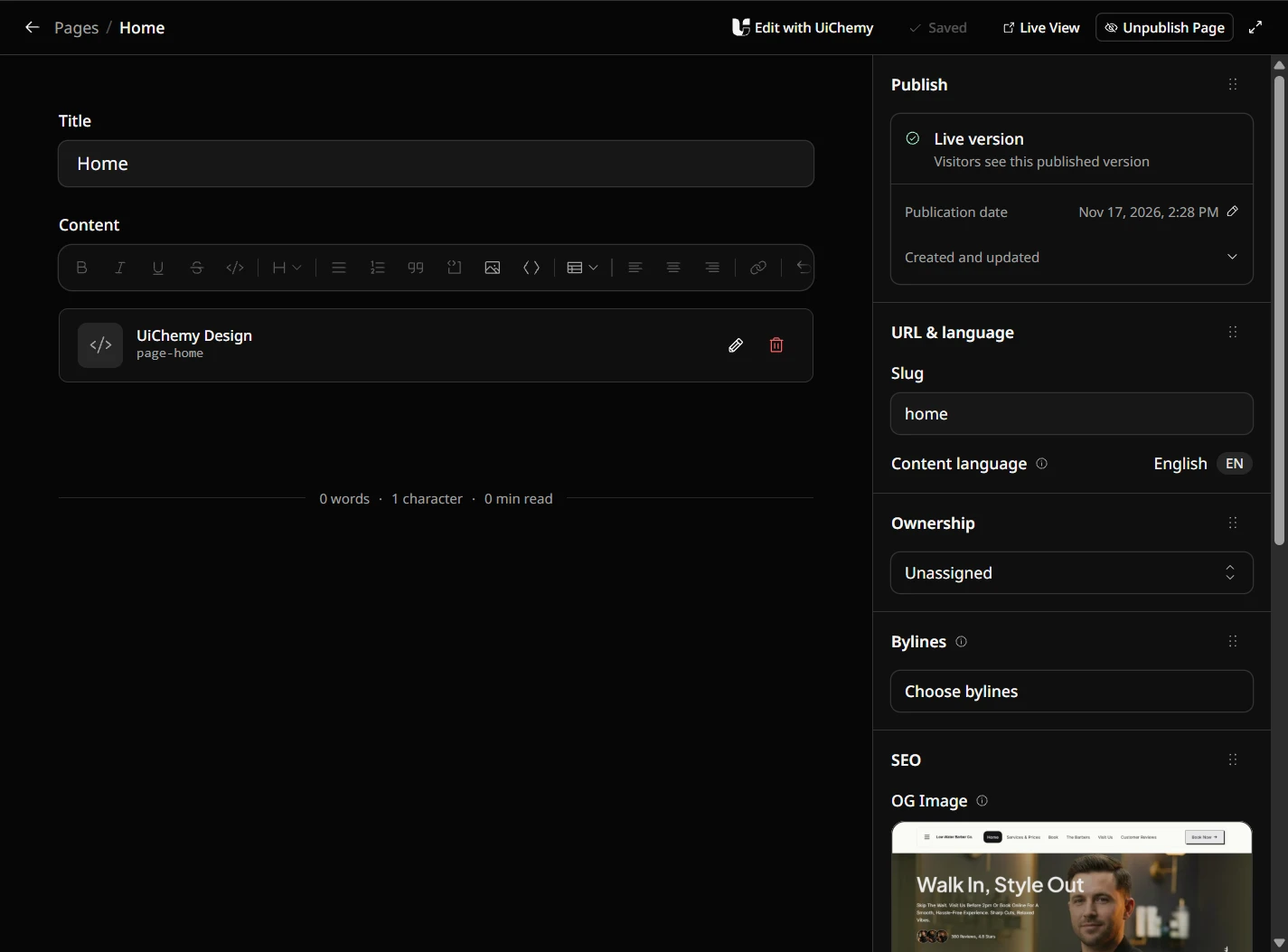
A page with the UiChemy Design block and the Edit with UiChemy button
One design can be placed on many pages.
Import a Design
You can also bring in a design that already exists: a WordPress Composer export (.json) or an .html file.
Images and Media
When you save, public HTTPS images and videos in a design are copied into the EmDash media library and the markup points at the copies.
Dynamic Data
Designs can show content from your site, for example {{ post.title }}, or a list of posts with get_posts. Templates use Twig and resolve on the server when the page renders. Collections use EmDash's own slugs, such as posts and pages.
| Free | Pro |
|---|---|
post.title, post.content, post.link, post.thumbnail, post.id, and the image fields src, alt, width, height, caption, id | The rest of the post tokens (for example slug, excerpt, date, author, categories, tags, meta) and the other providers |
A token you do not have access to renders empty, not as an error.