

Set Up AI to WordPress
Connect UiChemy MCP to run AI Express Mode conversions from Claude, Cursor, Codex, or Antigravity.
The Figma plugin is the recommended way to use AI Express Mode. If you'd rather build with AI tools you already use, UiChemy MCP is for you.
What it is: connect UiChemy MCP and run conversions from tools like Claude, Cursor, Codex, or Antigravity, right where you work, without switching tabs. For example, share a Figma design link with your AI tool and ask it to convert the design into a Composer on your connected site. It's optional, and it builds into Elementor or Gutenberg, whichever your site uses (Bricks is coming soon), including headers, footers, and page templates.
Before You Start
- You've set up the WordPress plugin and can reach UiChemy → Home. See Set up the UiChemy WordPress plugin.
- Node.js 18 or newer is installed on your computer (your AI tool uses it to connect).
- You're signed in as an Administrator.
Step 1: Generate Your Connection
Go to UiChemy → Home and select the AI Agent (MCP) tab.
Click Generate connection. This issues a secure Application Password so your AI tool can reach this site. Once it's done, you'll see Connected, plus a Regenerate button if you ever need a fresh password.
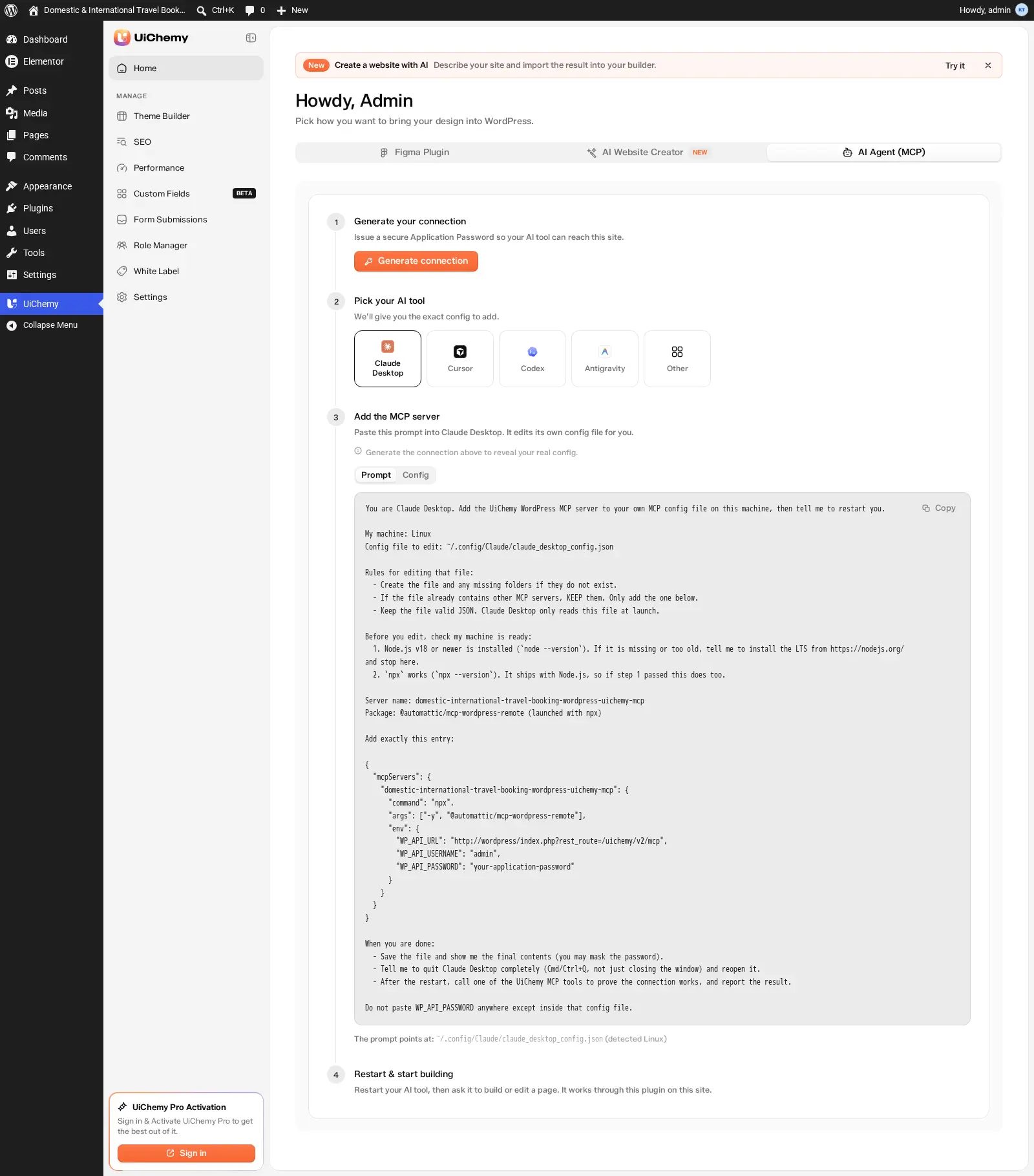
The AI Agent (MCP) tab, connection, tool picker, and prompt
Step 2: Pick Your AI Tool
Choose your tool from the cards: Claude Desktop, Cursor, Codex, Antigravity, or Other. UiChemy gives you the exact config to add for whichever one you pick.
Don't see your tool listed? Pick Other, any MCP-compatible tool works. See Supported AI Tools for the full picture.
Step 3: Add the MCP Server
What UiChemy shows here depends on which tool you picked in Step 2, the config format and the save path both change. Whichever tool you picked, a Prompt / Config switch lets you choose how you'd rather add it. Pick your tool below for both options.
Config, paste this in yourself:
{
  "mcpServers": {
    "your-site-name-wordpress-uichemy-mcp": {
      "command": "npx",
      "args": ["-y", "@automattic/mcp-wordpress-remote"],
      "env": {
        "WP_API_URL": "https://yoursite.com/index.php?rest_route=/uichemy/v2/mcp",
        "WP_API_USERNAME": "admin",
        "WP_API_PASSWORD": "your-application-password"
      }
    }
  }
}
Save to ~/Library/Application Support/Claude/claude_desktop_config.json (macOS), %APPDATA%\Claude\claude_desktop_config.json (Windows), or ~/.config/Claude/claude_desktop_config.json (Linux).
On the Config pane, Claude Desktop users also get an Auto Connect button. It copies a one-line terminal command that adds UiChemy to Claude Desktop's config for you (needs Node.js 18+).
Prompt, prefer not to edit the file yourself? On the UiChemy dashboard, switch its Prompt / Config switch to Prompt instead and copy the ready-made prompt. Paste it into Claude Desktop and it edits its own config file for you, after checking that Node.js 18+ and npx are available, and keeping any MCP servers you already have configured.
Config, paste this in yourself:
{
  "mcpServers": {
    "your-site-name-wordpress-uichemy-mcp": {
      "command": "npx",
      "args": ["-y", "@automattic/mcp-wordpress-remote"],
      "env": {
        "WP_API_URL": "https://yoursite.com/index.php?rest_route=/uichemy/v2/mcp",
        "WP_API_USERNAME": "admin",
        "WP_API_PASSWORD": "your-application-password"
      }
    }
  }
}
Save to ~/.cursor/mcp.json (macOS and Linux) or %USERPROFILE%\.cursor\mcp.json (Windows), or .cursor/mcp.json inside a specific project.
On the Config pane, Cursor users also get an Add to Cursor button that installs the server in one click.
Prompt, prefer not to edit the file yourself? On the UiChemy dashboard, switch its Prompt / Config switch to Prompt instead and copy the ready-made prompt. Paste it into Cursor and it edits its own config file for you, after checking that Node.js 18+ and npx are available, and keeping any MCP servers you already have configured.
Codex gets TOML instead of JSON.
Config, paste this in yourself:
[mcp_servers.your-site-name-wordpress-uichemy-mcp]
command = "npx"
args = ["-y", "@automattic/mcp-wordpress-remote"]

[mcp_servers.your-site-name-wordpress-uichemy-mcp.env]
WP_API_URL = "https://yoursite.com/index.php?rest_route=/uichemy/v2/mcp"
WP_API_USERNAME = "admin"
WP_API_PASSWORD = "your-application-password"
Save to ~/.codex/config.toml (macOS and Linux) or %USERPROFILE%\.codex\config.toml (Windows).
Prompt, prefer not to edit the file yourself? On the UiChemy dashboard, switch its Prompt / Config switch to Prompt instead and copy the ready-made prompt. Paste it into Codex and it edits its own config file for you, keeping it valid TOML and any existing tables intact, after checking that Node.js 18+ and npx are available.
Config, paste this in yourself:
{
  "mcpServers": {
    "your-site-name-wordpress-uichemy-mcp": {
      "command": "npx",
      "args": ["-y", "@automattic/mcp-wordpress-remote"],
      "env": {
        "WP_API_URL": "https://yoursite.com/index.php?rest_route=/uichemy/v2/mcp",
        "WP_API_USERNAME": "admin",
        "WP_API_PASSWORD": "your-application-password"
      }
    }
  }
}
Save to ~/.gemini/config/mcp_config.json (macOS and Linux) or %USERPROFILE%\.gemini\config\mcp_config.json (Windows).
Prompt, prefer not to edit the file yourself? On the UiChemy dashboard, switch its Prompt / Config switch to Prompt instead and copy the ready-made prompt. Paste it into Antigravity and it edits its own config file for you, after checking that Node.js 18+ and npx are available, and keeping any MCP servers you already have configured.
You get a natural-language prompt instead of a config file. Paste it directly into your AI tool, it figures out which client or IDE it's running in on its own (Claude Desktop, Cursor, Codex, Antigravity, Windsurf, VS Code, or similar) rather than asking you, picks that app's own MCP config file, and edits it using the correct format, JSON with an mcpServers object for most apps, or TOML for Codex. It checks Node.js 18+ and npx are available first, and keeps any MCP servers already in the file.
The Prompt pane opens first. Click Copy to copy whichever one you're shown exactly. UiChemy detects your operating system and shows the matching file path under the code box. The real WP_API_URL, WP_API_USERNAME, and WP_API_PASSWORD values only appear once you've generated a connection in Step 1.
Always use the path UiChemy shows at the time you connect, not one from memory, tool vendors can move where this file lives between versions.
Step 4: Restart & Start Building
Restart your AI tool, then ask it to build or edit a page. It works through UiChemy on this site.
New pages are built in the page builder you chose when you set up UiChemy. Existing pages always stay in the builder they were made with, so an Elementor page is edited in Elementor and a Gutenberg page in Gutenberg.
The output is the same native, editable Composer you get from the Figma plugin.
Keep your Application Password private. Anyone with it can connect to this site.
If It Doesn't Work
- Your tool can't connect. Confirm Node.js 18+ is installed, then restart the tool.
- "Administrator access required." MCP needs an Administrator account.
- The config looks incomplete. Generate your connection in Step 1 first, the real values only appear once one exists.
- Your tool connects but every action is refused. Check that the MCP server switch is on in UiChemy → Settings → Integrations. See General Settings.
- Still stuck? The Figma plugin path always works without MCP.