

A Tour of the Builder
Every part of the UiChemy Composer Page Builder screen: the top bar, the sidebar panels, the canvas, the right panel, the canvas toolbar and the keyboard shortcuts.
This page names every part of the builder screen, so you always know where something lives.
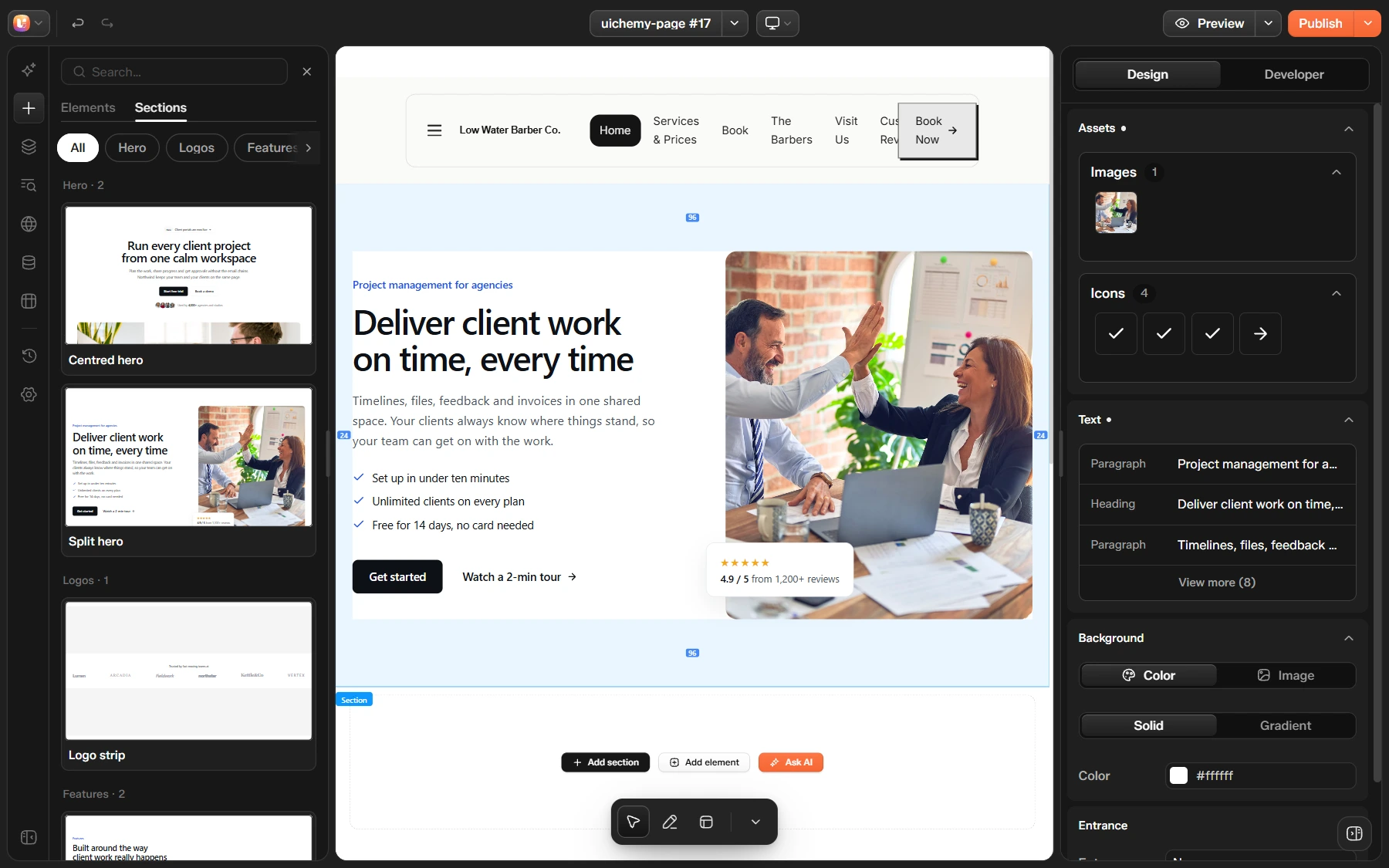
The Top Bar
| Control | What it does |
|---|---|
| Builder menu (UiChemy logo) | Back to pages, UiChemy dashboard, WordPress dashboard, Keyboard shortcuts and Appearance (Light or Dark) |
| Undo and Redo | Step back and forward through your changes |
| Page name | Shows the page you are editing, for example uichemy-page #17 |
| Page menu (arrow beside the name) | Lists the templates used on this page, such as a header and a footer, each with the builder it was made in, and Add template |
| Breakpoint | Switch the canvas between Desktop, Tablet and Mobile |
| Preview | Opens the page as visitors see it in a new tab. The arrow beside it has Reload preview and Copy link |
| Publish | Takes the page live. The arrow beside it has Save now |
The Sidebar
The icon rail on the left switches between panels. Click an icon to open its panel, and click it again to close it. Collapse panel at the bottom hides the sidebar.
| Icon | Panel | What it is for |
|---|---|---|
| AI chat | AI chat | Ask an AI to build or change the page. See AI in the Builder |
| Add section | Add | Elements and Sections to put on the page. See Build and Edit a Page |
| Layers | Layers | The page structure as a tree, from header to footer |
| SEO | SEO | Title, description, social sharing and schema for this page |
| Site styles | Globals | Colors, dimensions and typography for the whole site |
| CMS | CMS | Posts built with UiChemy and custom post types |
| Theme Builder | Theme Builder | Headers, footers and other templates |
| History | History | Actions and Revisions |
| Settings | Settings | The page Layout |
SEO appears for pages and posts. When you edit a Theme Builder template, the rail has no SEO icon.
The sidebar is resizable: drag its right edge.
The Canvas
The middle of the screen is your real page, shown with your theme and your header and footer. Click anything on it to select it.
At the end of the page, three buttons add content: Add section, Add element and Ask AI.
A small toolbar floats at the bottom of the canvas:
| Tool | What it does |
|---|---|
| Select / pick element | Click an element on the page to select it |
| Draw on canvas | Sketch over the page to mark what you mean. It works with AI chat, which needs UiChemy Pro |
| Toggle element outlines | Show or hide outlines around every element |
| Hide toolbar | Hide the toolbar. Press Ctrl+\ to show it again |
Zoom with Ctrl+= and Ctrl+−, and return to 100% with Ctrl+0.
The Right Panel
The right panel opens when you select something. Show right panel and Hide right panel open and close it.
- Design is the simple view: assets, text, background and entrance.
- Developer has Styles (classes, layout, spacing and more) and Code (HTML, CSS and JavaScript).
The two views follow the same idea as in the Composer widget. See Design vs Developer Mode.
Keyboard Shortcuts
Press ? in the builder, or choose Keyboard shortcuts in the builder menu, to see this list.
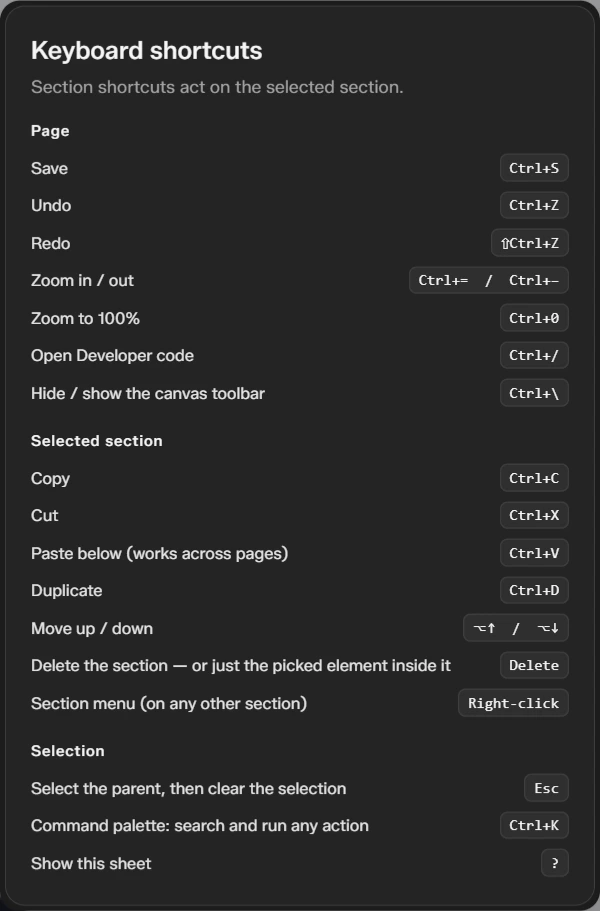
| Shortcut | What it does |
|---|---|
Ctrl+S | Save |
Ctrl+Z | Undo |
Shift+Ctrl+Z | Redo |
Ctrl+= and Ctrl+− | Zoom in and out |
Ctrl+0 | Zoom to 100% |
Ctrl+/ | Open Developer code |
Ctrl+\ | Hide or show the canvas toolbar |
Ctrl+C | Copy the selected section |
Ctrl+X | Cut the selected section |
Ctrl+V | Paste below. It works across pages |
Ctrl+D | Duplicate the section |
Alt+↑ and Alt+↓ | Move the section up or down |
Delete | Delete the section, or just the picked element inside it |
| Right-click | Open the section menu |
Esc | Select the parent, then clear the selection |
Ctrl+K | Command palette: search and run any action |
? | Show the shortcuts sheet |
On a Mac, use Cmd in place of Ctrl.