

Editing with Code Using the Code Tab
Work directly in HTML, CSS, and JS, or paste in a layout you already built, using UiChemy Composer's Code tab.
Use the Code tab to work directly in code, or to bring in a layout you already built. It gives you direct access to the section's HTML, CSS, and JS in one place, pick this tab when you'd rather write or paste code than click through visual controls.
The Code tab is available in both Design and Developer mode. It is hidden only for users whose role is set to Content only in Role Manager (Pro). See Design vs Developer Mode.
Editing custom CSS and JavaScript is a UiChemy Pro feature. Code that's already in a widget, for example from an imported design, keeps rendering on Free. See Free vs Pro.
What You Can Do
- Edit the code directly. Adjust the HTML, CSS, or JS for the section.
- Paste in a layout. Designed something with coding tools? Paste it in and it renders right away.
- Keep editing visually. Anything you write here stays fully editable back in the Editor tab.
- Clean up as you go. Each panel (HTML, CSS, JS) has its own Format button to auto-indent your code, and a Copy button to copy it out.
How to Make a Change
- Open the section's code. See its HTML, CSS, and JS together in one view.
- Edit directly, or paste in a layout. Adjust the code by hand, or paste in something you already built, it renders right away.
- Check the live preview. See your changes reflected instantly as you type.
- Keep refining visually. Anything you write here stays fully editable back in the Editor tab.
Standard, Page, Site, and Globals
Everything above is the Standard scope, this section's own HTML/CSS/JS. The Code tab has 4 scope tabs in total:
Standard, Page, and Site scopes in the Code tab
The Globals Tab
The Globals tab shows a site-wide summary of your global styles, with the total count at the top, for example Site-wide · 79 globals. Each row opens the full Globals manager on that section.
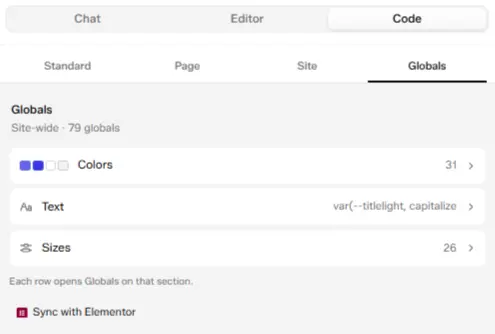
The Globals tab: Colors, Text, and Sizes, with Sync with Elementor
Sync with Elementor Globals
Elementor Sync is a UiChemy Pro feature. On Free, the plugin refuses the sync request. In the block editor the same window reads Sync from theme.json and brings in your builder's colors.
Click Sync with Elementor at the bottom of the Globals tab. A Sync with Elementor Globals window opens and lists every difference between your UiChemy globals and Elementor's, colors and typography alike. Choose what to sync, then click Sync.
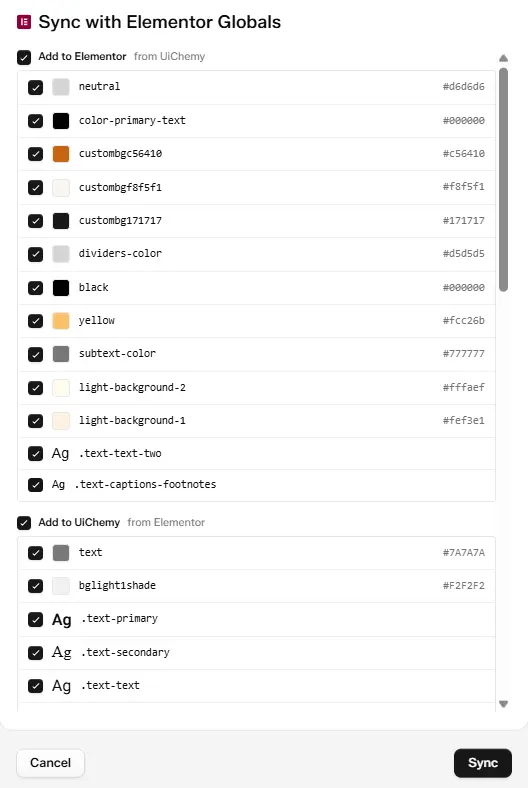
The Sync with Elementor Globals window: Add to Elementor and Add to UiChemy lists, with every item ticked
The window shows up to four groups:
Choosing What to Sync
- Untick anything you don't want to sync. Each item in Add to Elementor and Add to UiChemy has its own checkbox. Untick one to leave it out.
- Untick a whole group at once. The checkbox beside a group's name ticks or unticks every item in that group.
- Click Sync to apply your choices, or Cancel to close without changing anything.
If everything already matches, the window says "UiChemy and Elementor globals are already in sync. There is nothing to reconcile."
Example: You want to bring Elementor's colors into UiChemy, but not push UiChemy's own colors into Elementor. Untick the Add to Elementor group checkbox, leave Add to UiChemy ticked, and click Sync.
Example: Your brand purple is #4B22CC in UiChemy but #5B32DC in Elementor. It shows under Value updates, set to Skip. Choose Use UiChemy's and click Sync, and Elementor's global color updates to #4B22CC.
Loading a Third-Party Library
Add a library's URL under the Assets panel's Custom URL tab, choosing JS, CSS, or Font, with load-order and injection-location controls. The Assets panel also has a Catalog tab of popular libraries, each entry carries a pinned CDN URL, so picking one adds it as a real asset directly, the same as pasting its URL into Custom URL yourself, no extra copy-paste step needed.
Use Cases
- Bringing in a section built elsewhere, paste HTML and CSS from an AI tool, a template library, or a Figma export. See Paste and Import Code.
- Writing structural changes by hand, add, remove, or restructure elements the way you would in a normal code editor.
- Adding Twig expressions, forms, or custom JavaScript, anything beyond what the Editor tab's visual controls cover.
- Loading a tracking pixel or a stylesheet needed on just one page, Page scope injects it there without affecting the rest of the site.
- Loading a font or analytics script once, site-wide, Site scope injects it into every page instead of repeating it per widget.
- Pulling in a third-party library, add it once through the Assets panel's Custom URL tab, rather than hand-editing every widget that needs it.