Onboarding Guide - UiChemy
The complete step-by-step onboarding process for setting up and using UiChemy.
With UiChemy, you can take your Figma designs and export them as an Elementor template to use directly in the Elementor website builder, unlocking whole new design possibilities.
Here's the step-by-step onboarding process for UiChemy.
1. Install the UiChemy Plugin in Figma
Install the plugin and get your license key from the Posimyth Store.
See How to Install UiChemy Figma Extension on Your Figma App for the full guide.
If you run into issues activating your license key, check the license/serial key troubleshooting guide.
2. Install the UiChemy WordPress Plugin
This lets you import a template directly to your WordPress website with a single click, and preview it.
3. Verify These WordPress Settings
3.1 Enable Elementor Flexbox container Go to Dashboard → Elementor → Settings → Features, select Active from the Flexbox Container dropdown, and save.
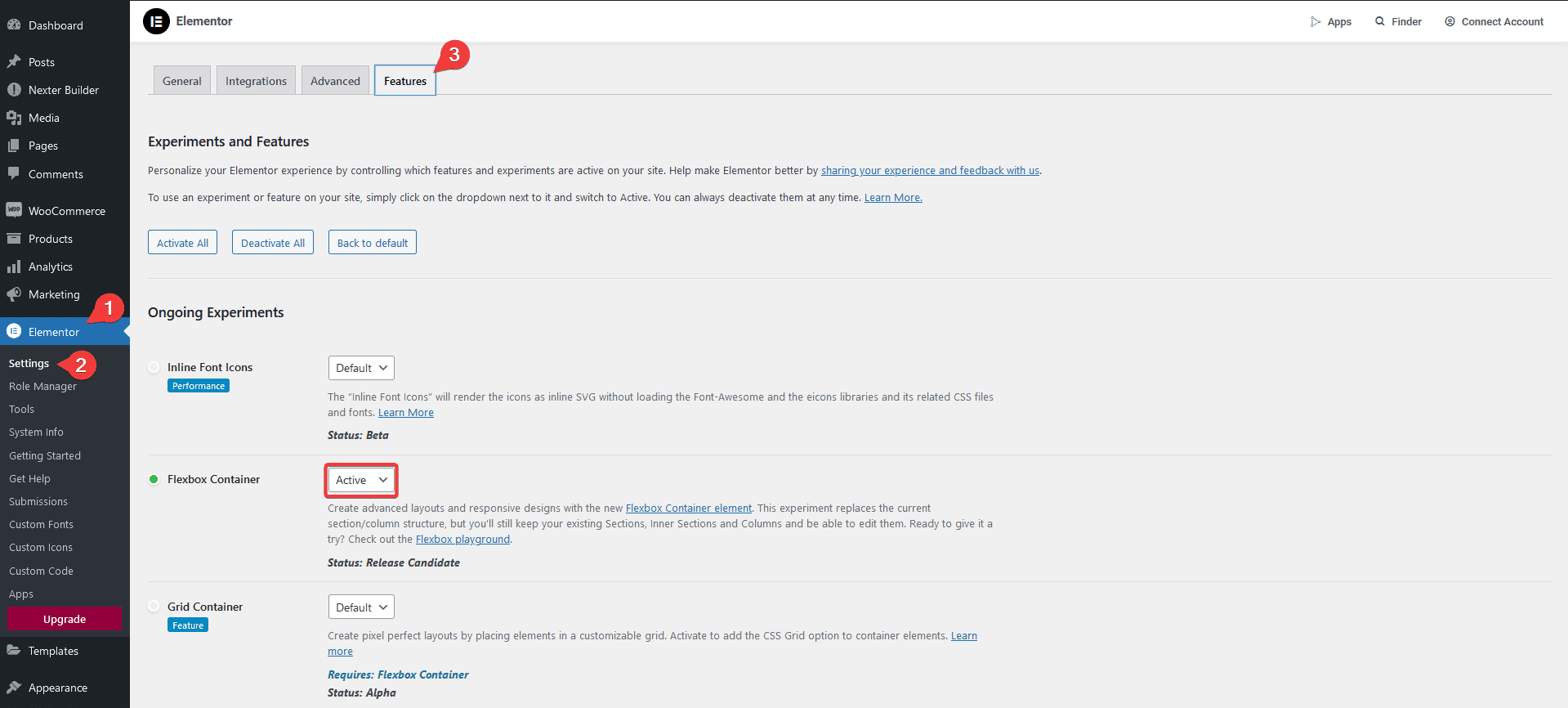
3.2 Enable the SVG file upload option Go to Dashboard → Elementor → Settings → Advanced, and enable Enable Unfiltered File Uploads.
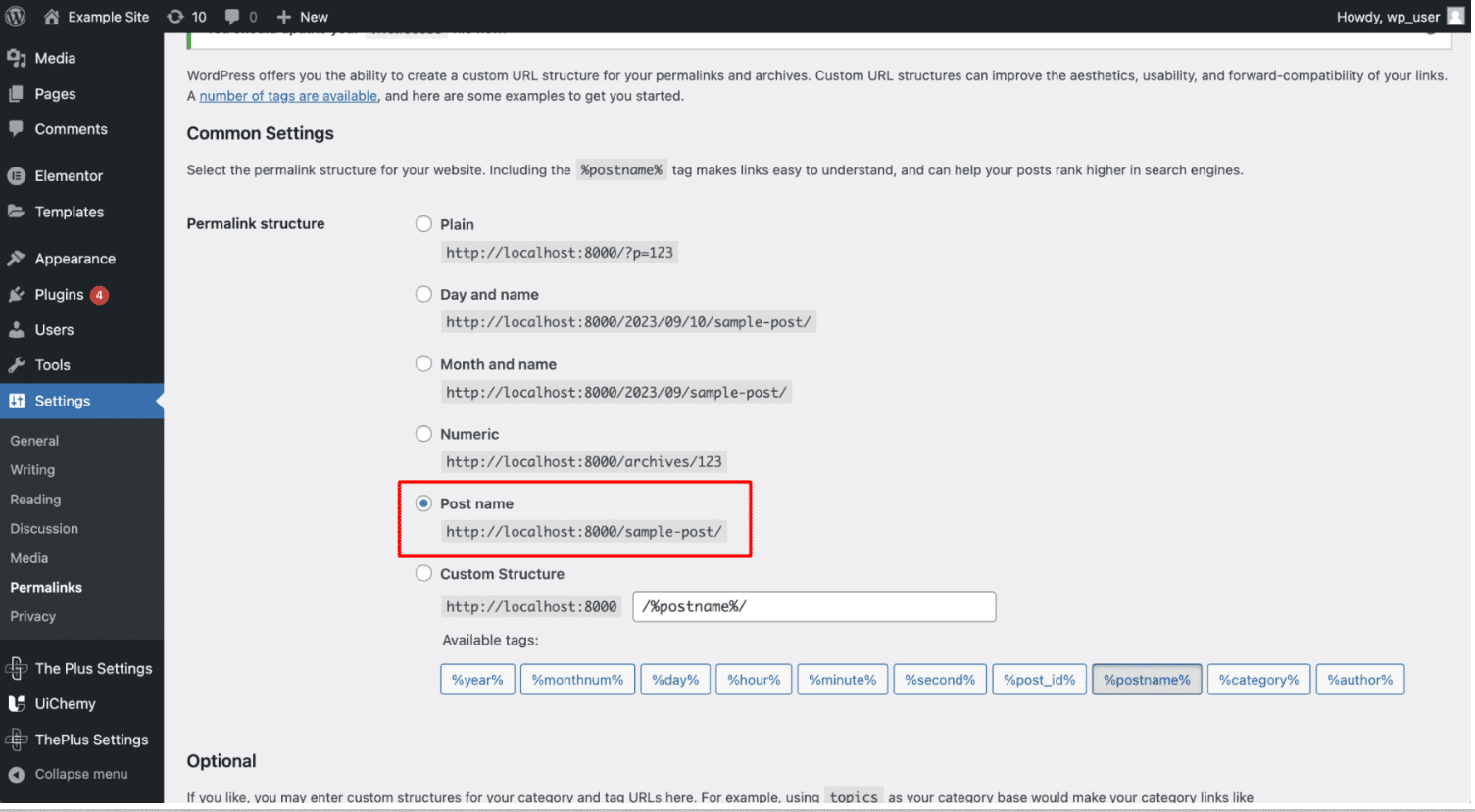
3.3 Set permalink structure to Post name Go to Dashboard → Settings → Permalinks → Permalink structure, select Post name, and save.
4. Follow the Figma Design Guidelines
Go through these guides to make your designs UiChemy-friendly for accurate conversion:
- Ideal Way to Design in Figma With Auto Layout
- Things to Avoid in Figma Design for Optimum Conversion
- Combining Multiple Elements in Figma (Locking)
- UiChemy Educational | Community File
5. Understand the Tagging Process
Understanding tagging is key to a more accurate conversion, see the Figma to Elementor tagging guides for the full picture.
6. Use Responsive Manager
If you want to directly export your Figma design in a responsive layout-ready Elementor template, use the Responsive Manager feature.
See How to Export Figma Design in Responsive Layout using Responsive Manager for the full guide.
7. Final Conversion
There are two ways to do the final conversion: Direct Import and Manual Download.
See Step by Step Introduction of Figma to Elementor Using UiChemy to understand both processes.
8. PHP Time Limit Issue While Importing
You may run into this when importing a large or complex Figma design with large images. See the PHP time limit troubleshooting guide if it comes up.
9. Figma Design Checklist to Make it UiChemy-Friendly
There are a few essential things to check when creating a Figma design for accurate conversion.
See the Design Checklist for the full list.
UiChemy is designed to help you convert your Figma designs into functional websites. While it can't guarantee 100% conversion accuracy, following proper design practices typically gets you between 85% and 99% conversion accuracy.
If you need further assistance, reach out to the support team at the Helpdesk.
Frequently Asked Questions
What should I do if my UiChemy license key isn't activating?
Check the license/serial key troubleshooting guide for steps to resolve common activation problems.
Can I use UiChemy to convert Figma designs into Elementor templates?
Yes, UiChemy exports Figma designs directly as Elementor templates for seamless integration into your Elementor website.
What are the best practices for designing in Figma for UiChemy?
Use Auto Layout and avoid common design pitfalls, see the Ideal Way to Design in Figma With Auto Layout guide for details.
What settings need to be verified in WordPress for UiChemy?
Enable the Elementor Flexbox container, allow SVG file uploads, and set the permalink structure to Post name. These are essential for the plugin to work correctly and avoid import issues.
How does the Responsive Manager feature work in UiChemy?
It exports your Figma design as a responsive layout-ready Elementor template, so your design looks great across devices.
What common mistakes should I avoid when using UiChemy?
Overlooking proper tagging in Figma is a common one, understanding the tagging process is key to getting accurate conversions.