

How to Export Your Figma Design With Scaled Images?
Export your Figma design with scaled images using UiChemy, for control over image quality and performance.
Image scaling means adjusting the size of an image without changing its actual content or design. In Figma, this is normally done at export time by choosing a scale factor, like 1x (original size), 2x (double size), or 0.5x (half size), to generate image assets optimized for different screen types and performance needs.
You can export your Figma design into WordPress with scaled images using UiChemy, no external tools required. For scaling, UiChemy uses Figma's own export feature.
UiChemy imports modern image formats, including WebP and AVIF, alongside standard formats like PNG and JPG, so you don't need to convert images manually before exporting.
Why Is Scaling Needed Before Exporting?
Without proper scaling, you can run into:
- Blurry visuals on Retina or high-DPI screens
- Large file sizes that slow down website or app performance
- Longer export times due to uncompressed or oversized assets
Scaling images appropriately helps you deliver cleaner visuals while keeping your projects lightweight and fast.
How Scaling Works
UiChemy provides flexible export options that let you control image resolution using scale values. For example, an image that's 100px × 50px in your design can be exported at different scales:
| Scale | Description | Example (Width × Height) |
|---|---|---|
| 1x | Original size | 100px × 50px |
| 2x | Double size for high resolution | 200px × 100px |
| 0.5x | Half size for smaller files | 50px × 25px |
You can also set a custom scale (e.g. 1.5x) directly in the export settings.
When and Where to Use Scaling
- High-density screens, export at 2x or 3x for crisp, sharp visuals on Retina or high-resolution displays
- Performance optimization, scale down (e.g. 0.5x) to reduce file sizes and improve page load times
- Faster exports, smaller images reduce processing time during export in Figma
- Avoiding blurry uploads, proper scaling keeps images clear and professional wherever they're used
Choosing the right scale depends on how your design will be used, sharp visuals, fast performance, or a balance of both.
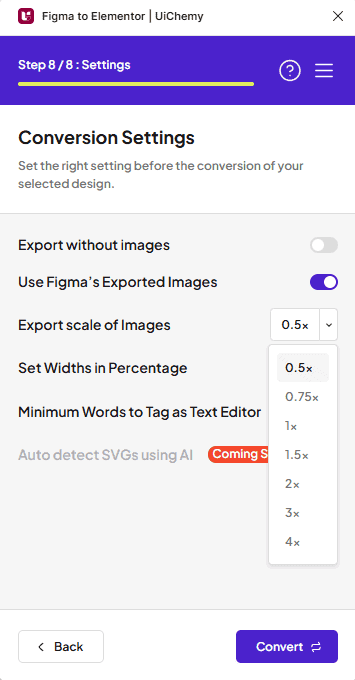
Original Images vs. Exported Images
When you export a Figma design, images can be one of two types:
- Original Images, when you add an image in Figma, it stays at its original size and quality, both dimensions and file size, until you explicitly export it. Using Original Images in UiChemy means the template includes the exact file you uploaded to Figma. They aren't resized or optimized during export, which can mean larger file sizes and potentially slower page load times if not managed carefully.
- Exported Images, Figma's Export feature lets you export images at various scales, from 0.5x to 4x, resized versions of the original whose dimensions and file size change based on the scale you set. In UiChemy, selecting "Use Figma's Exported Images" uses this export process, with a preset scale or a custom one (e.g. 1.8x).
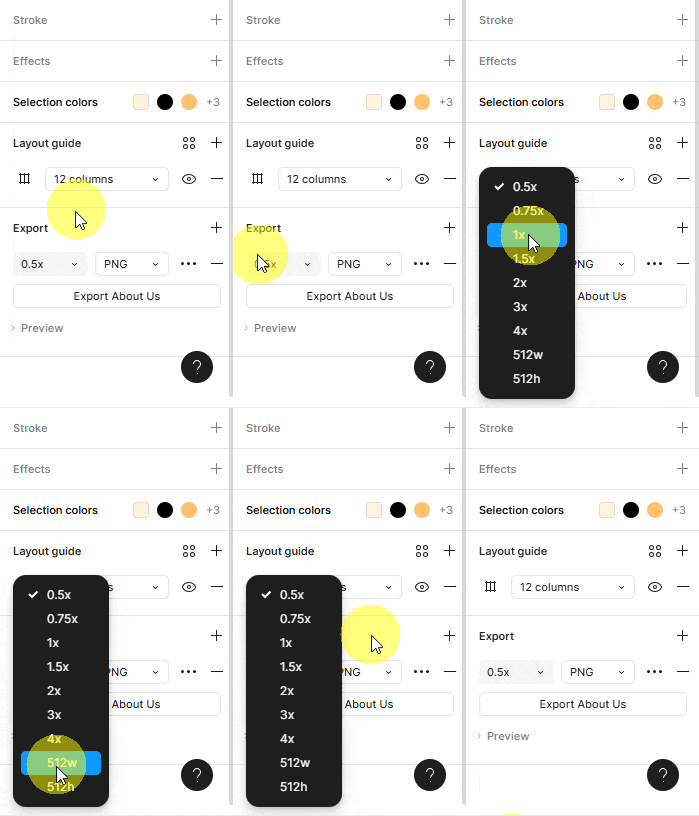
If you make the image dimensions smaller than the width and height specified in the template, the image will appear pixelated.
Scaled Image Export in UiChemy
You can toggle Figma's export settings, choose the export scale within the plugin, and export the right image size for your needs, all in one workflow. There are two ways to do this:
Once you export your design, the layout uses resized images based on your specified scale value, so the template opens faster thanks to the smaller image sizes.