

List of Elements Which Are Compatible With Figma to Bricks Conversion in UiChemy
The full list of Bricks elements UiChemy supports when converting a Figma design.
To convert your Figma design into a Bricks template using UiChemy, use the Bricks elements it supports. Tag your elements with these, and when you export your design, the tagged elements use the specific Bricks elements you selected.
Checking the List of Supported Elements
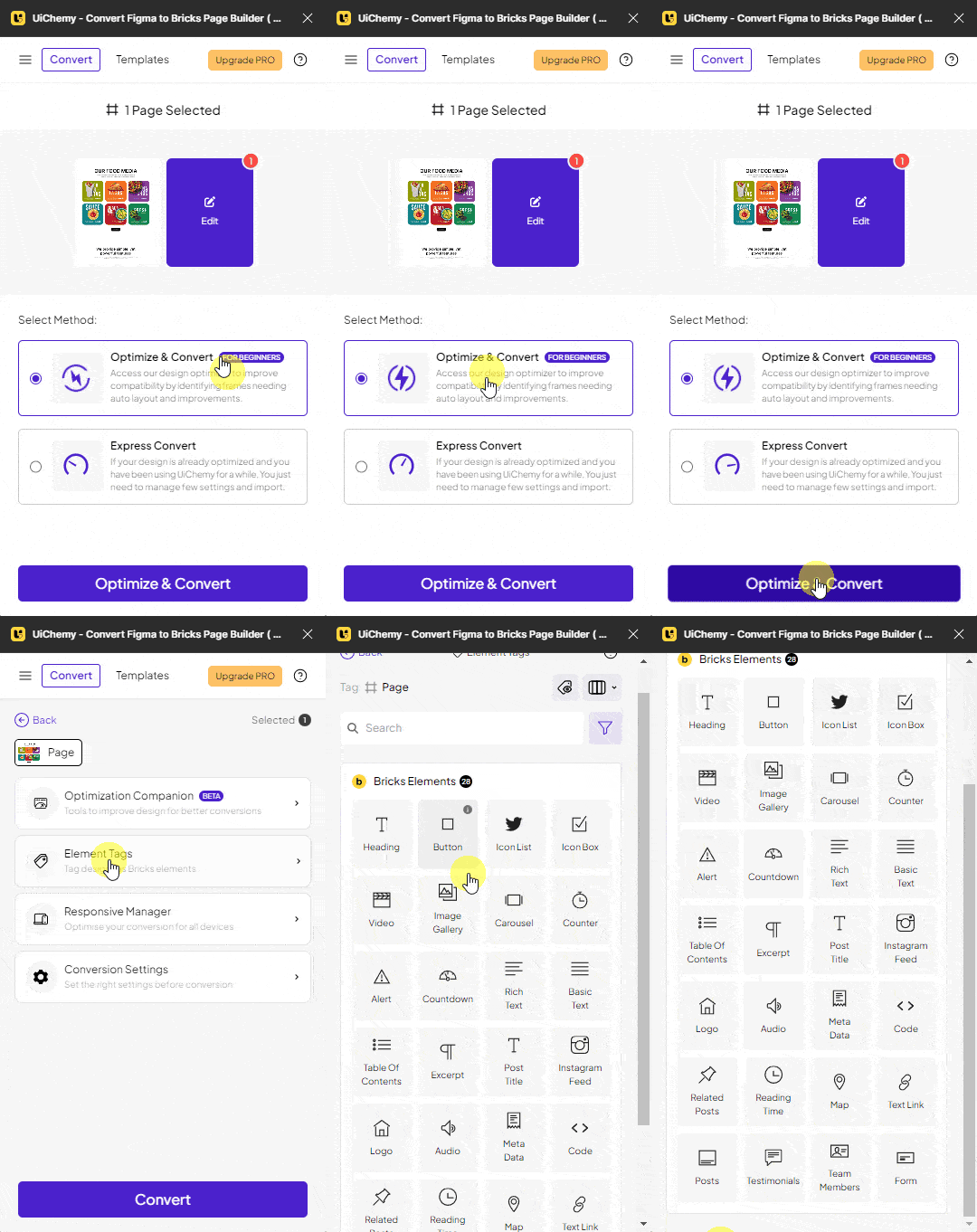
- Go to Resources → Plugins, search for UiChemy, and click on UiChemy - Convert Figma to Bricks Page Builder. This opens the plugin interface, log in to your account.
- Select the top-level frame of your layout, select Optimize & Convert, and click the button.
- Click the Element Tags tab in the UiChemy panel, you'll find all the supported elements here.
We'll continue to add more elements to this list.
Supported Bricks Elements
- Heading
- Button
- Icon List
- Icon Box
- Video
- Image Gallery
- Carousel
- Counter
- Alert
- Countdown
- Rich Text
- Basic Text
- Table Of Contents
- Excerpt
- Post Title
- Instagram Feed
- Logo
- Audio
- Meta Data
- Code
- Related Posts
- Reading Time
- Map
- Text Link
- Posts
- Testimonials
- Team Members
- Form
Frequently Asked Questions
What are the supported Bricks elements in UiChemy?
A wide range including Heading, Button, Image Gallery, and Testimonials, tag your Figma elements appropriately using the Element Tags tab so they convert correctly into Bricks templates.
How do I troubleshoot issues with Figma to Bricks conversion?
Make sure you've tagged your elements with the supported Bricks elements, only tagged elements are recognized during export. Double-check the Element Tags tab to confirm everything's included.
What's the best practice for tagging elements in Figma for Bricks conversion?
Tag each element with its corresponding Bricks element before exporting, for example, tag a button as Button in the Element Tags tab to ensure it converts properly.
Are there any limitations when using UiChemy for Figma to Bricks conversion?
UiChemy only converts designs from Figma, and only supports the listed Bricks elements, elements tagged incorrectly (or left untagged) may not appear as intended in the final template.