

Step by Step Introduction of Figma to Elementor Using UiChemy
A complete walkthrough of exporting a Figma design as an Elementor template with UiChemy.
Figma has become a go-to design tool for many designers, offering a collaborative and versatile platform. With UiChemy, you can take your Figma designs and export them as an Elementor template to use directly in the Elementor website builder.
Before You Start
Recommended Server Requirements
Make sure your server has these settings for a smooth template import in Elementor:
- PHP Time Limit (
max_execution_time): 300s - PHP Memory Limit: 256M
- PHP Upload Limit: >100M
- max_allowed_packet for MySQL: >5MB
You can make these changes yourself, or contact your hosting provider to increase the PHP time limit, memory limit, and upload limit.
Required Elementor Settings
Install Elementor
Make sure the free Elementor plugin is installed and activated. Direct Import needs Elementor 4.1.1 or above and the UiChemy WordPress plugin 4.10.0 or above, so update both if UiChemy asks you to.
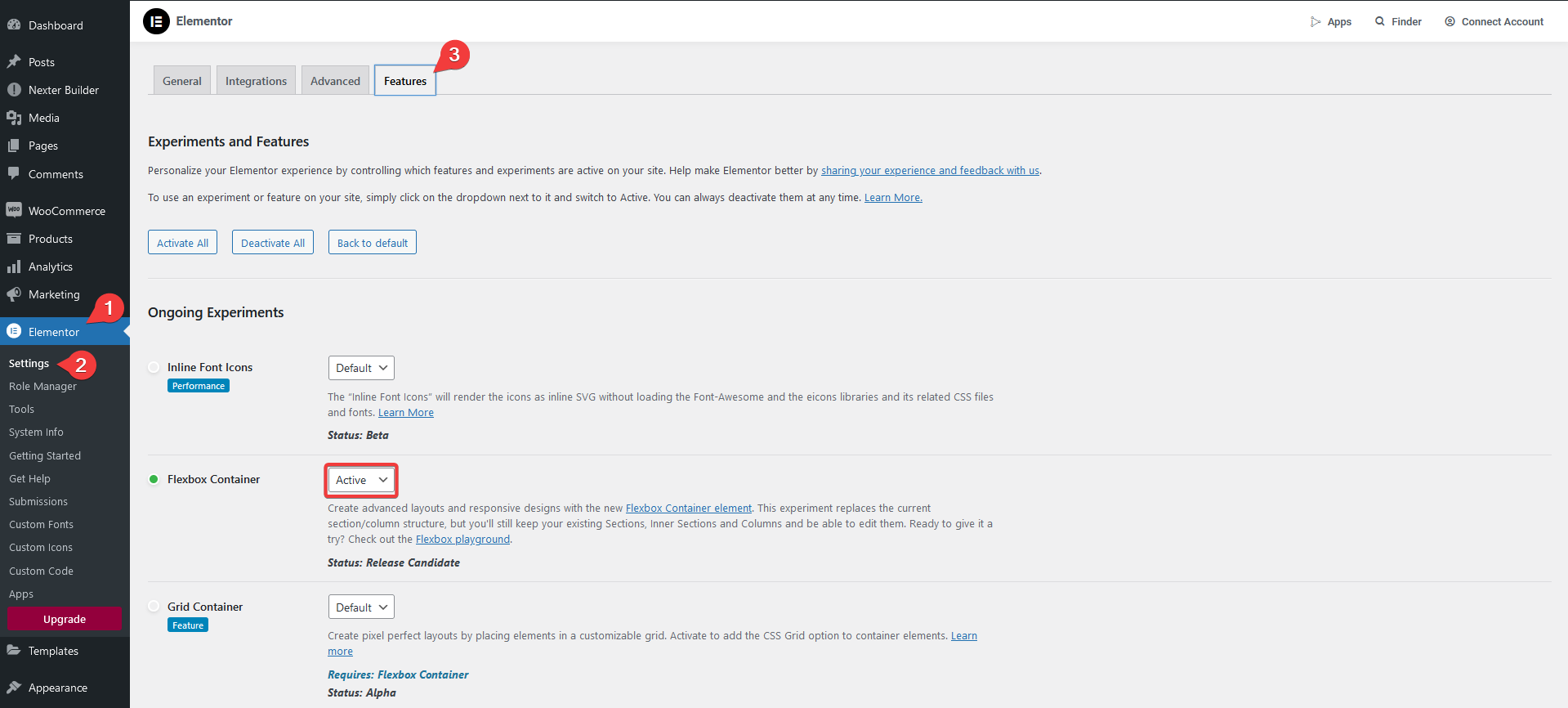
Enable the Flexbox container
Before importing, enable the Elementor Flexbox container: go to Elementor → Settings → Features, select Active from the Flexbox Container dropdown, and save.
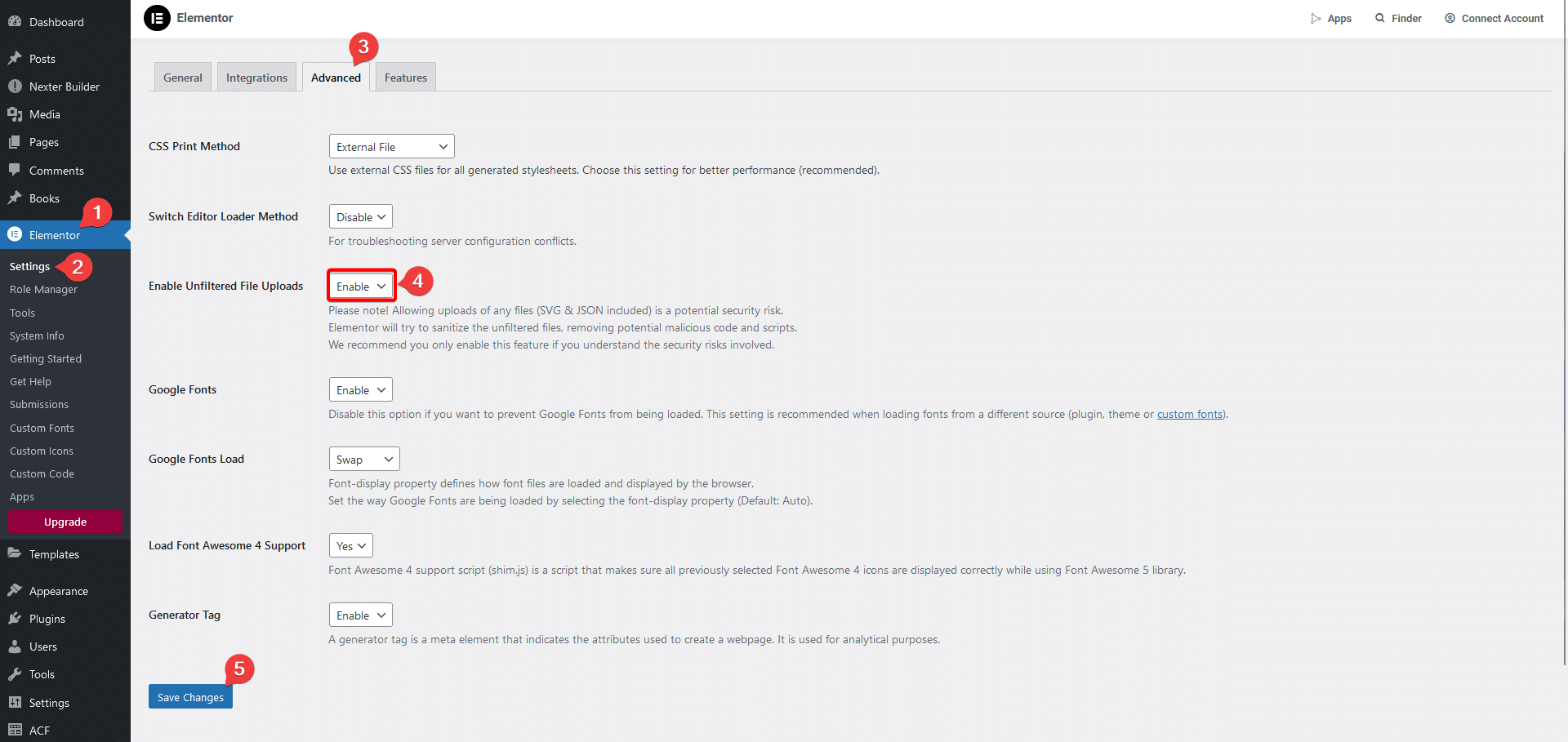
Enable SVG file upload
Make sure SVG file upload is enabled: go to Elementor → Settings → Advanced, select Enable from the Enable Unfiltered File Uploads dropdown, and click Save Changes.
Set your permalink structure
Set your permalink structure to Post name: go to Settings → Permalinks → Permalink structure, select Post name, and save.
Choosing Your Workflow
Open the plugin and log in
Go to Resources → Plugins, search for UiChemy, and click on it, this opens the UiChemy plugin interface. Log in to your account.
Choose Classic Mode
Choose Classic Mode ("Full control over every step") from the mode picker, and click Start.
Pick a workflow
Pick a workflow: Step by Step Method (recommended for new users, walks you through tagging and every stage from prep to publish), Quick Conversion (for experienced users who already know the tagging flow, fewer steps), or Templates (start from an optimized section instead of your own design).
Step by Step Method
This walkthrough follows Step by Step Method, which takes you through 8 steps.
A full Classic Mode conversion using Step by Step Method, from optimizing your design to opening the imported page
First time seeing the Select Site step above? See Connect Your Site for how to get your Connection Link and link your WordPress site.
Select Page
Under Select Widgets to use:, choose Elementor Default (classic widgets) or Editor V4 (Elementor's newer atomic editor). Editor V4 is selected by default, so switch to Elementor Default if your site uses the classic editor. See Atomic Elements (v4). Click Select pages to open a picker with checkboxes for your Figma file's pages and frames, pick one or more. Each selected page appears as a card, click the + tile to add another. Click Next when you're done.
Optimize Multi-Layer Media
UiChemy checks your design for multi-layer media (icons, illustrations, or images built from several layers) that convert more cleanly as a single flattened layer.
- If your design is already optimized, you'll see a confirmation and can continue straight to Next.
- If not, you'll see the specific layers that need attention (for example, a layer named
avatar-pile). Click Lock on each one, or Lock All to flatten every flagged layer at once. Use Rescan if you've since made changes in Figma.
Widget Tagging Mode
Decide how much manual tagging control you want:
- Auto Widget Selection, UiChemy automatically uses the 4 core widgets, Container, Heading, Text, and Image, to convert your entire design.
- Manual Widget Tagging, tag elements to more widgets beyond the core 4, like Button, Carousel, or Gallery, based on your design's needs.
You pick Elementor Default or Editor V4 earlier, on Select Page.
Optimize Your Design
This step opens the Manage Auto Layout panel. Classic Mode needs your design in Auto Layout to tag it accurately.
- It's already in Auto Layout, your design doesn't need further optimization before widget tagging, continue as-is.
- Convert to Auto Layout, UiChemy applies Auto Layout automatically to prepare it for widget tagging. This creates a duplicate of your selection rather than changing your original design.
This same step also lets you optimize your design before tagging, toggle between:
Skip either mode if your design is already well optimized.
Tag Widgets
Manually tag Figma layers to specific Elementor widgets, beyond the core widgets set in Step 3. Click a layer in Figma, then select the matching widget here. Choose which widget library to tag from:
- Elementor Widgets, the free, built-in Elementor widgets
- Elementor Pro Widgets, needs UiChemy Pro, and Elementor Pro installed on your site
- The Plus Widgets, from The Plus Addons for Elementor
A running count (Currently: N Tagged Frames) shows how many layers you've tagged so far. Use Hide Tagging / Show Tagging to toggle a visual overlay on the Figma canvas showing which layers are already tagged.
Responsive
Choose how your design adapts across devices:
- Smart Auto Responsive (recommended), UiChemy applies font sizes, spacing, and layout values automatically, based on proven design practices. Best for most standard websites.
- Manual Responsive Setup, set your own font size, line height, padding, and flex gap values per breakpoint. See Responsive Layout for the full walkthrough.
Global Styles
If you're using a design system, sync your Figma styles to Elementor's globals. Connect the site you want to synchronize, then set:
- Global Container Width -> per breakpoint, Desktop, Tablet, and Mobile by default, plus Widescreen, Laptop, Tablet Landscape, and Mobile Landscape from + Add Breakpoints.
- Global Colors -> your Figma color styles, synced to Elementor's global color variables.
- Global Typography -> your Figma text styles, synced to Elementor's global typography variables.
With Editor V4 selected, this screen is called Sync Global Classes & Variables and also lets you set:
- Global Padding -> a shared inner spacing value.
- Global Border -> a shared border style.
- Global Border Radius -> a shared corner-rounding value.
- Global Gap -> a shared flex/grid spacing value.
- Global Shadow -> a shared drop shadow style.
With Elementor Default, the screen is called Sync Global Styles and covers container width, colors, and typography only. See Figma Style Sync for the full walkthrough.
Conversion Settings
Set your export options before converting:
- Export without images: skip images for a faster, lighter import.
- Use Figma's Exported Images: use Figma's own exported images (on by default).
- Export Image Format and Image Compression Quality: pick the output format (WEBP by default) and how much it's compressed (Auto by default). These show only when Figma's exported images are on.
- Export scale of Images: sets the pixel density images export at.
- Set Widths in Percentage: export element widths as percentages instead of fixed pixel values (on by default).
- Minimum Words to Tag as Text Editor: how many words text needs before UiChemy converts it to a Text Editor widget (10 by default).
- Export for RTL Languages (Beta): export the layout for right-to-left languages.
See Conversion Settings for details on each one.
Click Convert when you're ready.
Quick Conversion
If you already know the tagging flow, choose Quick Conversion instead of Step by Step Method back at the mode picker. After Step 1 (Select Page), you'll land on a menu with the same steps, in any order you like:
- Optimize Multi-Layer Media
- Convert to Auto Layout
- Tag Widgets
- Responsive Manager
- Sync Global Styles
- Conversion Settings
Open only the ones you want to adjust, or click Convert directly to use the defaults.
Export Your Design
Choose Your Export Method
Based on your selection, UiChemy automatically decides which export methods are available. If you selected the main outer frame, you'll see two options:
If you selected an inner section rather than the main outer frame, only Copy to Clipboard is available.
Downloading Your Template
Which method you use here depends on your builder.
Import and Use in Elementor
Import Template in Elementor
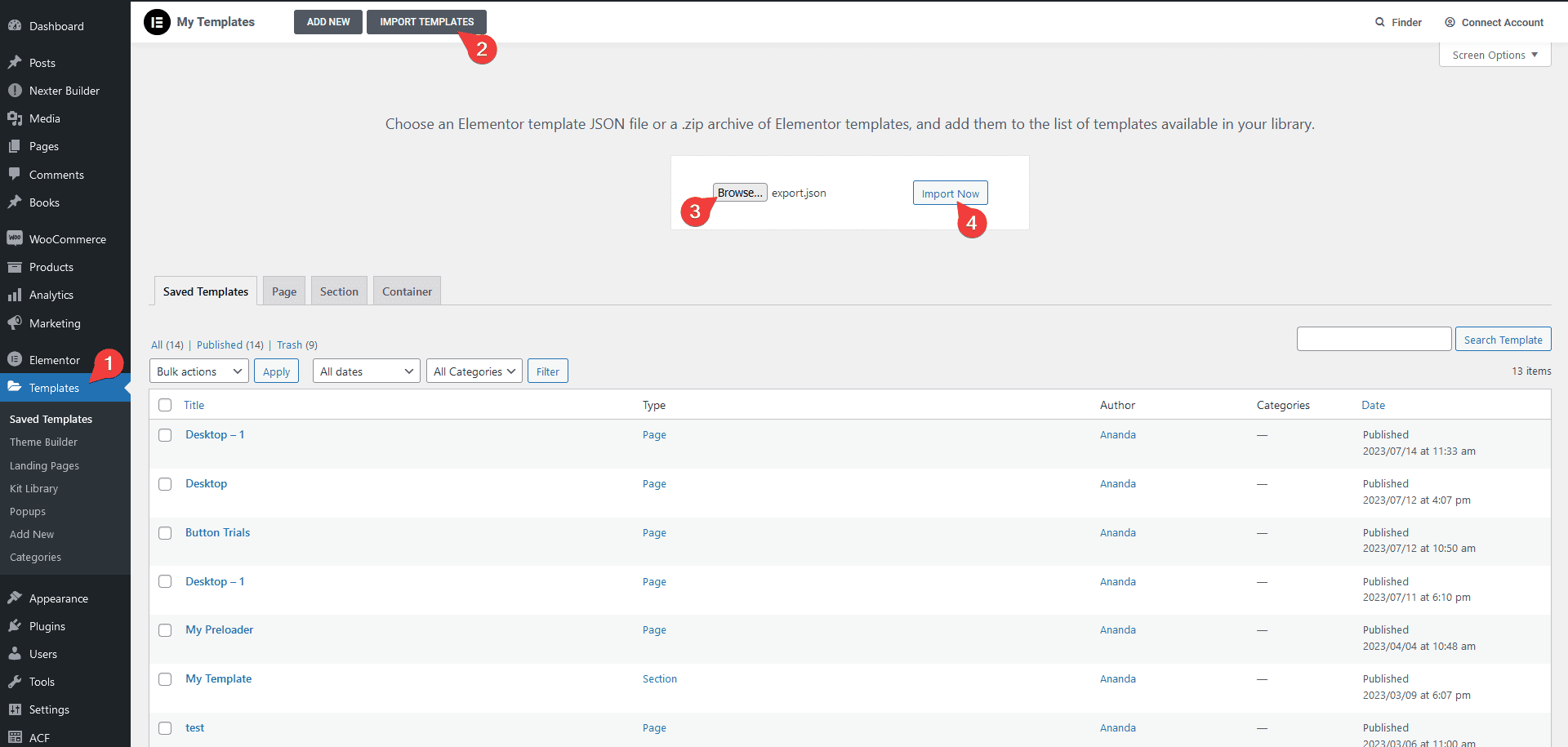
Go to Import Templates
From the WordPress Dashboard, go to Templates and click Import Templates.
Import your template
Click Browse, select your exported template, then click Import Now. Depending on your design's complexity and file size, this may take a moment.
Check the imported template
Click View to check the imported template.
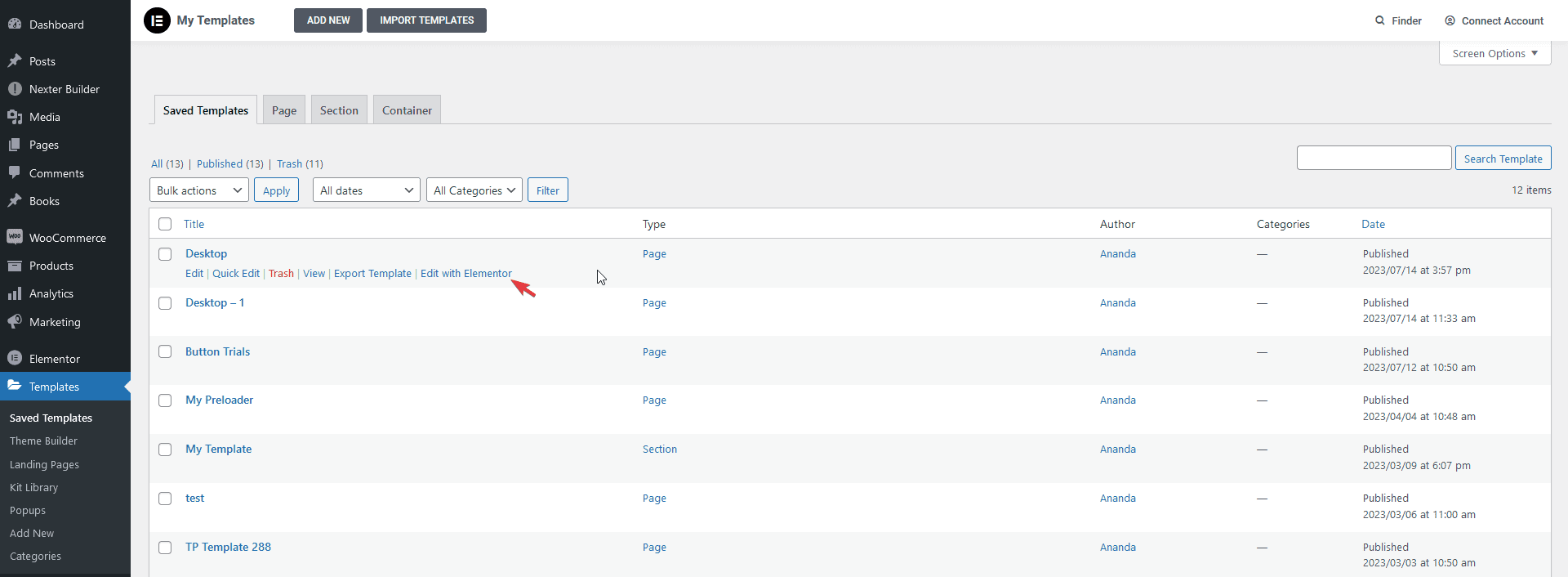
Open it in Elementor
Open the template by clicking Edit with Elementor.
Set the page layout
To make sure the layout displays correctly, go to Settings in the Elementor editor panel and set Page Layout to Elementor Full Width or Elementor Canvas (only if you're building a single-page site with header, footer, etc.).
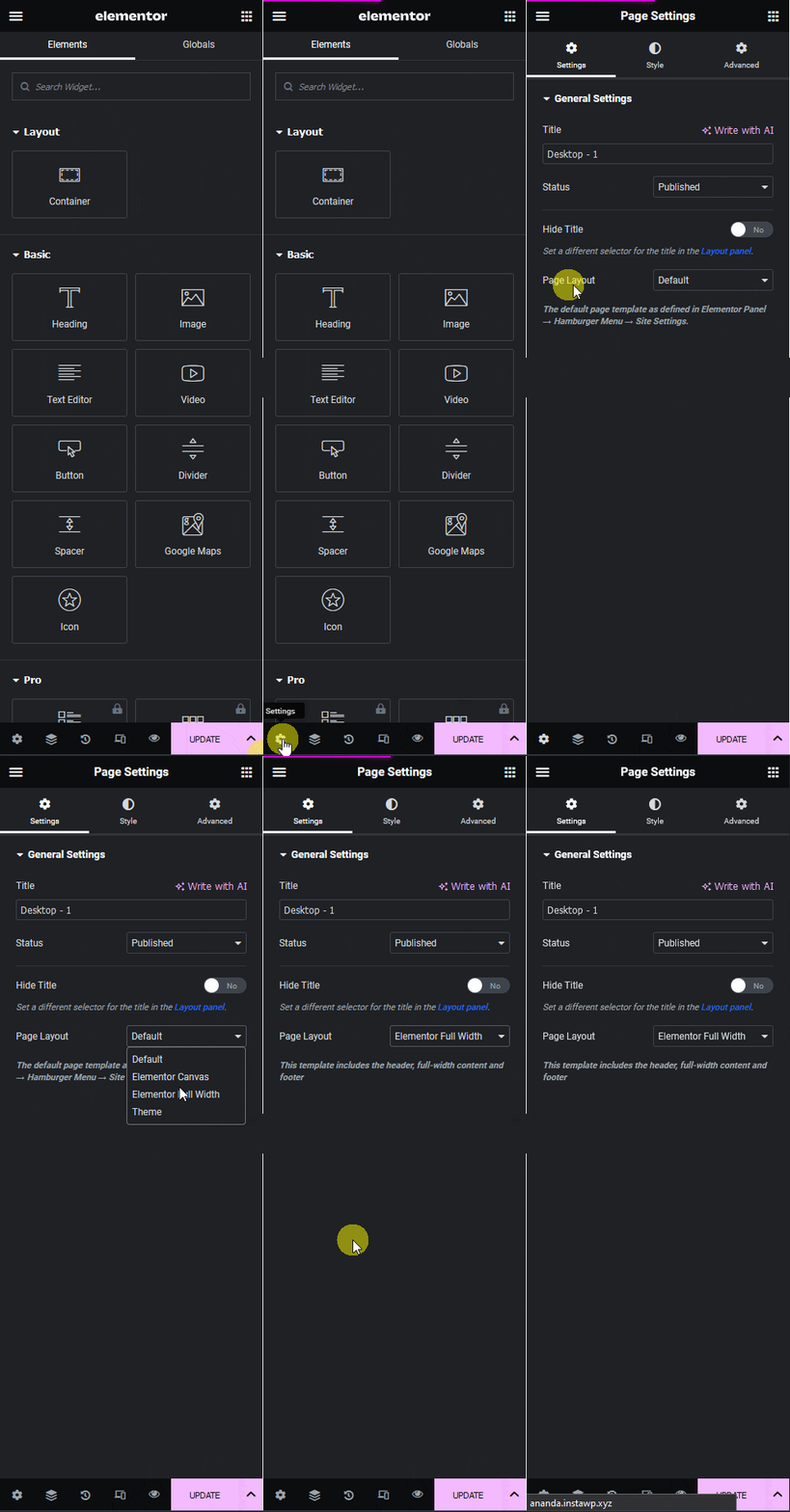
If your layout contains a common sidebar, keep the page layout at default and add the sidebar as a separate template. If your layout contains common sections like a header or footer, create separate templates for them (e.g. using the free Nexter theme) and reference them from your current template.
Use the Template
Create a new page
Add a new page, save it, then click Edit with Elementor.
Open Add Template
Click the folder icon (Add Template).
Insert your template
In the popup, go to the My Template tab, find your template, and click Insert to add it to the page.
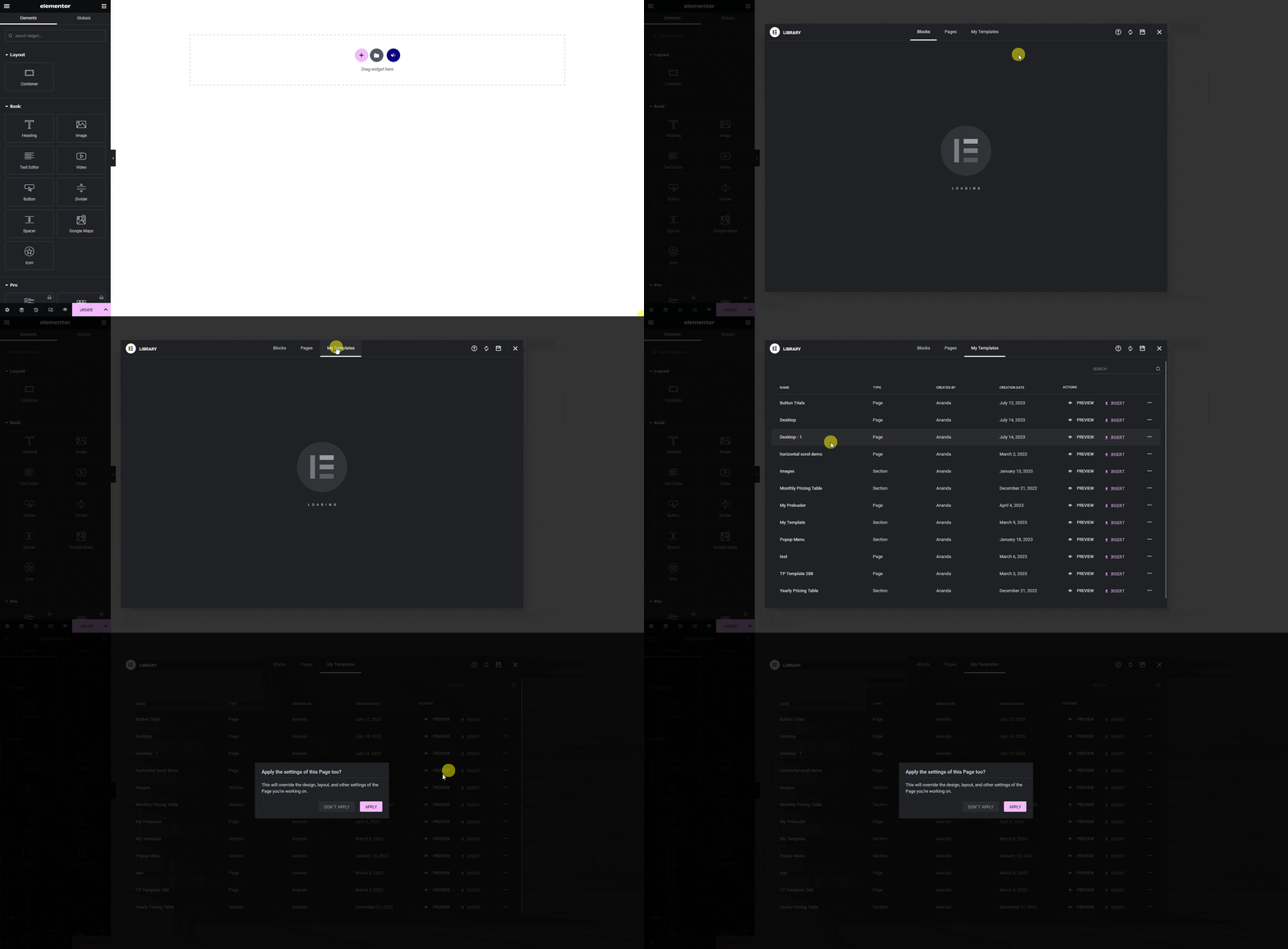
Apply the template settings
When prompted to apply the template's settings to the page, click Apply, the page now shares the same page settings as the template.
For any issue, see Troubleshooting.