

How to Export Figma Design in Fluid Responsive Layout Using Responsive Manager in UiChemy?
Use CSS Clamp in UiChemy's Responsive Manager to make font size scale fluidly between viewport widths.
When you choose Smart Auto Responsive during conversion, your design comes out about 95% responsive on most devices by default. If you want to manually customize the responsive values, there are two ways to do it with Manual Responsive Setup:
- Regular responsive layout
- Fluid responsive layout using CSS Clamp for font size
Why Use Fluid Layout
- Scales smoothly at every width, text adjusts continuously between your minimum and maximum viewport instead of jumping between fixed tablet/mobile sizes.
- Set it once, define your threshold rows and a min/max viewport width, no need to configure a separate value for every breakpoint in between.
- Avoids awkward in-between sizing, regular responsive layout only defines values at set breakpoints, Clamp keeps text readable at any screen width, not just the ones you configured.
When to Use It
Reach for Fluid Layout on large headline or hero text, where a visible jump in size between tablet and desktop would look broken. For most body text, buttons, and smaller UI elements, the fixed values in regular responsive layout are usually enough, and simpler to reason about.
How CSS Clamp Works
Switch the Font Size tab from Normal to Clamp. The table itself works the same way as Normal mode, a list of Desktop thresholds (10+ px, 20+ px, 30+ px...) each mapped to a Mobile percentage and resulting px, with the same AutoFill option. What makes Clamp different is a Viewport field pair at the bottom of the table, a minimum and maximum viewport width in pixels. Between those two widths, the font size scales fluidly instead of snapping at fixed breakpoints, at or below the minimum viewport it uses the smallest row's value, at or above the maximum it uses the largest.
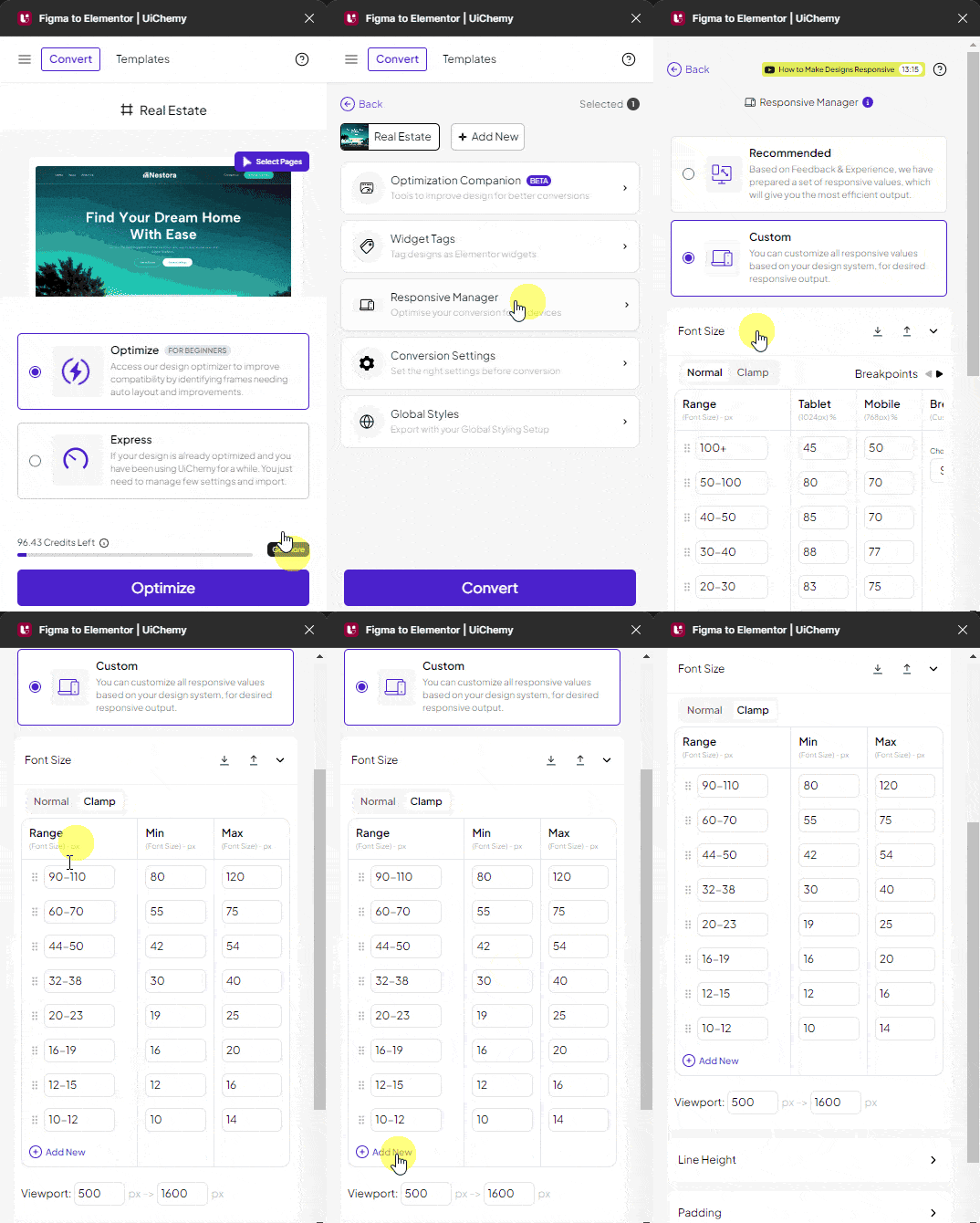
Export as Fluid Responsive Layout
- Open the UiChemy plugin in Figma and make sure you're logged in.
- Select your frame, choose Classic Mode → Step by Step Method, and continue through to Step 6: Responsive.
- Select Manual Responsive Setup.
- In the Font Size tab, select Clamp to make the font size fluid across screen sizes.
- Set your Desktop threshold rows and Mobile percentages the same way as Normal mode, then set the Viewport min and max width at the bottom.
Click + Add New to add more rows (requires UiChemy Pro).
You can adjust line height and padding the same way as in a regular responsive layout. Once your settings are done, click Back, then Next. When you export the design, the exported template automatically adjusts font size according to viewport size.