

How to Add Auto Layout to Your Design With UiChemy?
Use UiChemy's Convert to Auto Layout feature to prepare your Figma design for widget tagging.
A well-structured design improves the tagging experience and reduces confusion during the tagging process.
UiChemy's Convert to Auto Layout feature allows you to specify whether your design is already using Auto Layout or if you want UiChemy to automatically convert it in preparation for widget tagging. This step prepares your design for the next phase of tagging.
What If Your Design Is Not in Auto Layout?
- If your design is not using Auto Layout, widget tagging may become confusing or inaccurate.
- Don't worry! UiChemy offers a Convert to Auto Layout option that automatically applies Auto Layout to your selection.
- A duplicate of your design will be created, so your original stays untouched.
- This saves time and helps make your design clean and easier to tag.
Auto Layout Detection in UiChemy
UiChemy automatically checks if your selected design elements are using Auto Layout:
If your design is already in Auto Layout, the plugin will display the message: "Your design is already in Auto Layout." In this case, you can proceed directly to widget tagging. If you wish to refine the structure or reapply Auto Layout, you can use the Convert to Auto Layout option again. When you do this, a duplicate of your selection will be created to preserve the original design.
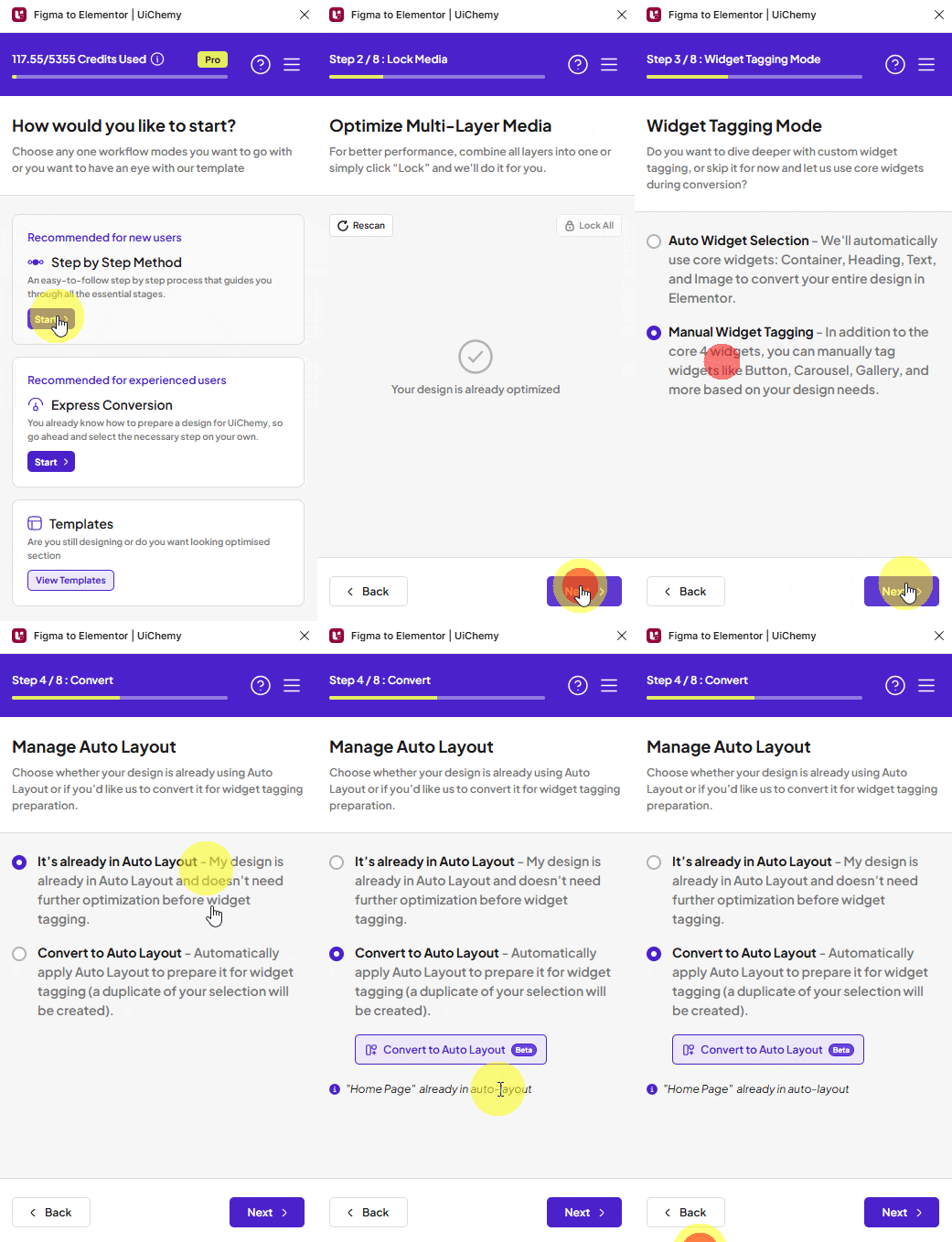
If your design is not using Auto Layout, the plugin will display a message letting you know it isn't in Auto Layout yet. In this case, click the Convert to Auto Layout option to apply Auto Layout to your selection before you proceed to widget tagging. A duplicate of your selection will be created so your original design stays untouched.
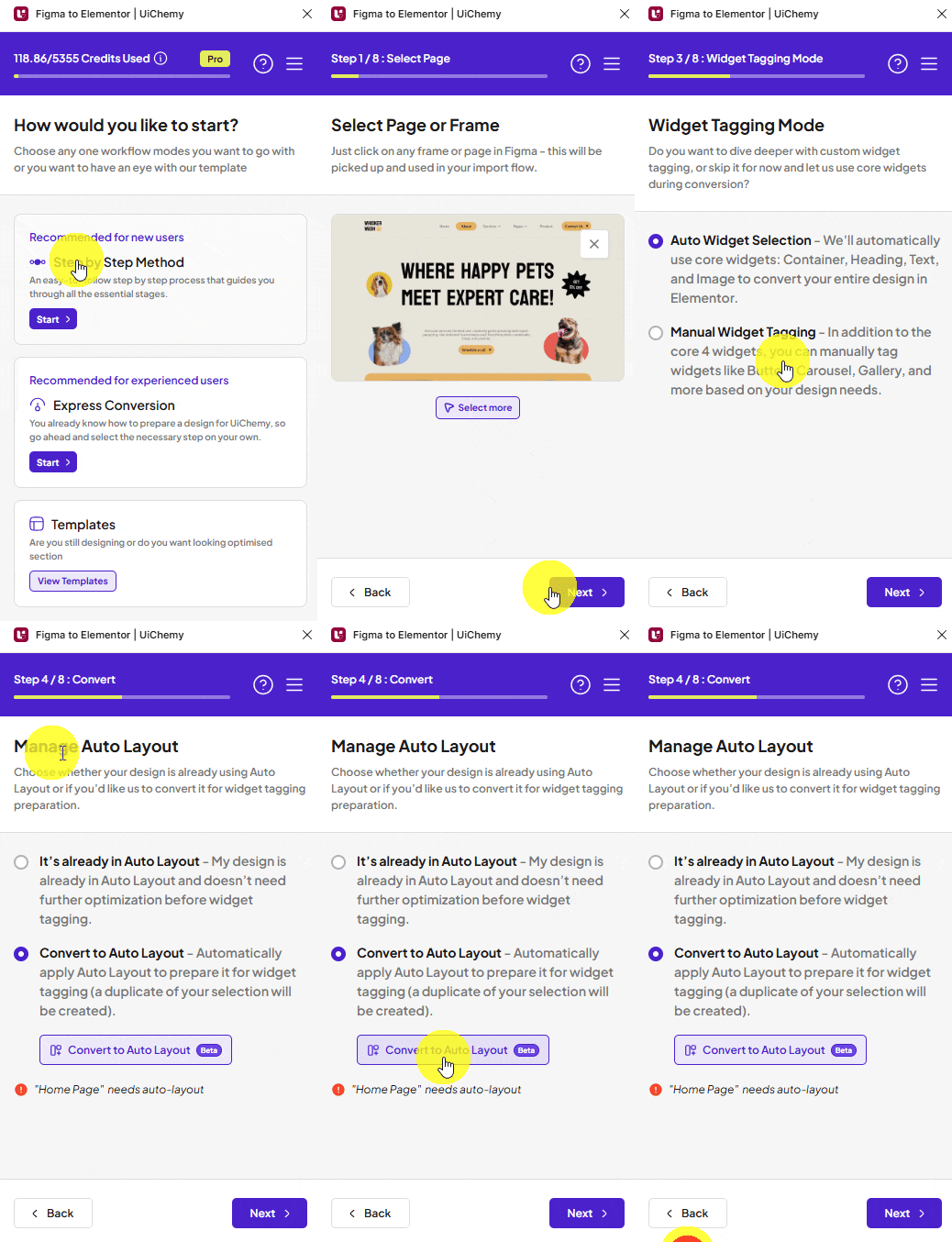
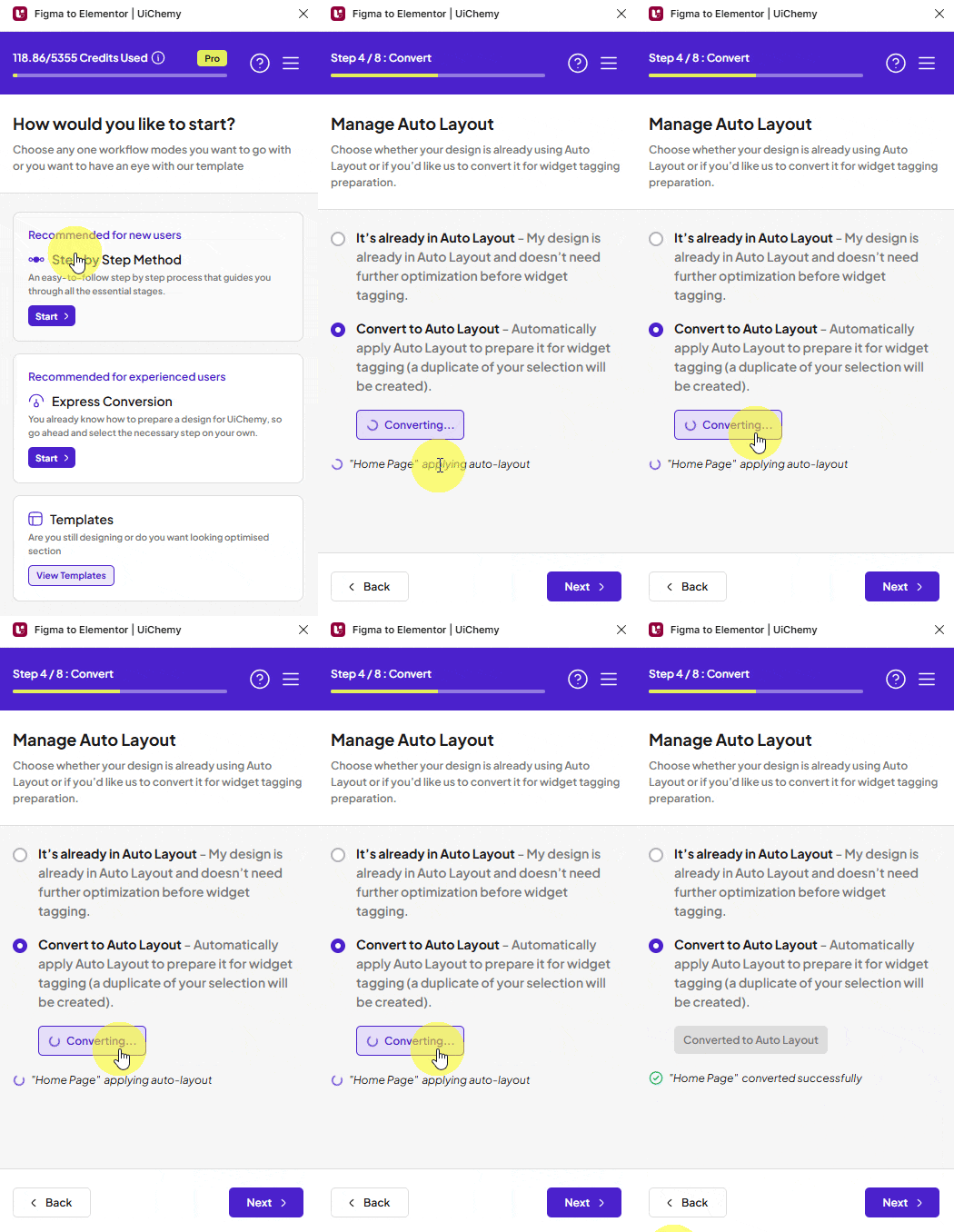
In Step 4: Optimize Your Design, the Manage Auto Layout panel lets you convert your design from non-auto to auto by clicking the Convert to Auto Layout button. Once done, you will see a Converted successfully message. Below, you can see how it works.
Even if your design is not using Auto Layout, maintaining a good and organized structure in your layers and groups is important. This will help UiChemy give you the best result.
Optimize Your Design: Auto and Manual
In the Classic Mode Step by Step Method, Step 4 / 8: Optimize Your Design opens the Manage Auto Layout panel: "Choose whether your design is already using Auto Layout or if you'd like us to convert it for widget tagging preparation." Switch between two tabs at the top:
- Auto: UiChemy checks your selection and converts it for you.
- Manual: you work through a guided checklist and fix each issue yourself.
Auto Optimization
- Open the Auto tab.
- Under Select your design source, pick where your design came from, for example Built from Scratch.
- UiChemy checks your selection and shows a message for any frame that isn't in Auto Layout.
- Click Convert to Auto Layout (Beta) to apply it.
Example: You select a frame named Frame 56 that isn't in Auto Layout. The Auto tab shows "'Frame 56' needs auto-layout". Click Convert to Auto Layout to fix it.
Manual Optimization
The Manual tab reads: "Fix and refine your design step by step. Follow guided suggestions to improve structure, reduce errors, and prepare your design for accurate export."
Checks are grouped into categories. Each category shows a progress bar, starting at Not scanned yet. Categories with a lock icon open once you finish the ones before them.
| Category | Checks |
|---|---|
| Media & Vectors | Stroked Vectors & Shapes, Flattenable Vector Groups, Unlocked Image & Icon Layers |
| Layer Cleanup & Improvements | Clipped Nodes Outside Bounds, Invisible or Hidden Layers, Incorrect Layer Constraints |
| Shape Cleanup | Vectors Used as Rectangles, Groups With Rectangle Background, Rectangles Containing Siblings, Ellipses Used as Containers |
| Frames & Groups Cleanup | Redundant Wrapper Layers, Groups Instead of Frames, Duplicate Nested Frames, Nodes Covered by Overlapping Layers, Absolutely Positioned Orphan Nodes, Masks Used as Backgrounds |
| Text & Divider Cleanup | Oversized Line Heights Detected, Line Nodes Used as Dividers |
| Auto Layout | Frames Without Auto Layout, Leftover Frames After Auto Layout, Negative Auto Layout Gap |
Each check has a priority badge, High, Medium, or Low, so you know what to fix first.
How to Work Through a Check
- Click a check card to open it. UiChemy scans your design for that issue.
- If nothing needs fixing, you'll see No issues found and the card is marked Finished.
- If layers need fixing, they're listed in the card. Use the buttons below to handle each one.
- Click Next to move on to the next check.
Example: The Frames Without Auto Layout check lists Frame 56, Frame 57, and Frame 58, the frames in your design that still need Auto Layout.
| Button | What it does |
|---|---|
| Reveal in Figma (target icon) | Selects that layer in Figma, so you can see exactly which part of the design needs fixing |
| Check | Checks that one layer again after you've fixed it in Figma |
| Ignore | Skips that layer if you don't want to fix it |
| Restore | Brings back a layer you ignored |
| Check All | Checks every listed layer in one go |
| Rescan | Scans your design for that issue again |
| Next | Moves to the next check |
Example: The Frames Without Auto Layout check (Medium) lists Frame 58. Click the target icon to select it in Figma, then press Ctrl + Alt + Shift + A (the plugin shows Ctrl + Shift + A on Mac) to apply Auto Layout and click Check. If you click Check before fixing it, you'll see "'Frame 58' is not in auto-layout yet. Apply it in Figma first, then check again."
Fixing Issues in Figma
UiChemy points out what needs fixing, but you make the fix in Figma itself. Select the layer (click the target icon), then use Figma's Design panel on the right, the same panel with Frame, Position, Auto layout, Appearance, and Fill.
| Check | Where to fix it in Figma |
|---|---|
| Frames Without Auto Layout | Auto layout section, or press Ctrl + Alt + Shift + A (Ctrl + Shift + A on Mac) |
| Invisible or Hidden Layers | Appearance section: set Opacity above 0% or use the eye icon, or delete the layer if you don't need it |
| Clipped Nodes Outside Bounds | Move the layer back inside its frame, untick Clip content in the Auto layout section, or delete it |
| Incorrect Layer Constraints | Constraints and Resizing settings for the selected layer |
| Stroked Vectors & Shapes | Right-click the layer and choose Outline stroke |
| Flattenable Vector Groups | Right-click the group and choose Flatten |
After fixing, go back to the UiChemy plugin and click Check or Rescan.
When a Category Is Done
When every check in a category passes, its progress bar reaches 100% and reads No issues found. That means this part of your design is optimized and ready for export.