How to Export Your Figma Design Without Images?
Export your Figma layout without images in UiChemy to speed up import and avoid errors with heavy image files.
When you export a Figma layout with lots of images, or heavy images, using UiChemy, it can take a long time or even show errors while importing into Elementor. UiChemy provides a workaround for this, you can export your Figma layout without images.
Export Without Images
Open the UiChemy plugin and make sure you're logged in. Select either the Step by Step Method or Quick Conversion, choose the top-level page or frame of your layout, and follow the steps until you reach the Conversion Setting tab. There, turn on the Export without Images toggle.
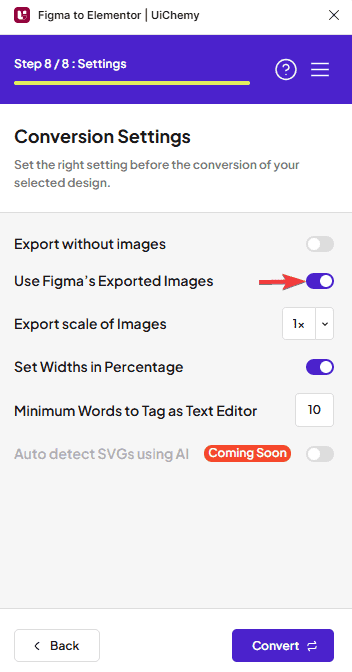
Your images are replaced with Elementor placeholder images when you import the template, so the exported file imports quickly.
Frequently Asked Questions
What should I do if my Figma layout with images takes too long to export?
If your layout has heavy images, exporting can be slow or cause errors on import into Elementor. Use UiChemy's Export without Images option, it replaces images with Elementor placeholder images for a quicker import.
What are the best practices for exporting Figma designs to WordPress?
Use Export without Images if your design includes heavy images, to speed up import and avoid potential errors in Elementor. Always make sure you're logged into the UiChemy plugin before starting the export.
What happens if I forget to turn on the Export without Images toggle?
Your exported design will include all images, which can mean longer import times and potential errors, especially if the images are large or numerous.
Does UiChemy support exporting without images for Gutenberg and Bricks Builder?
Yes, Export without Images works for Elementor, Gutenberg, and Bricks Builder, replacing images with placeholders across all three.
What common mistakes do users make when exporting?
Not checking the Conversion Settings before exporting, users often forget to enable Export without Images, leading to slow imports and errors. Always review your settings before exporting.