

How Manual Tagging Works in UiChemy?
Understand how UiChemy's manual widget tagging connects your Figma design to Elementor widgets.
What Is Tagging?
Tagging is the process of connecting elements in your Figma design, buttons, headings, images, or icons, to their corresponding Elementor widgets. This is done using UiChemy, which converts your static Figma design into a fully functional, dynamic WordPress website using Elementor. Tagging defines how each element in your design should behave and appear on your live site.
See the full list of supported Elementor widgets in UiChemy.
Why Is Tagging Important?
- Accurate Conversion, each design component maps directly to the right Elementor widget
- Greater Control, flexibility to use either core or advanced widgets depending on your design
- Efficient Workflow, reduces the need for manual adjustments in Elementor after export
- Editable Output, the exported site is built using Elementor widgets, making it easy to maintain and update
- Dynamic Results, converts static designs into responsive, interactive WordPress websites
- Better Performance with Auto Layout, using Figma Auto Layout helps UiChemy understand layout hierarchy and structure, leading to more accurate widget tagging and cleaner exports
How Tagging Works
UiChemy offers two tagging modes depending on your workflow needs:
1. Auto Widget Selection (Quick Start), automatically assigns Elementor's core widgets (Container, Heading, Text, Image) to your Figma layers. Best suited for basic layouts and faster design-to-site conversions.
UiChemy also supports Elementor's Grid container, so Figma layouts using a grid structure can convert to a native Elementor Grid instead of a Flexbox Container.
2. Manual Widget Tagging (Advanced Control), manually tag elements using specific widgets such as Elementor Widgets, Elementor Pro Widgets, and The Plus Widgets.

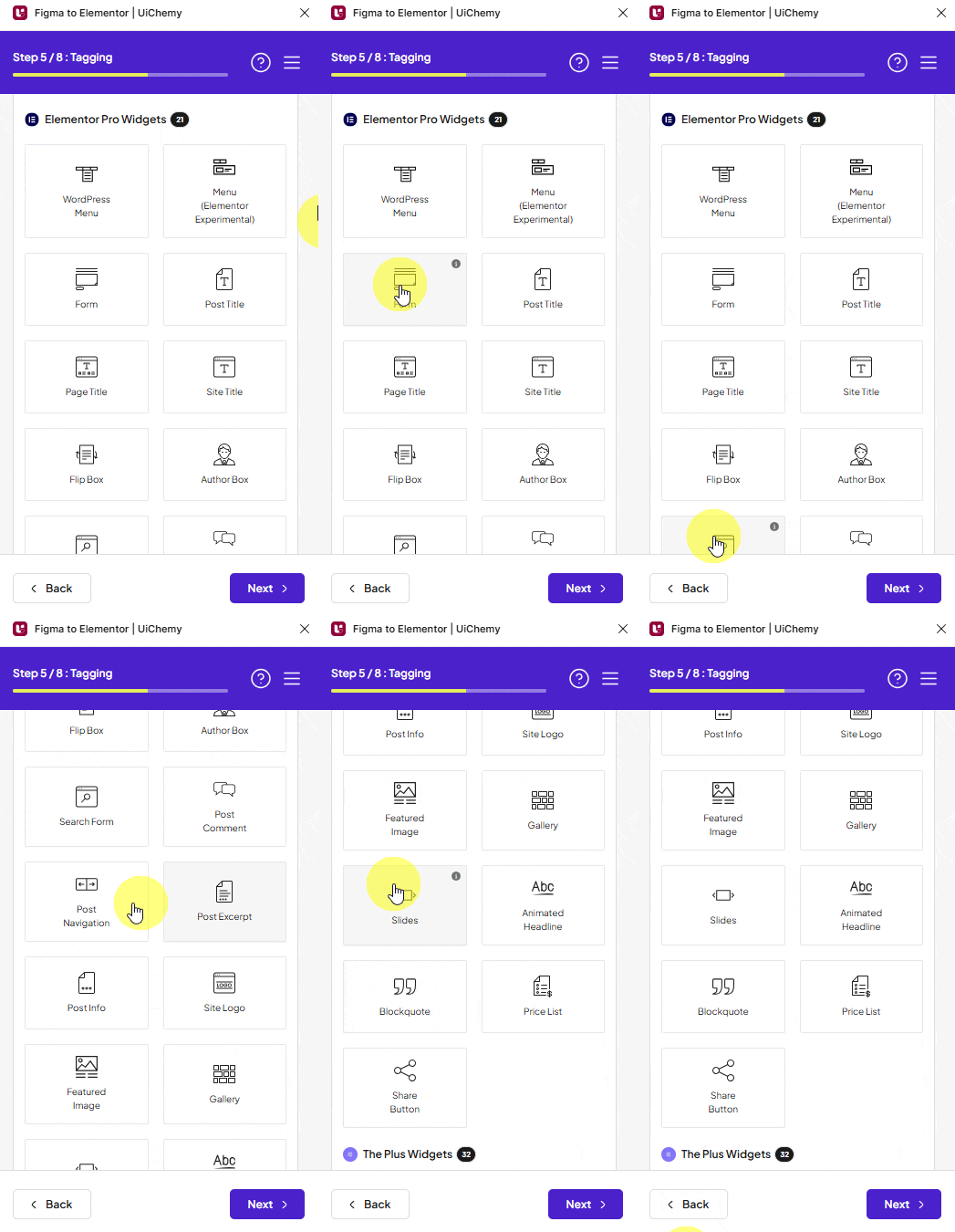
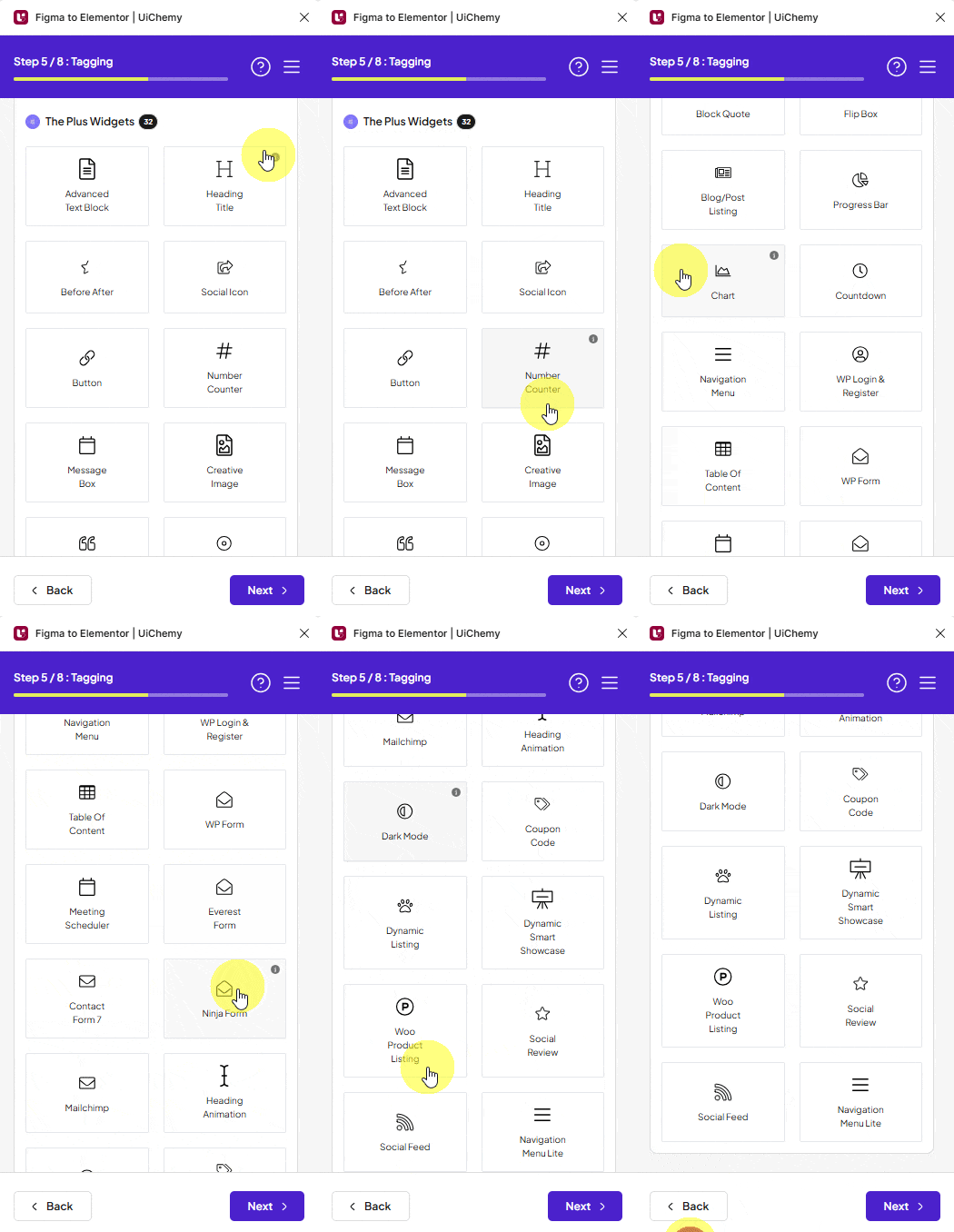
If your design uses Auto Layout in Figma, it greatly improves the tagging experience, it helps UiChemy better interpret your layout's structure, leading to more accurate widget tagging and cleaner output in Elementor.
How to Tag a Button Widget
You can choose between two conversion methods: Step by Step Method or Quick Conversion. Here's the Step by Step Method:
- Select Step by Step Method and click Start.
- Select the top-level page or frame of your layout, then click Next.
- Under the Widget Tagging Mode tab, choose Manual Widget Tagging.
- In Step 4: Optimize Your Design (the Manage Auto Layout panel), choose It's already in Auto Layout (assuming your design is already using Auto Layout).
- Under the Tag Widgets tab, choose the frame or container that contains your element, then search for the Button widget in the UiChemy panel and select it.
- The Text field is filled automatically, but you can change it from the dropdown, click the magic wand icon beside each option to see which element it refers to.
- The Icon field is auto-selected if your button uses one, but you can change it from the dropdown. You can use Font Awesome 5 Free icons, SVG icons, or pick any frame/element as an icon using the eyedropper tool.
- In the Link field, specify the button's URL.
- In the Icon Position field, choose whether the icon appears before or after the text.
- Click Save to complete the tagging, you'll see a "Tagged successfully" message.
The available options vary from widget to widget.
Once you export the design, that element uses the Button widget with all your specified information, including icons from the Elementor icon library.
There's a known bug in the Elementor editor where the icon position doesn't display correctly, but it works correctly in the browser/frontend.
How to Tag a Menu Widget
Some widgets, like Menu, open a Tag Details panel to configure their content instead of the field list a Button uses.
- Under the Tag Widgets tab, click your Figma menu bar layer, then search for the Menu widget in the UiChemy panel and select it. A panel opens: "You are tagging Menu bar as a Menu widget."
- Each menu item gets its own Navigation Menu entry, set its Menu Title and Link (use
#as a placeholder if you'll set the real URL later). - Click + Add New to add another menu item, repeat for each link in your navigation.
- Set Menu Direction to Horizontal Menu or Vertical Menu, depending on your design.
- Click Save to complete the tagging, you'll see a "Tagged successfully as 'Menu'" message. Click Clear instead to remove what you've entered and start over.
Tagging Errors
If you select the wrong layer while tagging, UiChemy shows an error instead of letting you continue:
- "You can't tag this, please select one of its children. Please ensure this structure: Page > Container > Widget." You selected a layer too high up the hierarchy. Click Add Structure, or select a child layer that actually represents the widget.
- "Make sure you select Frame, Component or Instance." The layer you selected isn't a Figma Frame, Component, or Instance, tagging only works on those layer types. Select a different layer and try again.