How to Create a UiChemy Account and Activate it?
Create a UiChemy account, purchase a license, and activate the plugin in Figma.
To convert your Figma layout into an Elementor or WordPress template using UiChemy, you first need to create an account and download the UiChemy plugin.
Create an Account
- In Figma, go to Resources → Plugins, search for UiChemy, and click Run. This installs the plugin and opens the UiChemy interface.
Without purchasing the UiChemy Pro plan, you won't be able to access its features.
- Enter your UiChemy license key and click Activate. To get a license key, click Get UiChemy Key, this takes you to the UiChemy pricing page. Select your plan and click Buy Now.
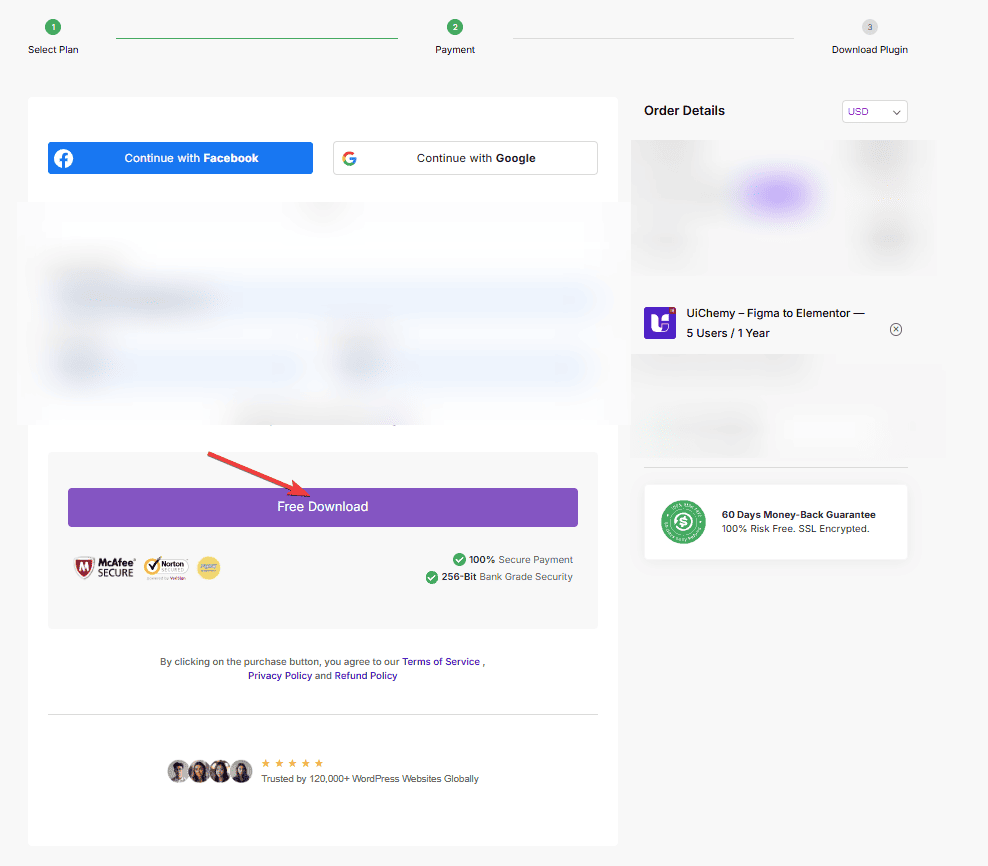
- This takes you to the Posimyth Store checkout page. Log in, or continue with Google/Facebook, or create an account manually. Click Get Your Key to complete your setup.
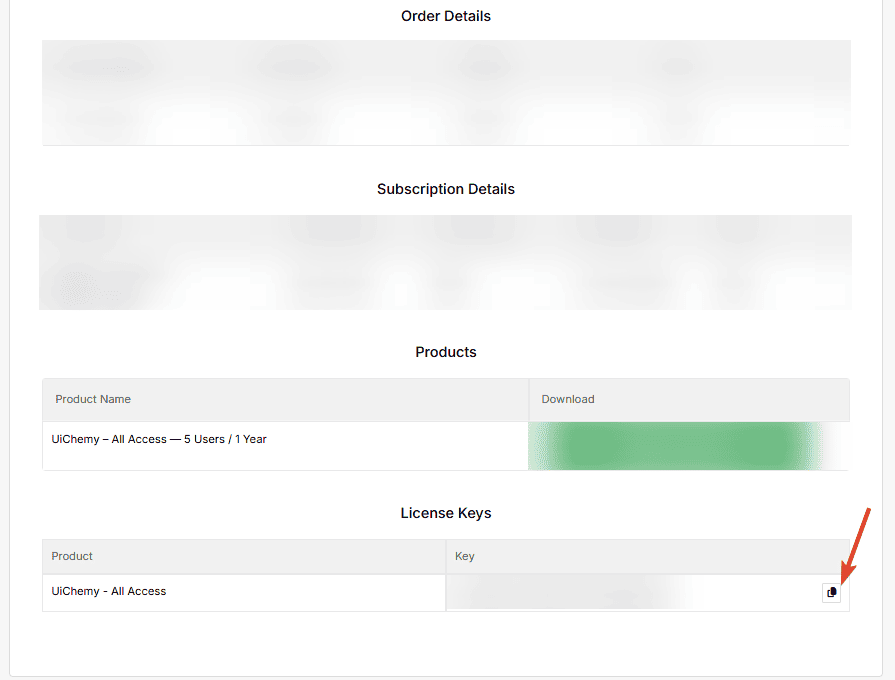
- On the next page, you'll see your order details with the UiChemy license key. Copy it.
- Go back to Figma, paste your license key in the Key field in the UiChemy interface, and click Activate.
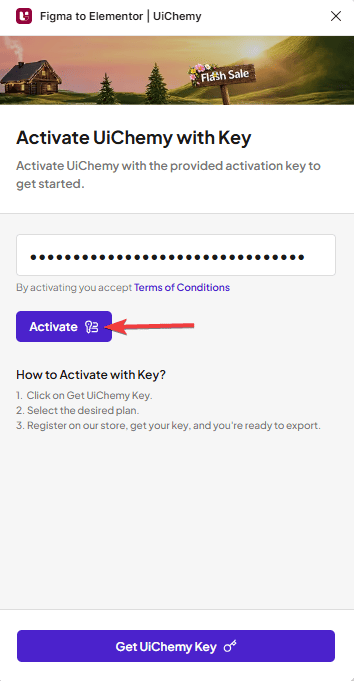
Now you can use UiChemy.
Frequently Asked Questions
What should I do if I can't find the UiChemy plugin in Figma?
Make sure you're searching under Resources → Plugins. If it's still not appearing, try restarting Figma, updating the app, or checking that your account has permission to access plugins.
What's the best way to activate my UiChemy account after purchasing a license key?
Paste the key into the Key field in the UiChemy interface within Figma and click Activate, this unlocks the plugin's features.
What should I do if I lose my UiChemy license key?
Log into your account on the Posimyth Store, your order details will show the license key again. It's a good idea to keep a backup of your key.