

Ideal Way to Design in Figma With Auto Layout for Pixel Perfect Conversion
Learn the ideal way to structure your Figma layout with Auto Layout for a pixel-perfect UiChemy conversion.
UiChemy eliminates the hassle of manually recreating your Figma design in WordPress. By directly exporting your Figma layout into an Elementor or Gutenberg template, you save valuable time and effort, letting you focus on fine-tuning the visual details and enhancing the user experience.
However, you have to follow certain design guidelines while designing your layout in Figma for a pixel-perfect conversion with UiChemy, one of them is using Auto Layout.
What Is Auto Layout in Figma?
Auto Layout is a Figma feature that arranges the elements inside a frame in a set direction, with set spacing and padding. When content or screen size changes, the frame resizes and rearranges itself automatically, the same way CSS Flexbox works on a web page. That is why UiChemy can turn Auto Layout frames into responsive containers.
Best Way to Use Auto Layout in Figma for UiChemy
While designing a layout in Figma, keep all the elements inside a main Frame (the top-level frame).
Then add frames to create sections inside the main frame, following the fundamental web layout structure where sections are placed vertically one after another inside the main container. You can add elements inside the sections only.
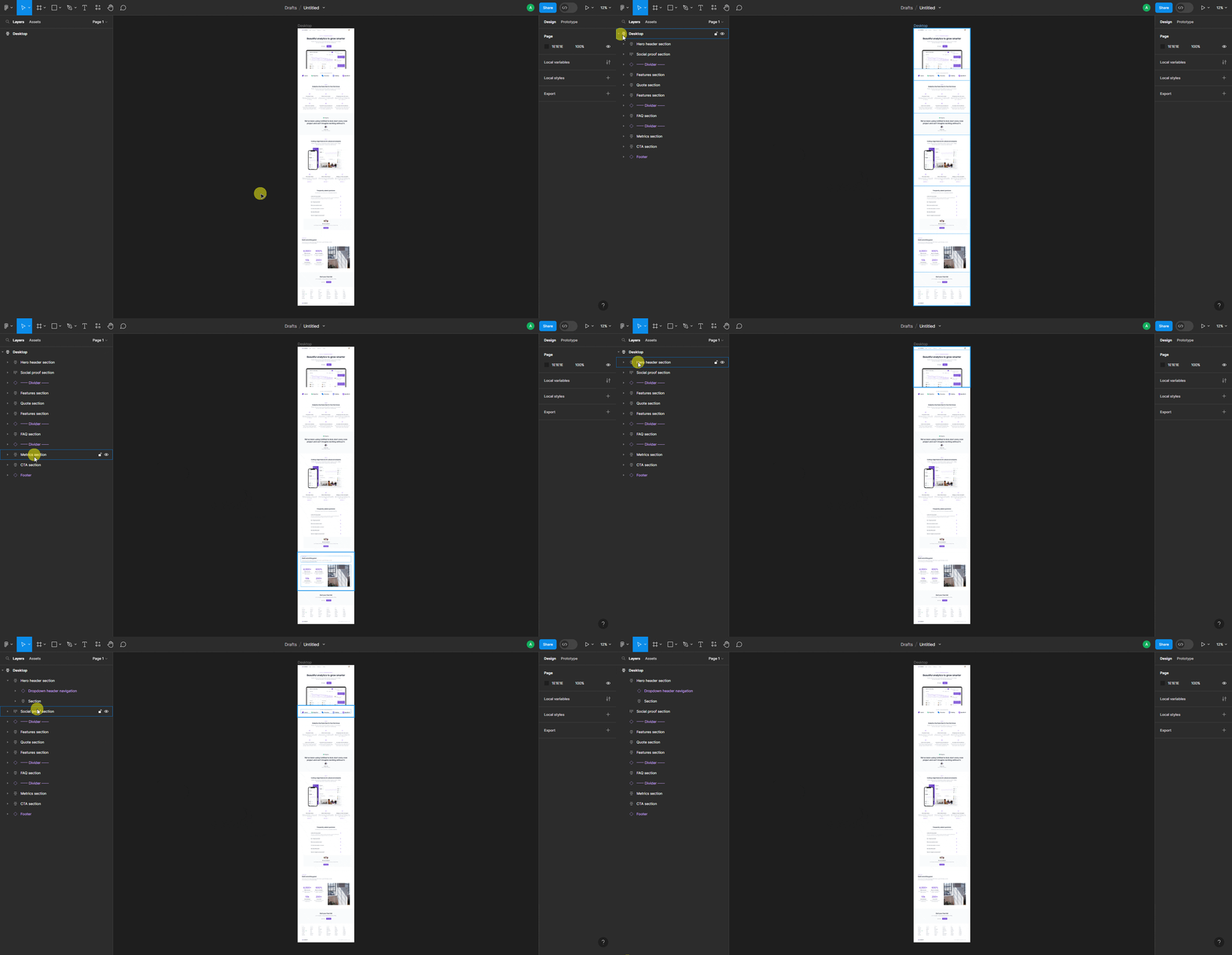
Don't add any elements directly outside the container, as those will be ignored while exporting the layout.
For the top-level frame:
- Enable Auto Layout
- Set layout to Vertical layout and alignment to Align top center
- Set Horizontal padding, Vertical padding, and Vertical gap between items to 0, so there are no unnecessary spaces
- Set a fixed width for the top-level frame (your preferred value). For height, use Hug contents or Fixed height, whichever you're comfortable with
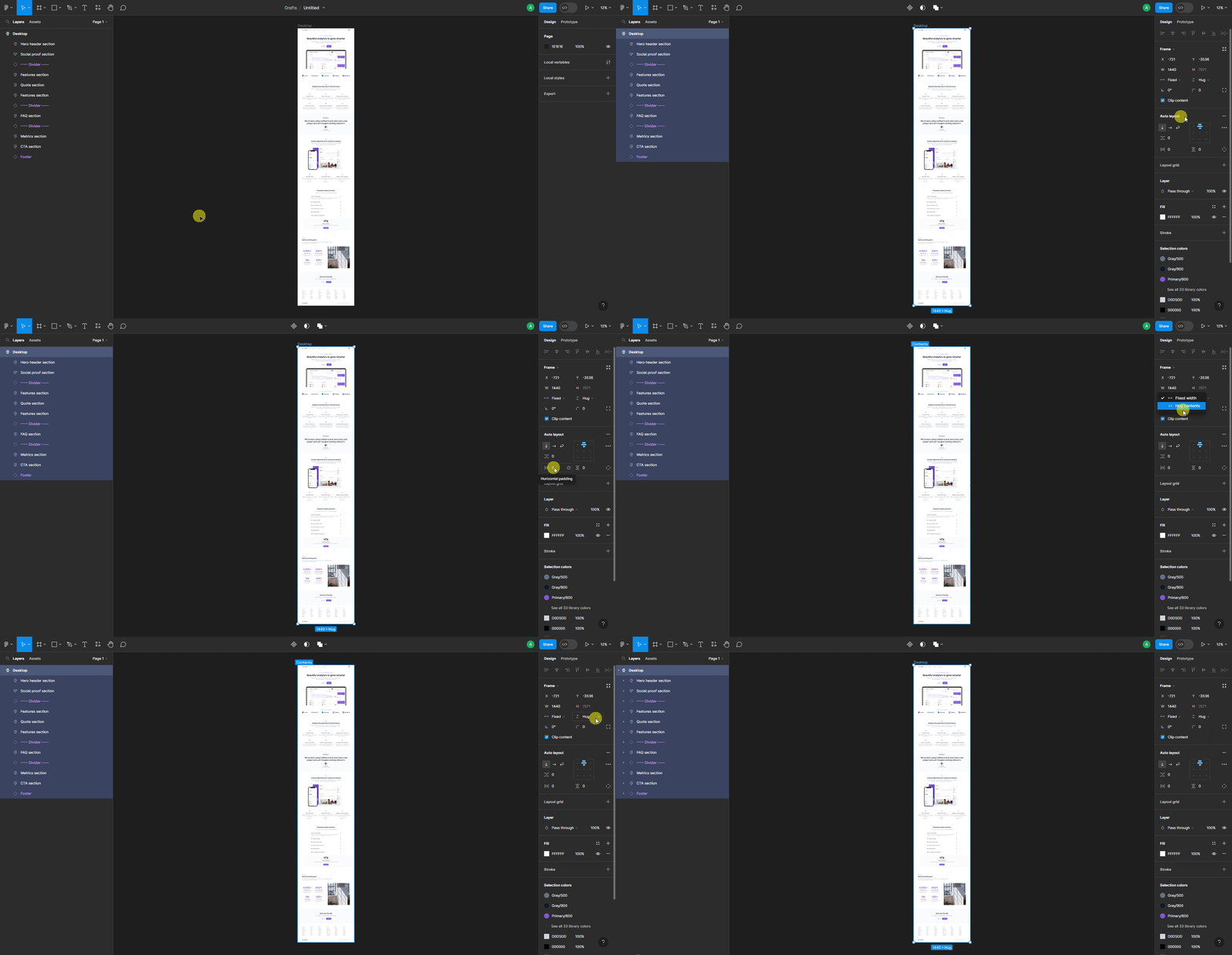
You can also use a Page template in UiChemy to create the top-level frame quickly, with all the recommended settings already applied.
For the sections inside the top-level frame, enable Auto Layout for a better responsive layout, then set the layout and alignment according to your needs.
You can use absolute positioning as well, but it can cause issues with the responsive layout. Setting width to Fill container is recommended for a better responsive result (though Fixed width is also supported). For height, Hug contents keeps the design flexible.
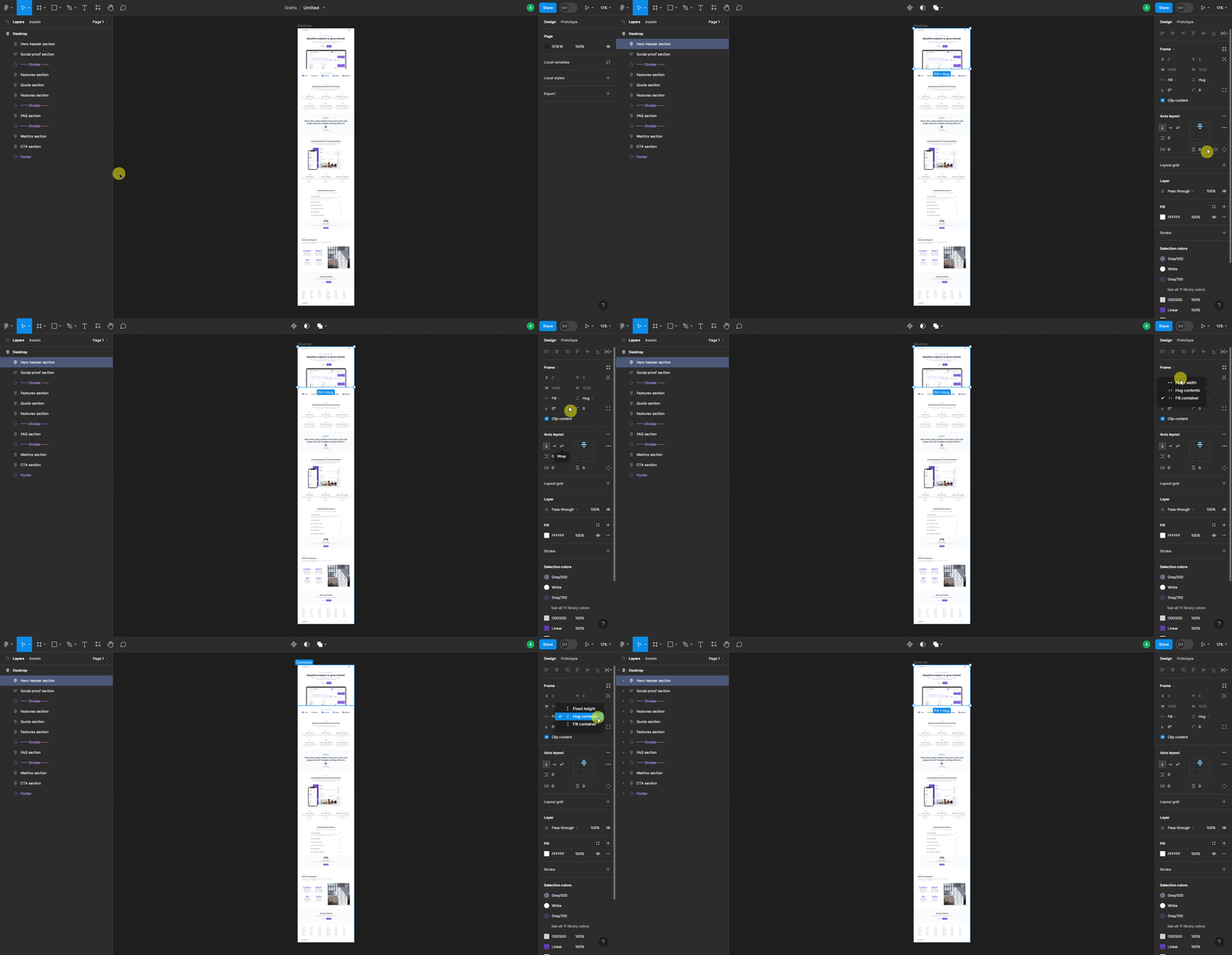
Follow the same structure for all sections inside the top-level frame.
Enabling Auto Layout gives you the advantage of the CSS Flexbox property on the page and for sections in the exported template. While creating the layout in Figma, try to use fewer nested frames/containers for a better editing experience in Elementor.
You can use components and instances for creating sections and elements in your Figma layout.