

Theme Builder Overview
Build headers, footers, single, archive, search, and 404 templates that apply site-wide using the Composer widget.
The Theme Builder lets you build site-wide templates, headers, footers, archive layouts, single post templates, and more, using the Composer widget. A template built once automatically applies across every matching page, no per-page setup required.
Access it via UiChemy → Theme Builder. The page is headed Theme Builder: "Build and manage your site's templates with UiChemy." There's no on/off switch for the Theme Builder itself, it's a core part of the plugin, always available.
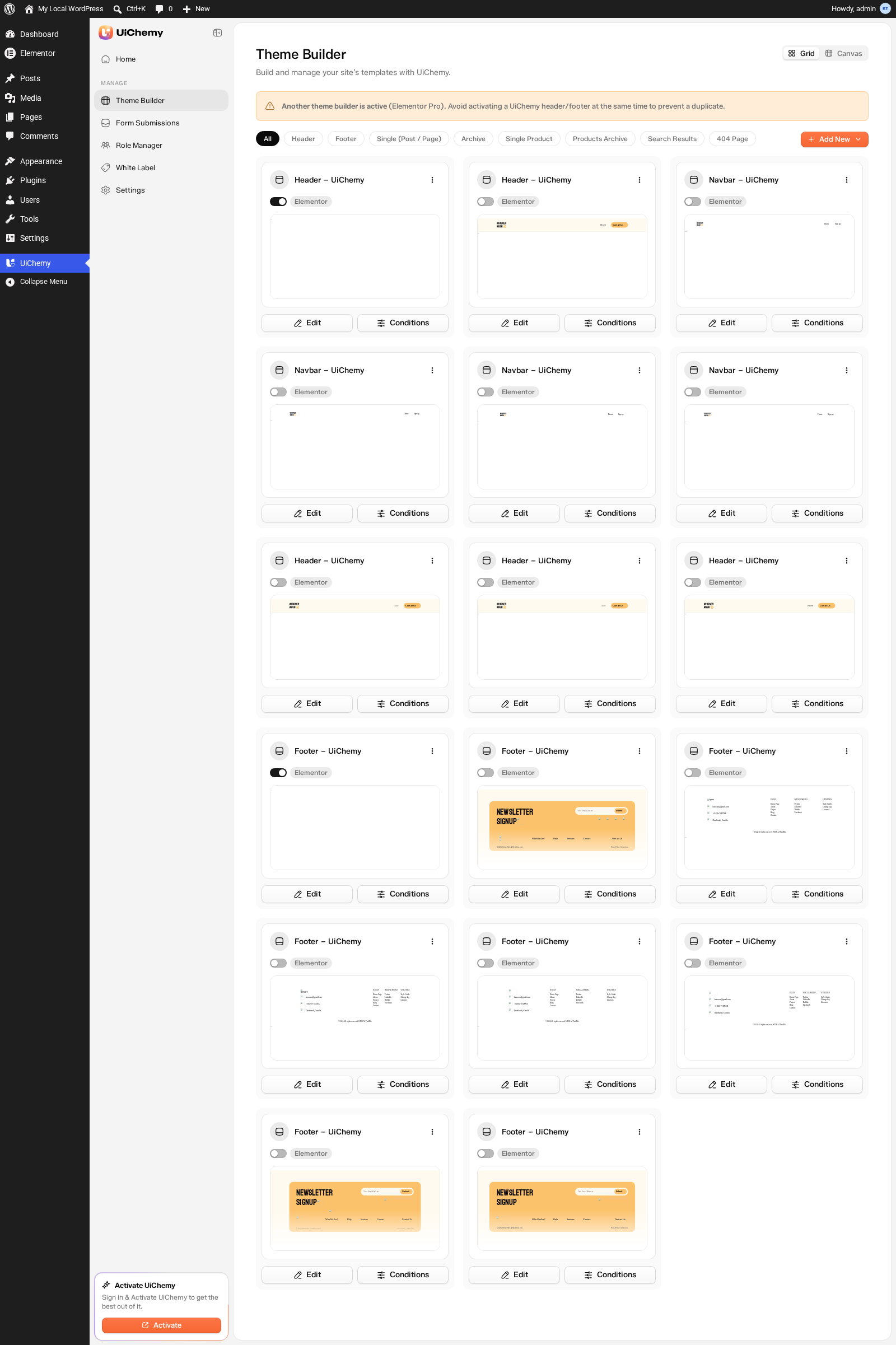
Theme Builder, Grid view with template type filters
If another theme builder is active (Elementor Pro, Nexter), UiChemy shows a notice: "Another theme builder is active (Elementor Pro, Nexter). Avoid activating a UiChemy header/footer at the same time to prevent a duplicate." Both can coexist, but activating a header/footer in both creates a duplicate on the front end.
Template Types
Click + Add New to choose a template type:
| Template Type | Function |
|---|---|
| Header | Top navigation across the site |
| Footer | Bottom section across the site |
| Single (Post / Page) | Individual post or page layout |
| Archive | Category, tag, and author listing pages |
| Single Product | Individual WooCommerce product pages |
| Products Archive | WooCommerce shop and category listings |
| Search Results | The search results page |
| 404 Page | Custom not-found page |
Header, Footer, Single, and 404 templates are available on Free. Archive, Search, and WooCommerce template types require UiChemy Pro. See Free vs Pro.
There's also an Order Received (WooCommerce thank-you page) template type. It isn't in this list, you create it through AI to WordPress. See WooCommerce Templates.
Filtering Templates
Filter tabs let you narrow the list to one type: All, Header, Footer, Single (Post / Page), Archive, Single Product, Products Archive, Search Results, 404 Page. An empty type shows "No [type] templates yet."
Grid and Canvas Views
Use the Grid and Canvas switch at the top right of the page to change how your templates are shown.
Grid View
Grid (the default) shows every template as a card. Each card has:
- Template name, for example Navbar or Footer.
- Activation toggle, next to a badge showing the builder the template uses, for example Elementor. Turn it on to make the template live.
- Preview, a thumbnail of the template's design.
- Edit, opens the template in the builder shown on its badge.
- Conditions, opens the Display conditions popup, see below.
- Three-dot menu, with Copy shortcode, Preview, and Delete.
Display conditions. Click Conditions on a card to choose where the template appears. The popup reads: "Choose where "[template name]" appears. Rules stack, an Exclude always wins."
- Each rule has an Include or Exclude dropdown, then where it applies, for example Entire Website.
- Click + Add condition to add another rule, or the × on a row to remove it.
- Click Save Conditions to apply, or Cancel to close without saving.
Example: For a Navbar header, keep Include → Entire Website to show it on every page, then click Save Conditions.
See Assigning Conditions for every condition option.
Canvas View
Canvas shows a visual map of your site's template slots. Your site sits at the top, with four groups below it:
| Group | Slots |
|---|---|
| Structural | Header, Footer |
| Singular | Front Page, Single Post, Single Page, and an "Any Singular" fallback |
| Archives | Blog Home, Category Archive, Tag Archive, Author Archive, Date Archive, and an "Any Archive" fallback |
| Special | Search Results, 404 Page |
Each group shows a filled-vs-total count, for example 2/2 for Structural when you have a header and footer, or 0/4 for Singular when none exist yet. A slot that already has a template shows Edit. An empty slot shows + Create, click it to create that template straight from the canvas.
Use the + and − buttons at the bottom left to zoom, the fit button to show the whole map, the mini-map at the bottom right to find your place, and Full screen at the top right for more room.