

SEO
Set up search titles, descriptions, sharing images, structured data, sitemaps, redirects, AI files, and an SEO audit for your whole site, all free in the UiChemy plugin.
UiChemy SEO reads every published page and works out its search title, description, sharing image, and structured data (schema) on its own. Anything that isn't right can be changed, for the whole site or for a single page.
It also handles redirects, a log of missing pages (404s), robots.txt and sitemap control, schema templates, files for AI tools, and an SEO audit for single pages and the whole site.
UiChemy SEO is free. Every option on this page ships in the free UiChemy plugin, and UiChemy Pro doesn't add or lock anything here.
Why It Matters
- Good search results without manual work: every page gets a title, description, and sharing image automatically, so nothing goes out blank.
- Clean code: each tag appears once, inside a single UiChemy SEO block, so a page never ends up with two titles.
- Richer results in Google: structured data tells Google what a page is, a product, an event, a recipe, so it can show extra details.
- No lost visitors: redirects and the missing-pages log catch broken links before visitors and search engines do.
Use Cases
- Launching a new site: set your site name, logo, title pattern, and sharing image once, and every page picks them up.
- Moving or renaming pages: UiChemy adds a redirect automatically when a page address changes.
- Fixing SEO problems fast: run the Audit to see what's urgent, then jump straight to the pages that need work.
- Getting found by AI tools: publish an AI file and plain-text copies of your pages.
Where to Find It
| Place | How to open it |
|---|---|
| Dashboard | UiChemy → SEO, under Manage in the sidebar |
| Block editor (Gutenberg) | The SEO sidebar from the editor's top bar, also listed in the ⋮ menu. The page's Update or Publish button saves your SEO edits too. |
| Classic editor | The SEO box in the main column |
| Elementor | The floating SEO button in the bottom-right corner, which opens the panel in a drawer |
| Composer | Inspector → Effects tab → Schema section, for structured data on one section |
The dashboard screen has seven tabs: Audit, Site Settings, AI Search, Schema Templates, Indexing, Redirects, and Advanced.
Audit
What needs attention across your site.
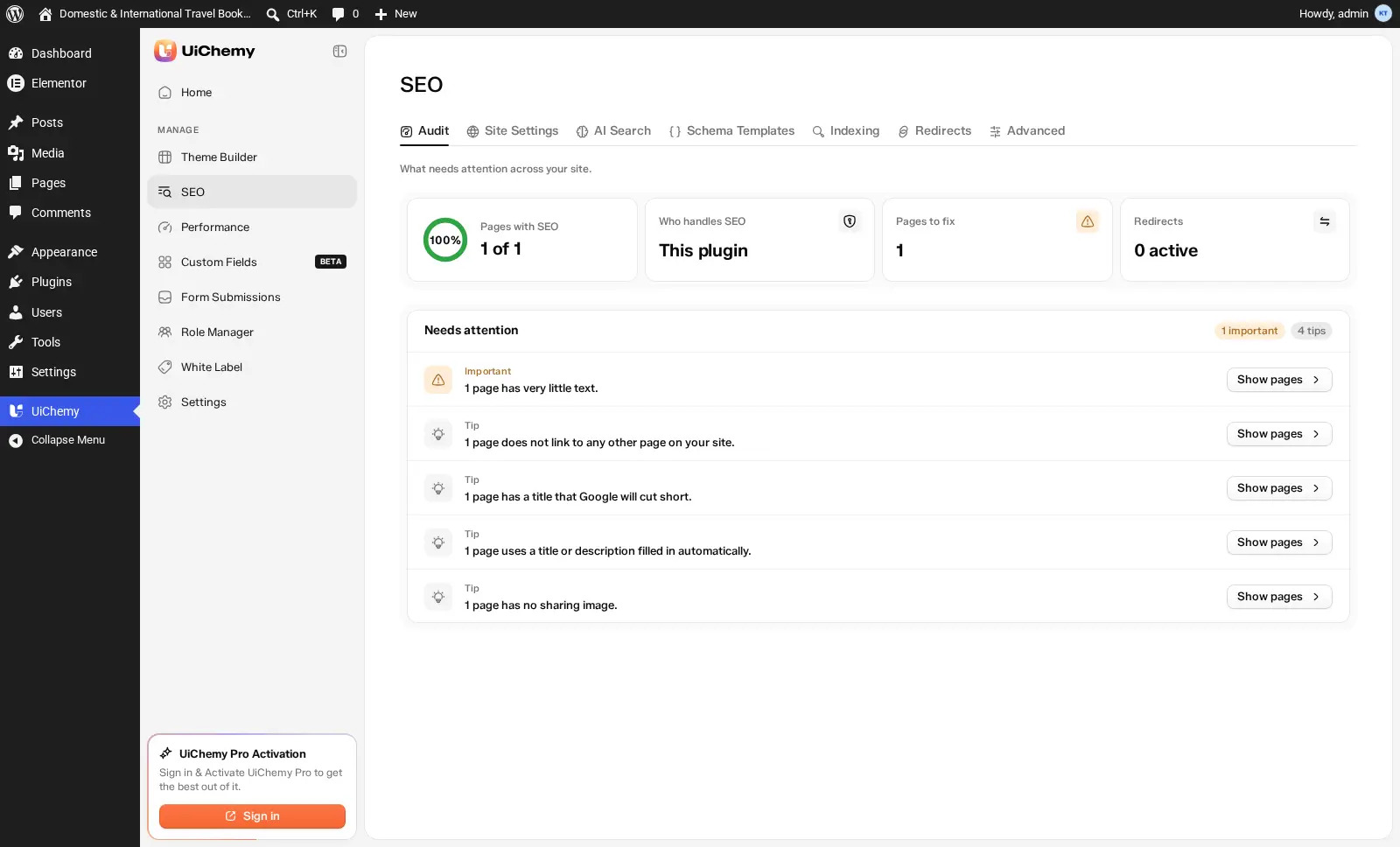
The Audit tab: status tiles and what needs attention
- Status tiles:
- Pages with SEO, with a percentage ring, for example "12 of 40".
- Who handles SEO, for example This plugin.
- Pages to fix, the number of pages with at least one finding to fix.
- Redirects, how many are active.
- Needs attention lists every finding, with a count badge such as "1 important" and "4 tips". Findings are sorted as Urgent, Important, and Tip, and each one has a button to act on it, such as Show pages.
- Check now checks pages that haven't been checked yet. The audit covers your 500 most recently updated pages.
The audit runs about 45 checks:
Site-wide checks, like large images over 300 KB, broken links, links through redirects, and hidden pages in the sitemap, run during a full refresh. Their results are kept for 24 hours.
Site Settings
Who runs the site, page titles and link previews. Save with Save changes.
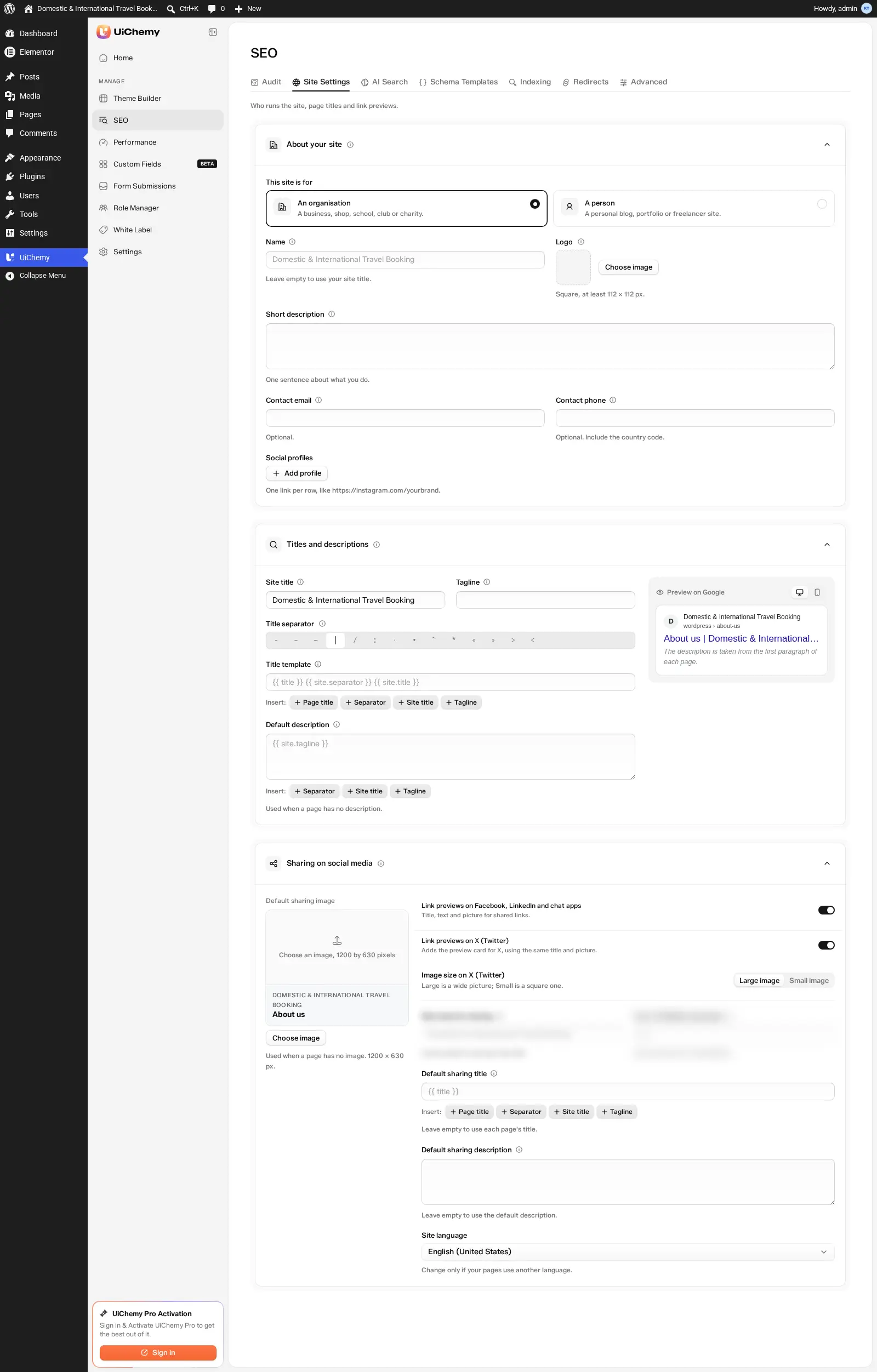
The Site Settings tab
Example: Set the Title separator to | and keep the default Title template. A page called "Our Services" on a site named "Bloom Studio" then shows in Google as Our Services | Bloom Studio.
AI Search
Help AI tools like ChatGPT read your site correctly.
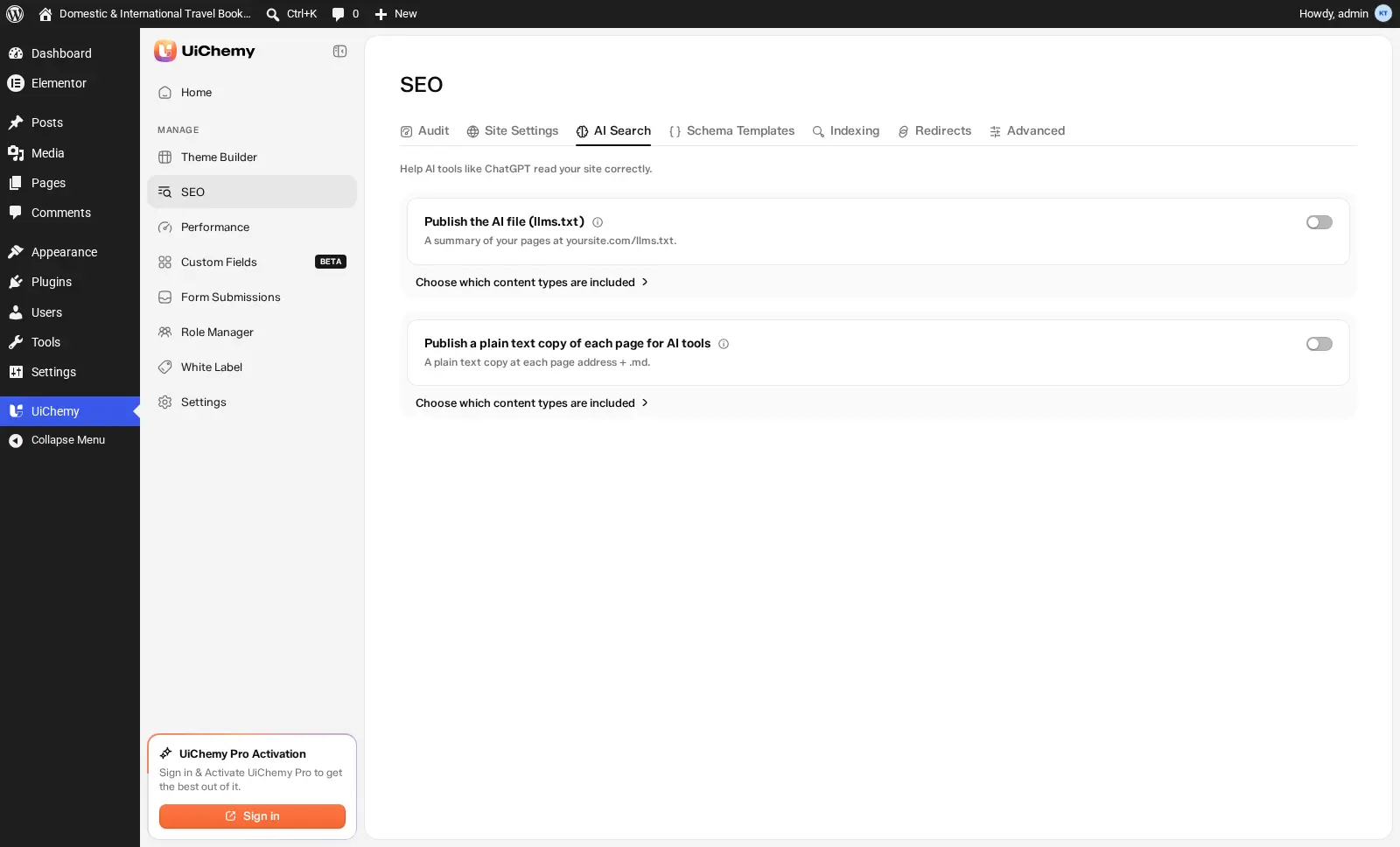
The AI Search tab: llms.txt and plain text copies
| Option | What it does | Default |
|---|---|---|
| Publish the AI file (llms.txt) | A summary of your pages at yoursite.com/llms.txt | Off |
| Publish a plain text copy of each page for AI tools | A plain text copy at each page address + .md, for example /your-page.md | Off |
Under each switch, Choose which content types are included picks the content types that go in. You can also set how many pages are listed per content type (1 to 500, default 100), text placed before and after the list, and the layout of each text copy.
AI tools rarely look for llms.txt today, and Google doesn't use it, which is why it's off by default.
Schema Templates
Details that help Google show rich results.
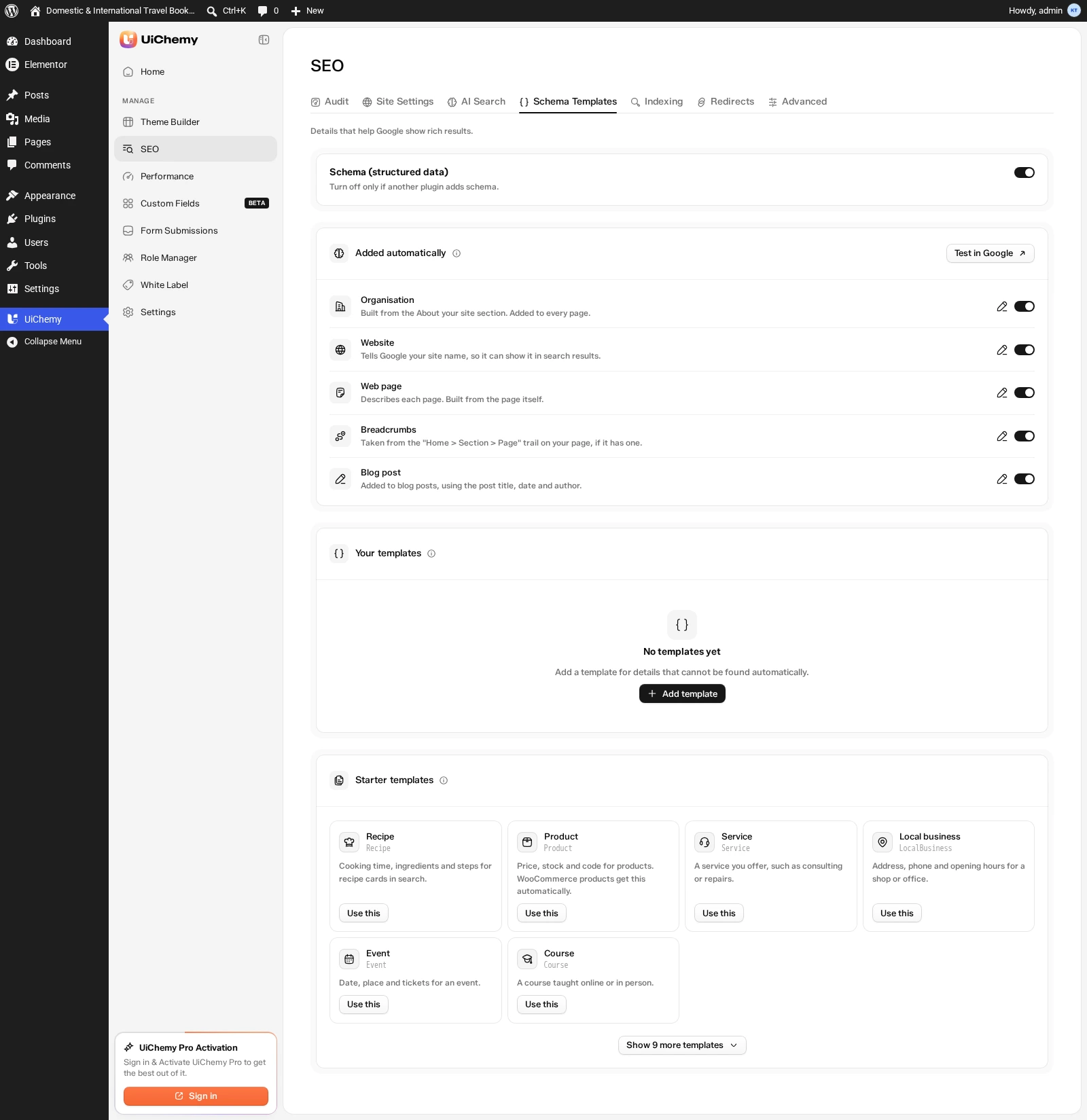
The Schema Templates tab
The Schema (structured data) switch at the top turns it all on or off. It's on by default. Turn it off only if another plugin adds schema.
FAQ, How-to, and Review describe a single section rather than a whole page, so you add them from the Composer Schema section, not from templates. See Composer Schema Section.
Indexing
What search engines may visit, show and list.
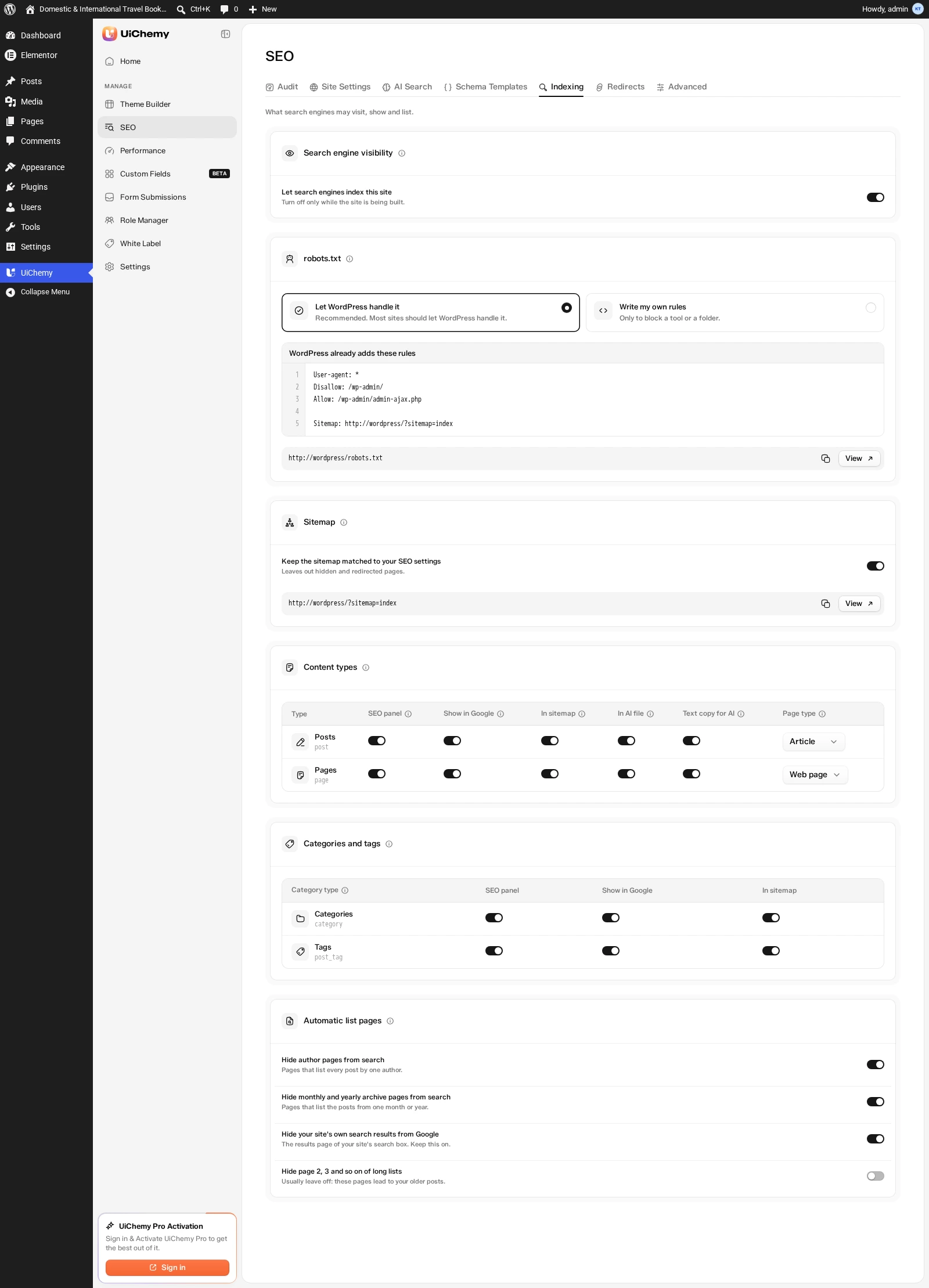
The Indexing tab
| Section | What it does | Default |
|---|---|---|
| Search engine visibility | Let search engines index this site, WordPress's own Settings → Reading option. Turn it off only while the site is being built. | Your current setting |
| robots.txt | Let WordPress handle it (recommended for most sites), or Write my own rules, only to block a tool or a folder. It shows the rules WordPress already adds, and your robots.txt address with Copy and View. It warns you if your rules block the whole site. | Let WordPress handle it |
| Sitemap | Keep the sitemap matched to your SEO settings leaves out hidden and redirected pages. Your sitemap address is shown with Copy and View. | On |
Redirects
Send old addresses to new pages.
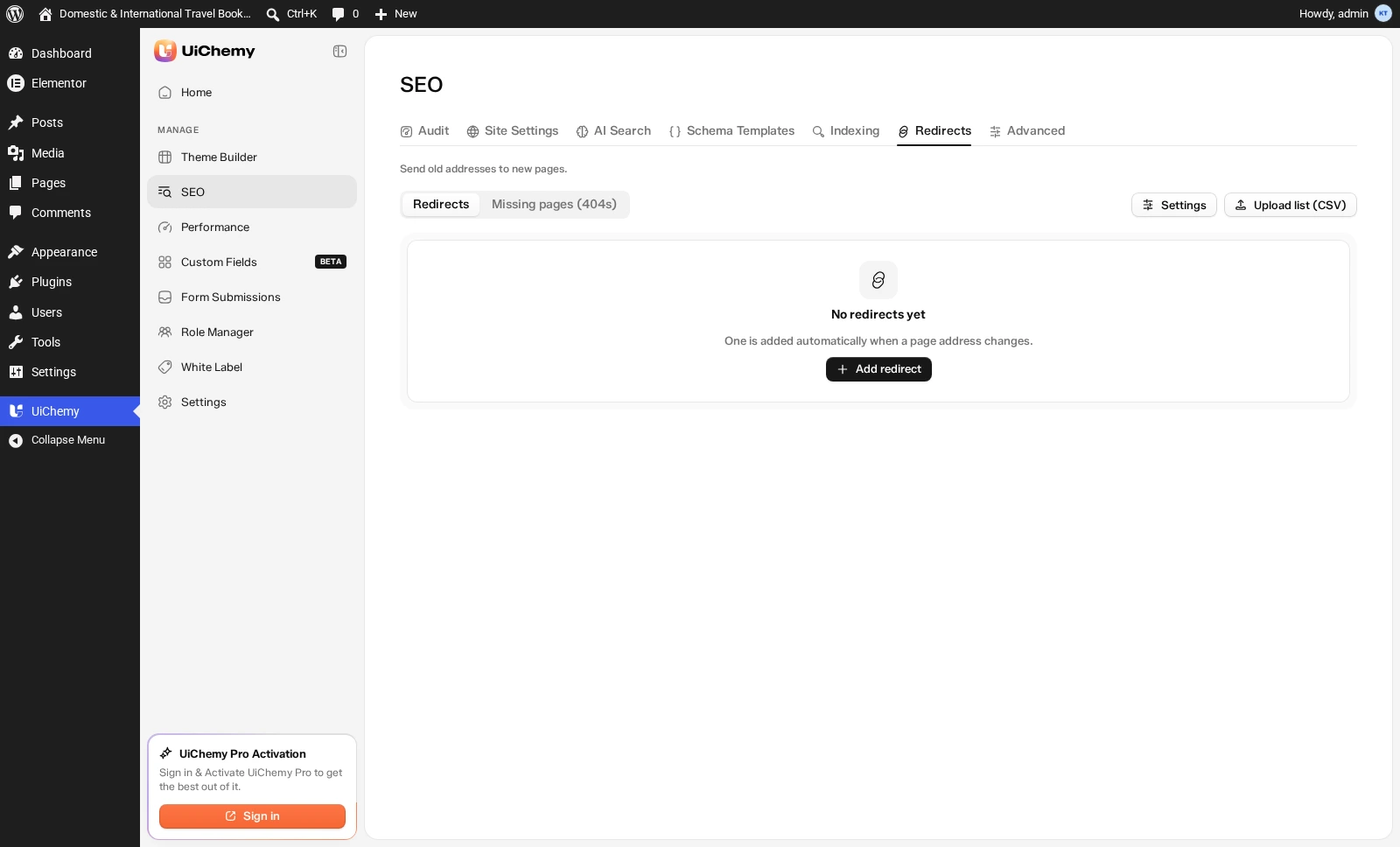
The Redirects tab, before any redirects are added
The tab has two sub-tabs, Redirects and Missing pages (404s), plus a Settings button and Upload list (CSV).
Example: You renamed /old-pricing to /pricing, but an old blog post still links to the old address. Click Add redirect, enter /old-pricing as the Old address and /pricing as the New address, choose 301 Moved for good, and save. Visitors and Google now land on the right page.
Advanced
Who handles SEO, refresh, reset and verification. When you change something, a bar appears at the bottom saying You have unsaved changes. Save with Save changes in that bar.
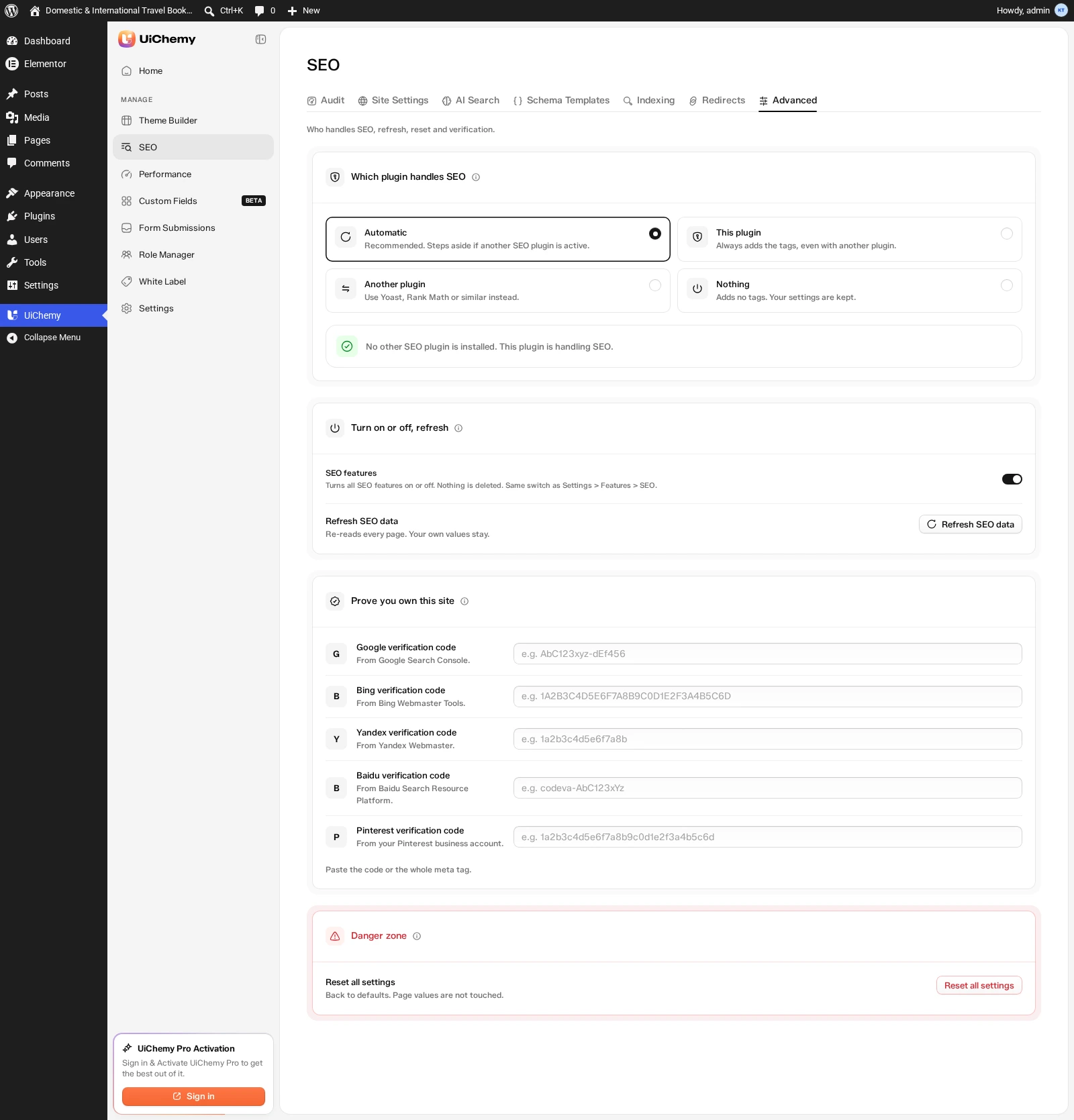
The Advanced tab
| Section | What it does | Default |
|---|---|---|
| Which plugin handles SEO | Automatic (recommended, steps aside if another SEO plugin is active), This plugin (always adds the tags, even with another plugin), Another plugin (use Yoast, Rank Math or similar instead), or Nothing (adds no tags, your settings are kept). A status line shows the current situation, for example "No other SEO plugin is installed. This plugin is handling SEO." | Automatic |
| SEO features | Turns all SEO features on or off. Nothing is deleted. It's the same switch as Settings → Features → SEO. | On |
| Refresh SEO data | Re-reads every page. Your own values stay. | None |
| Prove you own this site | Verification codes for Google, Bing, Yandex, Baidu, and Pinterest. Paste the code or the whole meta tag. | Empty |
| Danger zone → Reset all settings | Back to defaults. Page values are not touched. | None |
Per-Page SEO Panel
Open it from any of the editors listed in Where to Find It, and save with Save SEO.
Values you set for a single page are saved in the page's head code, so the page needs a Composer section. Without one, the panel shows "This page has no UiChemy section yet…". Automatic values still work on that page. The panel is also hidden for content types whose SEO panel column is off on the Indexing tab.
Composer Schema Section
In a Composer, open the Inspector → Effects → Schema to add structured data to a single section.
- Types: FAQPage, HowTo, Review, Product rating, Event, VideoObject, and ItemList.
- Each block has Apply, Discard, and Remove.
- A new FAQPage is filled in automatically from the questions already in the section.
Working With Other SEO Plugins
UiChemy detects Yoast SEO, Rank Math, SureRank, All in One SEO, SEOPress, The SEO Framework, and Slim SEO.
| Which plugin handles SEO | Result |
|---|---|
| Automatic (default) | If another SEO plugin is active, UiChemy steps aside |
| This plugin | UiChemy always adds its tags, even with another plugin active, and the Audit shows an Urgent conflict |
| Another plugin / Nothing | UiChemy prints no SEO tags |
When another plugin is in charge:
- Turned off: UiChemy's head tags, its robots.txt rules, and sitemap syncing.
- Keeps working: redirects, the missing-pages log, and the AI files.
- Passed on: UiChemy still hands its extra structured data (FAQ, templates) to Yoast, Rank Math, and SureRank.
- Kept: your UiChemy SEO settings stay saved for later.
UiChemy can't import titles or descriptions from other SEO plugins. Only redirect CSV files can be imported.
AI and MCP
AI tools connected through MCP can audit a page or the whole site, set image alt text, preview a page's structured data, manage site settings and schema templates, and manage redirects and the missing-pages list. It's free, and needs an administrator account with the MCP server setting turned on in UiChemy → Settings → Integrations.
Limits and Good to Know
- No separate sitemap. UiChemy uses the WordPress sitemap (
/wp-sitemap.xml), and it doesn't do keyword scoring. - When Let search engines index this site is off, there's no sitemap and no AI files, your own robots rules aren't applied, and the Audit shows an Urgent finding.
- Always left out: drafts, private pages, password-protected pages, and builder templates.
- Who can use what: the dashboard SEO screens need an administrator, and the page panel needs permission to edit that page. Hand-written JSON, and pointing a canonical or redirect at another website, are administrator-only.
- Limits: the Audit list holds 500 pages, the missing-pages log holds 500 entries, and pattern redirects are checked up to 200 per request. Titles are trimmed at 300 characters and descriptions at 600.
- Uninstalling: SEO data is removed only when Delete all data on uninstall is on in Settings.