

Set Up Custom SMTP
Connect UiChemy to any SMTP server: host, port, encryption, login, a password stored encrypted or set in wp-config.php, and a connection test.
Custom SMTP works with any mail server: your host, Brevo, SendGrid, Mailgun and others. Your email provider lists the values you need in its SMTP settings.
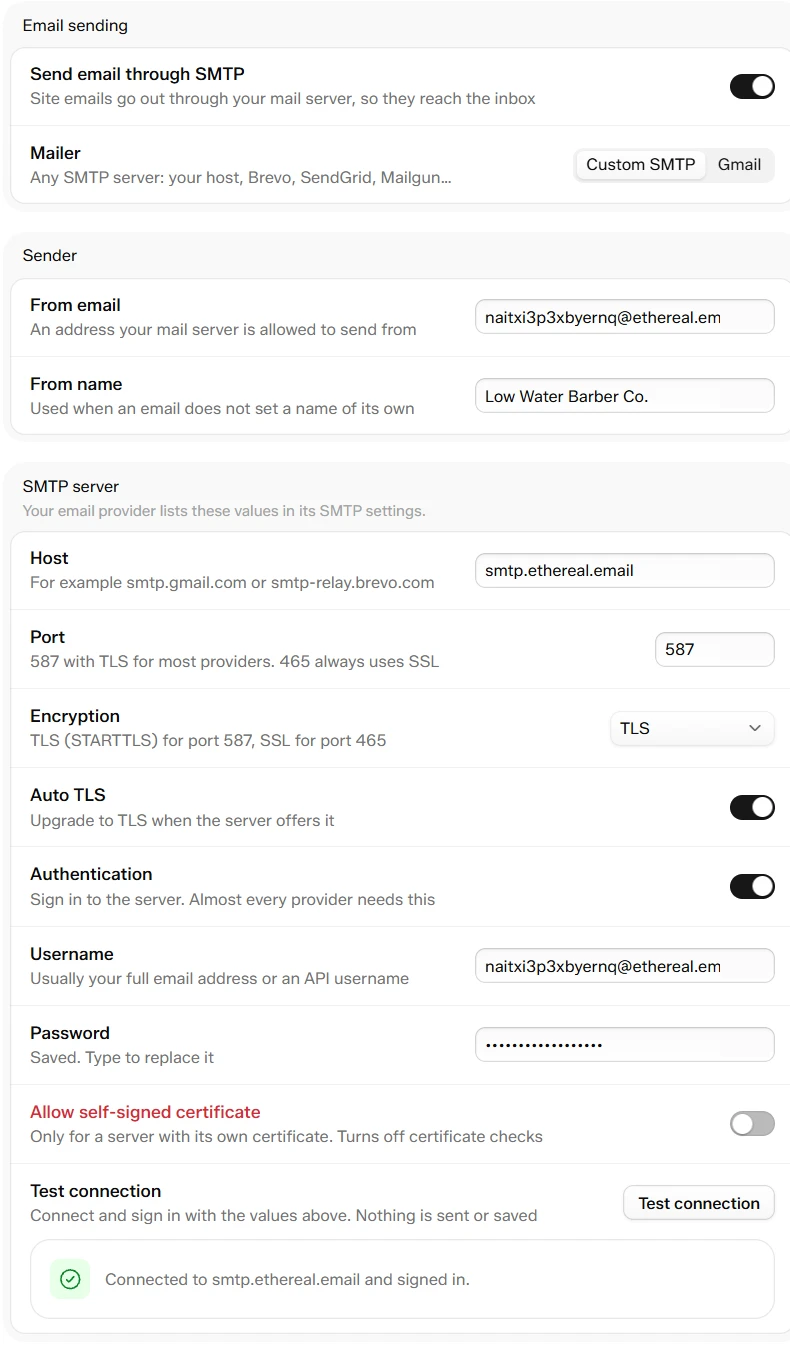
Settings → SMTP with Custom SMTP filled in and a successful connection test
Fill In the Server
Go to UiChemy → Settings → SMTP, turn on Send email through SMTP, and choose Custom SMTP.
| Field | What to enter |
|---|---|
| Host | The server name, for example smtp.gmail.com or smtp-relay.brevo.com. Only the name: no https://, no path, no spaces. |
| Port | 587 with TLS for most providers. 465 always uses SSL. |
| Encryption | TLS (STARTTLS) for port 587, SSL for port 465, or None. |
| Auto TLS | Upgrades to TLS when the server offers it. It shows only when Encryption is not SSL and the port is not 465. |
| Authentication | Signs in to the server. Almost every provider needs it. |
| Username | Usually your full email address or an API username. |
| Password | The account password, or an app password. |
Then fill in From email and From name under Sender, and click Save changes.
Port 465 is always treated as SSL, whatever Encryption says. Ports 587 and 25 upgrade with STARTTLS.
The Password
Type the password into Password. After you save, the field is empty and says "Saved. Type to replace it." The password is stored encrypted and never sent back to the screen.
If you change the Host or the Username, the saved password is dropped when you save, and the field says "Host or username changed: enter the password again". This stops a saved password from being sent to a different server.
Keep the password out of the database. Add this line to wp-config.php:
define( 'UICHEMY_SMTP_PASSWORD', 'your-password' );
When it is set, it overrides the stored password. The Password field is locked and says "Set in wp-config.php (UICHEMY_SMTP_PASSWORD)".
Test the Connection
Click Test connection in the SMTP server group. UiChemy connects to the server and signs in with the values on screen. Nothing is sent and nothing is saved. You can test before you save.
| Result | What it means |
|---|---|
| "Connected to [host] and signed in." | The server accepted you. |
| "Enter the SMTP host first." | Host is empty. |
| "The server refused the username or password." | Check the Username and Password. Many providers need an app password. |
| "The server's security certificate could not be verified." | See Allow self-signed certificate below. |
| "Could not reach the server. Check the host and port, and that your host allows outgoing SMTP." | Check the Host and Port. Some hosts block outgoing SMTP. |
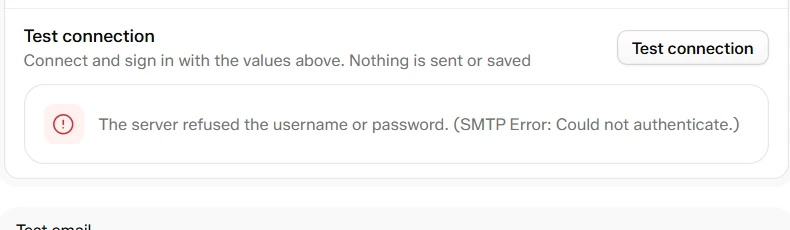
A wrong password is refused with a plain message
After a failure the original server message follows in brackets, so you can search for it.
Allow Self-Signed Certificate
Turn this on only for a server with its own certificate. It turns off certificate checks, so the switch is marked in red. Leave it off for normal providers.
Validation
UiChemy refuses to save, with a message, when:
- The From email is not a valid email address.
- The Host is not a server name like
smtp.example.com. - The Port is not a number from 1 to 65535.