

Form Submissions
How UiChemy captures and stores form submissions from the Composer widget.
Every form submission captured by a Composer-managed form is stored in your WordPress database and appears at UiChemy → Form Submissions. You can read, filter, and export submissions from this screen without a separate CRM or third-party service.
What Are Form Submissions
When you use the Composer widget to build a section that includes a form, a contact form, a lead capture form, a newsletter signup, UiChemy captures and stores every submission directly in your WordPress database. You access all submissions from UiChemy → Form Submissions.
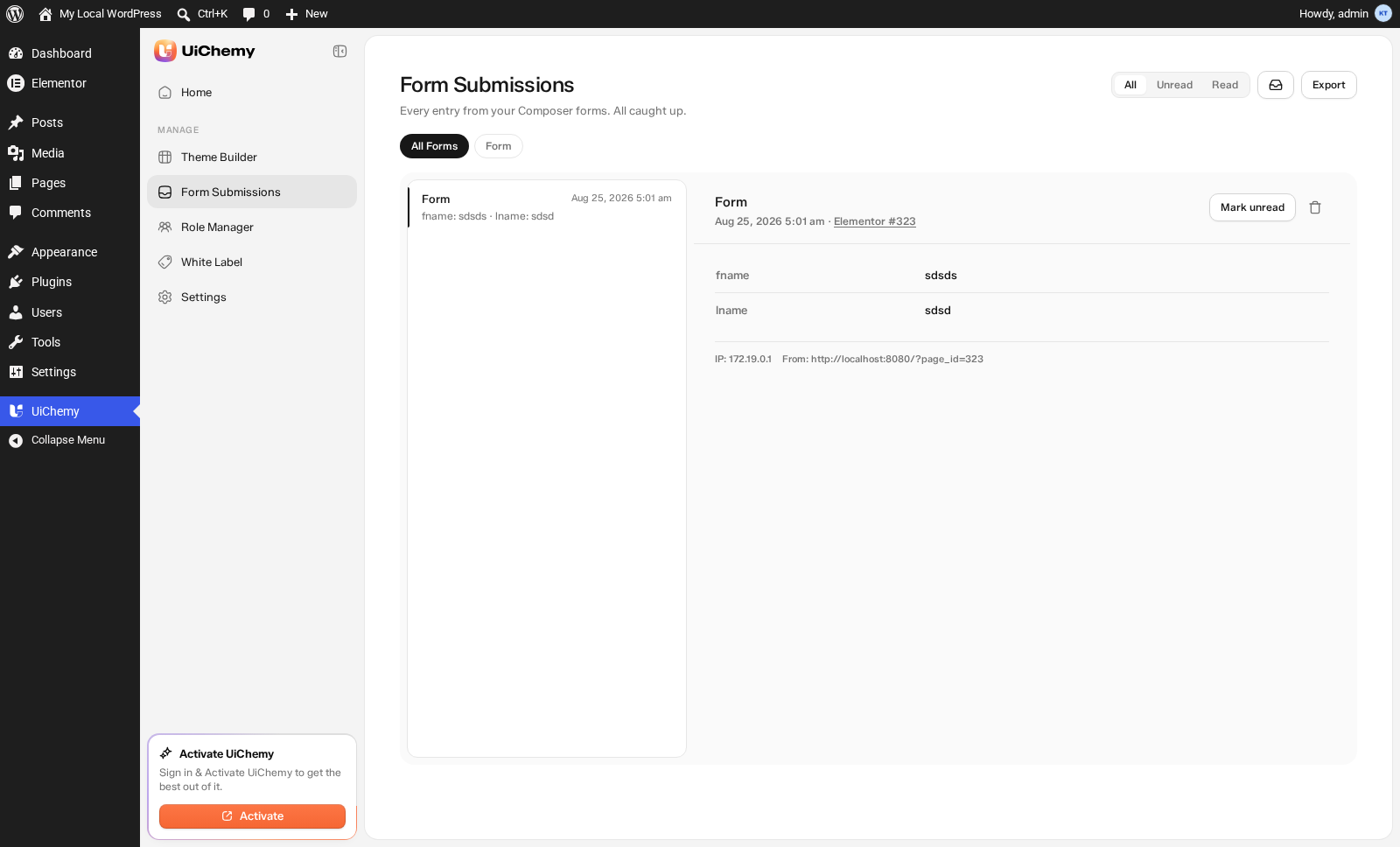
Form Submissions: list, filters, and a submission's detail panel
What Gets Captured
For each submission, UiChemy stores:
| Field | What it stores |
|---|---|
| ID | A unique identifier for the submission |
| Form Name | Which form on your site was submitted |
| Page | The page the form appeared on, shown as a link to it (for example "Elementor #323") |
| Fields | Every field the form actually has, whatever you built it with, not a fixed set. A contact form might submit an email, a signup form fname and lname, and so on |
| IP Address | The submitter's IP address |
| Status | Whether the submission has been read or is still unread |
| Submitted At | The exact date and time of the submission |
Below the field values, each submission also shows the exact URL it was submitted from, so you can trace it back to the live page.
Read and Unread Status
Every submission comes in as Unread until you open it. Once you view a submission, it's automatically marked as Read. Click Mark unread on an open submission to flip it back. Click the trash icon to delete a submission, then confirm with Delete permanently.
The top right of the page has three read-status filters:
- All, every submission regardless of status.
- Unread, submissions you haven't opened yet.
- Read, submissions you've already viewed.
Below the page title, All Forms sits alongside a button for each form name, so you can filter the list down to submissions from just one form. See Viewing and Exporting Submissions for the full dashboard and export options.
Enabling Submission Storage
Form submission storage is controlled by the Store form submissions toggle in UiChemy → Settings. Make sure it's turned on, otherwise submissions won't be saved to the database and won't appear here.
Use Cases
- Tracking leads and inquiries from a Composer form without a separate CRM or form-plugin dashboard.
- Triaging which submissions still need a reply, using the Unread/Read tabs as a lightweight inbox.
- Confirming a form is wired up correctly during testing, submit it, then check it landed here.