

Custom Fields
Create custom post types, taxonomies, and field groups with UiChemy's built-in content modelling tool, and bring your data across from Advanced Custom Fields (ACF), Secure Custom Fields (SCF), Meta Box, Pods, or JetEngine.
Custom Fields is UiChemy's built-in content modelling tool, similar to Advanced Custom Fields (ACF). It lets you create:
- Post types, such as Projects, Events, or Team members.
- Taxonomies, such as Genres or Locations.
- Field groups, extra fields such as price, gallery, or event date.
Field groups appear on the edit screens of posts, terms, users, and comments, wherever their location rules say. You then use the values in your templates.
Custom Fields is in Beta, and the dashboard tab shows a Beta badge. Most of it is free, with a few extras in UiChemy Pro. See Free vs Pro.
Why It Matters
- No extra plugin needed: model your content inside UiChemy instead of installing a separate fields plugin.
- Ready-made starting points: templates set up common post types, like Portfolio or Events, with their fields in one click.
- Easy to switch: the Migrate wizard brings your post types, taxonomies, fields, and saved values across from Advanced Custom Fields (ACF), Secure Custom Fields (SCF), Meta Box, Pods, or JetEngine.
Use Cases
- A portfolio site: a Projects post type with Client, Year, Website, and Gallery fields.
- An events listing: an Events post type with Date, Start time, Venue, and Tickets.
- A team page: Team members with Job title, Photo, Bio, and LinkedIn.
- Moving off ACF or SCF: migrate your existing field groups and values, then deactivate ACF's definitions.
Where to Find It
| Place | What you see |
|---|---|
| Dashboard | UiChemy → Custom Fields (Beta), under Manage in the sidebar |
| Post, page, or custom post type edit screen | Your field groups as boxes on the screen |
| Category, tag, or taxonomy term screens | Field groups on the add and edit term forms |
| User profile, Add New User, or registration form | Field groups for users |
| Comment edit screen | Field groups for comments |
| Front end | Nothing is shown automatically. You add the values to your templates. See Using the Fields. |
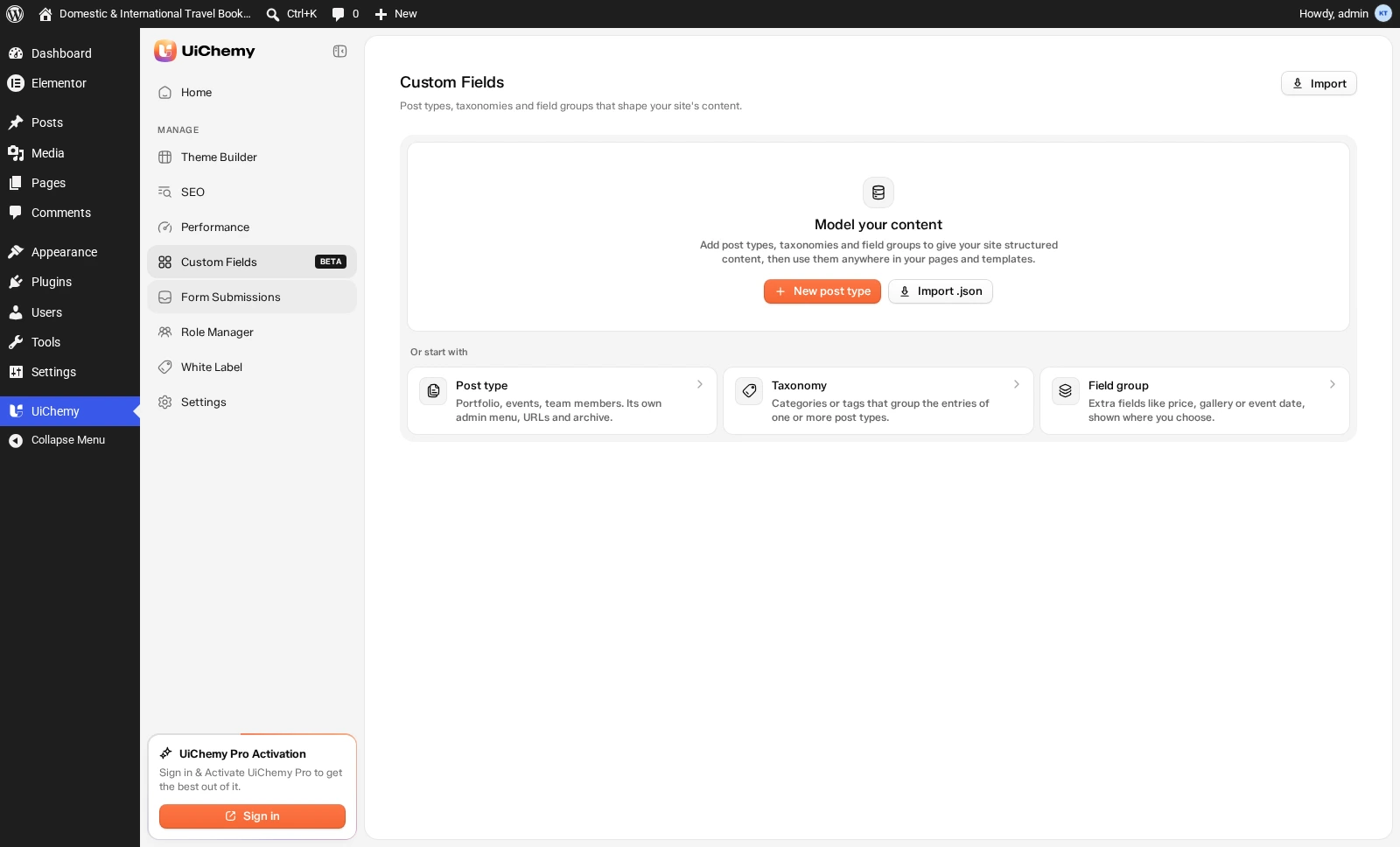
UiChemy → Custom Fields on a first visit
The List Screen
-
Tabs: Post types, Taxonomies, and Field groups. Filter by All, Active, or Inactive, plus a Trash view.
-
Header buttons: Migrate (only shown when ACF, SCF, Meta Box, Pods, or JetEngine data is found), Import, and New post type, New taxonomy, or New field group, depending on the tab.
-
Row menu: Edit, Duplicate, Export .json, Move to Trash.
-
Bulk actions: Activate, Deactivate, Export, Move to Trash, Restore, Delete permanently.
-
Page header: Custom Fields, with "Post types, taxonomies and field groups that shape your site's content." and an Import button at the top right.
-
First visit: a Model your content card, "Add post types, taxonomies and field groups to give your site structured content, then use them anywhere in your pages and templates," with + New post type and Import .json. Below it, Or start with has three cards:
Card What it creates Post type Portfolio, events, team members. Its own admin menu, URLs and archive. Taxonomy Categories or tags that group the entries of one or more post types. Field group Extra fields like price, gallery or event date, shown where you choose.
Post Types
Click + New post type to open the editor.
| Area | What it holds |
|---|---|
| Top bar | Custom Fields › Post types › Name your post type, a Draft badge, an Active switch, Cancel, and Create post type |
| Field groups | "Set a post type key first, then add field groups for it," with + New field group |
| Taxonomies | The linked taxonomies, or "None linked. Pick taxonomies in the form." |
| At a glance | The URL, plus whether it's Public, Hierarchical, and in the REST API |
Field groups, Taxonomies, and At a glance are in the side panel. Collapse all at its top closes all three.
Taxonomies
| Section | Options | Default |
|---|---|---|
| Name and URL | Plural name (required), Singular name, Taxonomy key (required, up to 32 characters), Description | None |
| How terms work | Like categories (nested) or Like tags (flat) | Like tags |
| Used by | The post types that use this taxonomy. You'll see a warning if none are chosen. | Posts |
| Visibility | Public, Column in the post list | None |
| Advanced | URLs, Admin and menus, Terms (keep assigned order, default term), Permissions, REST API, and 17 labels | WordPress defaults |
Field Groups
Field Types
The Add a field picker groups 24 field types:
| Group | Field types |
|---|---|
| Basic | Text, Textarea, Number, Range, Email, URL |
| Content | Image, File, WYSIWYG Editor |
| Choice | Select, Checkbox, Radio Button, True / False |
| Relational | Link, Post Object, Page Link, Relationship (Pro), Taxonomy, User |
| Advanced | Date Picker, Time Picker, Date Time Picker, Color Picker |
| Layout | Repeater (Pro) |
Older groups can still show Password (legacy) and Gallery (legacy), but you can't create new fields of these types.
Field Settings
Each field has four tabs: General, Rules, Appearance, and Conditions (shown as Conditions (Pro) on the free plan).
Where It Shows (Location Rules)
Location rules decide which edit screens show a field group. Every rule inside a group must match, and any one group is enough. Use Add "and" rule and Add "or" group. The default rule is Post Type is Posts.
- Operators: is, is not, contains, is empty, is not empty.
- Free rules: Post Type, Page Template, User Form, Taxonomy, Comment.
- User fields on sign-up: use User Form is Register to save user fields when someone signs up. Add shows the fields on the Add New User screen, but doesn't save them yet.
- Pro rules: Post, Post Template, Post Status, Post Format, Post Category, Post Taxonomy, Page, Page Type, Page Parent, Current User, Current User Role, User Role, Attachment, Widget, Menu, and Menu Item. Widget, Menu, and Menu Item are in the list, but they don't show a field group anywhere yet, so use one of the other rules for now.
Example: For a team page, create a Team post type from the Team template. It adds a Profile field group with Job title, Photo, Bio, and LinkedIn, so every team member you add gets those four fields right away.
Import, Export, and Migration
Migrate Wizard
The wizard has four steps: Choose source → Review plan → Options → Result.
| Source | What comes across |
|---|---|
| Advanced Custom Fields / Secure Custom Fields | Post types, taxonomies, field groups, and saved values |
| Meta Box | Post types, taxonomies, field groups, and saved values. Only groups made in the Meta Box builder, groups added with code aren't imported. |
| Pods | The same, for Pods that store data as meta. Table-storage Pods are listed but not imported. |
| JetEngine | Post types, taxonomies, field groups, and saved values. Relations, Options Pages, Glossaries, and Listings stay in JetEngine. |
JSON Import and Export
- Import takes one
.jsonfile, up to 5 MB. Each item is marked New or Updates existing, and anything with the same key is updated. - Export from the row menu (Export .json) or with the Export bulk action.
Using the Fields
Nothing shows on the front end automatically. To display the values:
- In theme templates: UiChemy's PHP template functions read, print, and check field values, including Repeater rows. See the Developer Guide.
- REST API: turn on Show in REST API in the field group's Details, and values work with the REST API and the block editor. Link, Repeater, Color (RGBA format), and Password fields aren't available this way. See REST API in the Developer Guide.
There's no shortcode for field values. With UiChemy Pro, use the Custom Field dynamic tag in Composer to show a field from the post, the post author, or the current term. On the free plan, use theme templates or the REST API.
AI and MCP
AI tools connected through MCP can list and create post types, taxonomies, field groups, and fields, read and update field values, and run imports. AI access starts on Read only, so AI tools can look at your setup but not change it. A developer can change this level, see Abilities and MCP. The same Free and Pro limits apply to AI as to the dashboard.
Free vs Pro
| Feature | Free | Pro |
|---|---|---|
| Post types and taxonomies, all options, no count limit | ✅ | ✅ |
| Field groups, no count limit | ✅ | ✅ |
| 22 field types (all except Repeater and Relationship) | ✅ | ✅ |
| Repeater field | ✅ | |
| Relationship field | ✅ | |
| Location rules: Post Type, Page Template, User Form, Taxonomy, Comment | ✅ | ✅ |
| More location rules: Post, Post Template, Post Status, Post Format, Post Category, Post Taxonomy, Page, Page Type, Page Parent, Current User, Current User Role, User Role, Attachment, Widget, Menu, Menu Item | ✅ | |
| Conditional logic | ✅ | |
| Migrate wizard and JSON import and export | ✅ | ✅ |
| Template functions, REST API, AI | ✅ | ✅ |
| Show fields in Composer with the Custom Field dynamic tag | ✅ |
On the free plan, Pro items show a Pro badge. Clicking one opens "Available in UiChemy Pro", with Not now and Upgrade to Pro.
Limits and Good to Know
- Beta feature.
- Nexter Extension: both plugins can run side by side, each with its own separate data. UiChemy doesn't read or migrate Nexter's fields.
- No options page. There's no options-page location yet.
- Required fields: an editor can't save the item while a required field is empty, and the old value is kept.
- Turn it off: go to Settings → Features → Custom Fields. It's on by default, and turning it off keeps all your data.
- Date and time fields save values in the return format you choose. If you change the format later, older values keep the old format.
- Uninstalling removes field data only if Delete on uninstall is on in UiChemy settings.