

Clear and Exclude Pages
When UiChemy clears the cache by itself, how to clear one page or everything by hand from the admin bar, and how to stop a single page from being cached.
Saved copies stay fresh in three ways: UiChemy clears them when your content changes, they refresh on a timer, and you can clear them by hand. You can also keep any single page out of the cache.
Cleared Automatically
UiChemy clears the saved copy of a page, and the pages related to it, when you:
- Publish, update, trash or delete a post or page.
- Add, edit, approve or delete a comment.
- Edit or delete a category or tag.
- Update a menu or save the Customizer.
- Save a page or template in UiChemy, including Theme Builder templates, and save an Elementor page.
- Change WooCommerce stock or stock status on a product.
It clears the whole cache when you switch theme, activate or deactivate a plugin, or update plugins or themes. Changing the cache rules also clears saved pages so they rebuild with the new rules.
With The changed page and related pages selected under Freshness, a new post clears itself, the home page, its categories and the blog page. Choose The whole cache to clear everything on every change.
Clear by Hand
From the screen. On UiChemy → Performance → Page cache, click Clear cache in the Saved pages row. A note confirms: "Cache cleared. Pages rebuild as visitors arrive."

Saved pages after a clear: 0 pages, 0 KB
From the admin bar. When you are logged in and viewing your site, a Cache menu appears in the WordPress admin bar.
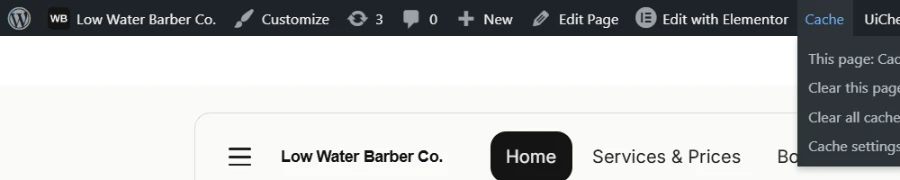
The Cache menu in the admin bar
| Item | What it does |
|---|---|
| This page: [status] | Shows whether the page you are looking at is cached. |
| Clear this page | Removes the saved copy of this page only. |
| Clear all cache | Empties the whole cache. |
| Cache settings | Opens Performance → Page cache. |
If your host's cache or Cloudflare is connected, clearing also clears those where UiChemy is able to. The note then reads "Cache cleared, including the [host] cache."
Keep One Page Out of the Cache
Open the page in the WordPress editor. In the sidebar, the Performance box has a Don't cache this page checkbox. Turn it on if the page shows different content to each visitor. The box also shows Page cache: and the status of this page.
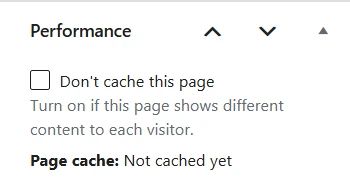
The Performance box in the WordPress page editor
| Status | Meaning |
|---|---|
| Cached | Visitors get the saved copy. |
| Not cached yet | It will be saved on the next visit. |
| Not cached: [reason] | The page is skipped. See Troubleshoot Page Cache. |
| Cached by [host] | Your host's cache handles this page. |
| Page cache is off | The cache is switched off. |
To keep a whole group of pages out, use Never cache these pages in Page Cache Settings, for example /members/*.