

How Do I Connect My Site? (Connection Link)
Connect your WordPress site to the UiChemy Figma plugin with a single Connection Link.
To convert a design and import it into WordPress (called Direct Import in Classic Mode, Live Import in AI Express Mode), your Figma plugin needs to be connected to your site. You do that with a Connection Link. Without it, importing won't work.
What the Connection Link Is
- One link connects everything. The same Connection Link works for every UiChemy Figma plugin and mode, AI Express Mode, Classic Mode, Figma to Gutenberg, and Figma to Bricks. Connect your site once and you're set for all of them.
- Nothing else to enter. It's a single self-authenticating link (your WordPress login and a secure Application Password are already built into it), so there's no separate Site URL or Security Token to fill in.
- It replaces the old two-field setup. Earlier versions used a Site URL plus a Security Token. The Connection Link replaces both with one link, to keep it simple.
Step 1: Copy Your Connection Link (in WordPress)
In the UiChemy dashboard's Home screen, under Connection, it starts as Not connected. Click Generate connection link.
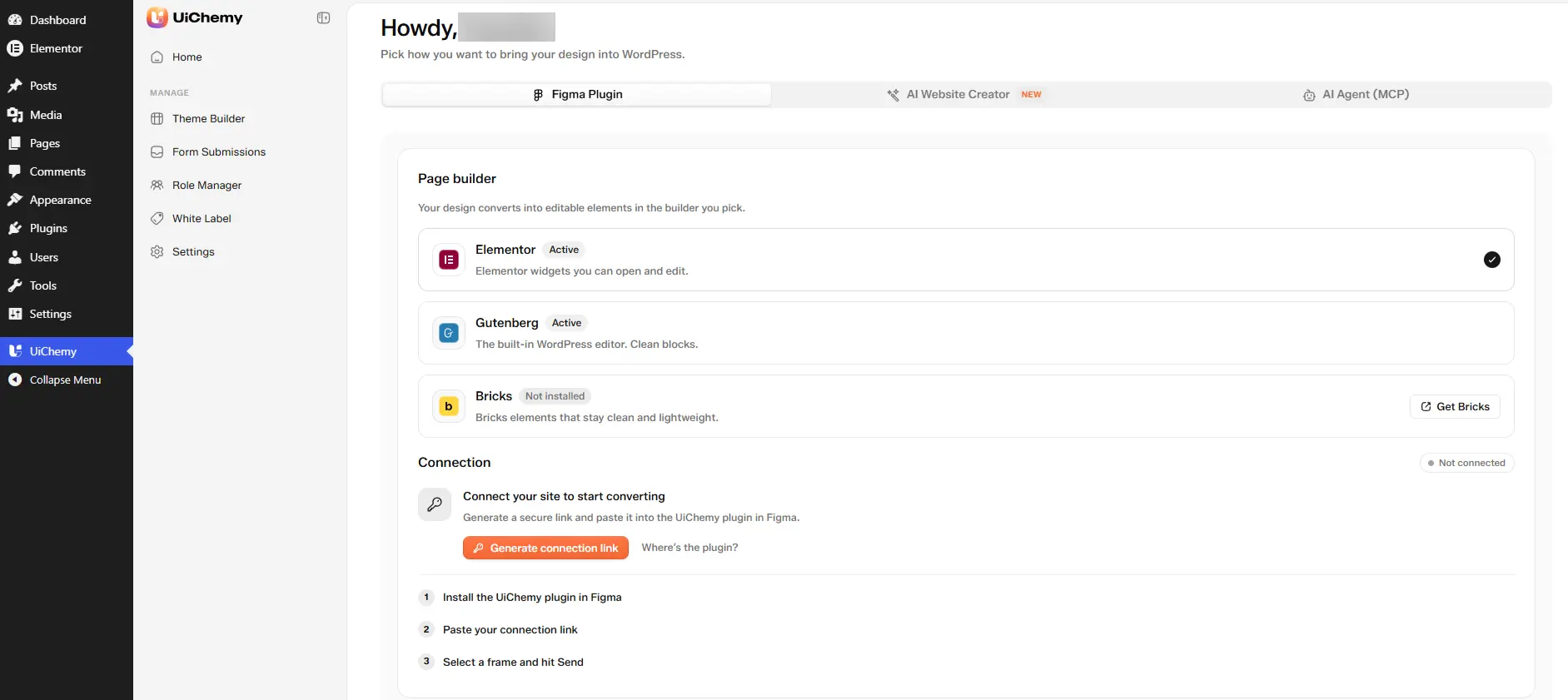
Click Generate connection link to create your Connection Link
The status flips to Connected and your Connection Link appears, masked. Click Copy to copy it.
Need a fresh one? You can regenerate the Connection Link from the dashboard anytime.
Step 2: Add Your Site in the Figma Plugin
- In Figma, install the UiChemy plugin for your builder (for AI Express Mode, that's the Elementor plugin). See Install the Figma plugin.
- Open it and go to Site Connection.
- In the Add Site box, paste your Connection Link and click Connect.
The Add Site box also includes a "How to get your Connection Link?" link and a short "Watch How to Connect Website" video, in case you need a refresher.
Once connected, you'll see a "Connected!" confirmation, and your site appears in the Select Site list during a conversion (see How it works: Connect your site).
Connect a Local WordPress Site
Building on your own computer first? You can connect a local site (LocalWP, WordPress Studio, or any site on localhost) to the Figma to Elementor plugin, so Direct Import and AI Express Mode work before you go live.
Use a localhost address
Figma can reach localhost addresses, but it blocks plain http requests to custom local domains such as .local, .wp.local, or .test. Switch your local tool to a localhost address first:
- LocalWP: open Preferences, then Advanced, set Router mode to localhost, and click Apply. Your site gets an address like
localhost:10003. - WordPress Studio: open the site, go to Site settings, then Edit site, uncheck Use custom domain, and click Save.
Generate the Connection Link on that address
Open the UiChemy dashboard on the localhost address and generate a fresh Connection Link, as in Step 1 above.
Connect, and turn on the local toggle if needed
Paste the link in Add Site and click Connect. If the first try fails, a This is a locally hosted setup switch appears. Turn it on and click Connect again. With it on, the plugin connects straight from your browser instead of going through UiChemy's server, which can't see sites on your computer.
LocalWP Live Links won't work, because the Live Link password and your Application Password can't both pass in one request. Use the localhost address instead. For a site on another device on your network (a LAN IP such as 192.168.x.x), use localhost on the same machine, a public https URL, or a tunnel such as ngrok. In a browser you can also allow Local network access for figma.com. The Figma desktop app can't grant that permission, so open the file in your browser for this case.