

How to Set Up the UiChemy WordPress Plugin
Install the UiChemy WordPress plugin, sign in, pick your page builder, and connect your site.
This is where UiChemy lives on your site. You install it once, sign in, pick your page builder, and connect.
You'll need an Administrator account on the WordPress site to set UiChemy up.
Step 1: Install and Activate
- In your WordPress admin, go to Plugins → Add Plugin, search for UiChemy, install it, and click Activate.
- UiChemy opens its setup page automatically.
The first time you open UiChemy, a short setup wizard asks about you, how you'll use UiChemy, and your page builder, then offers Pro (optional) and helps you connect. Click Finish setup to land on Home. See A Tour of the Dashboard for each step.
Step 2: Sign in with UiChemy
After setup, you land on the Home screen, headed "Howdy, Admin". Once Pro is active, a UiChemy Pro Activation card in the bottom-left corner invites you to sign in: "Sign in & Activate UiChemy Pro to get the best out of it." Signing in links your UiChemy account to this WordPress site.
- Click Sign in on that card.
- You're taken to Secure sign-in to UiChemy, which names the site you're providing access to. Check it's the right site, then click Allow (or Deny to cancel).
- You're redirected back with a "Connected to UiChemy" success message, on the AI Website Creator tab. The greeting also updates to "Howdy, [your name]" now that you're signed in.
Signing in is optional for the Figma Plugin and AI Agent (MCP) tabs. They connect with your site's own Application Password and the Connection link. Only the AI Website Creator tab needs your UiChemy account.
Once signed in, click your name and avatar in the bottom-left corner of the plugin dashboard anytime to see your name and email, or click Sign Out to disconnect this account from the site.
Step 3: Pick Your Builder and Connect
You land on Home, headed "Howdy, [your name]" with the subtitle "Pick how you want to bring your design into WordPress." It has three tabs, one per way of bringing a design in:
| Tab | What it's for |
|---|---|
| Figma Plugin | Design in Figma and send it straight to WordPress. Covers both AI Express Mode and Classic Mode, and is all most people need. See Connect your site. |
| AI Website Creator (marked NEW) | Bring in a site you generated with AI Website Creator. See Export to WordPress. |
| AI Agent (MCP) | Build from tools like Claude Desktop, Cursor, Codex, or Antigravity. See Set up AI to WordPress. |
Right after signing in, you may land on the AI Website Creator tab instead of Figma Plugin. Click Figma Plugin to continue with Page builder and Connection below.
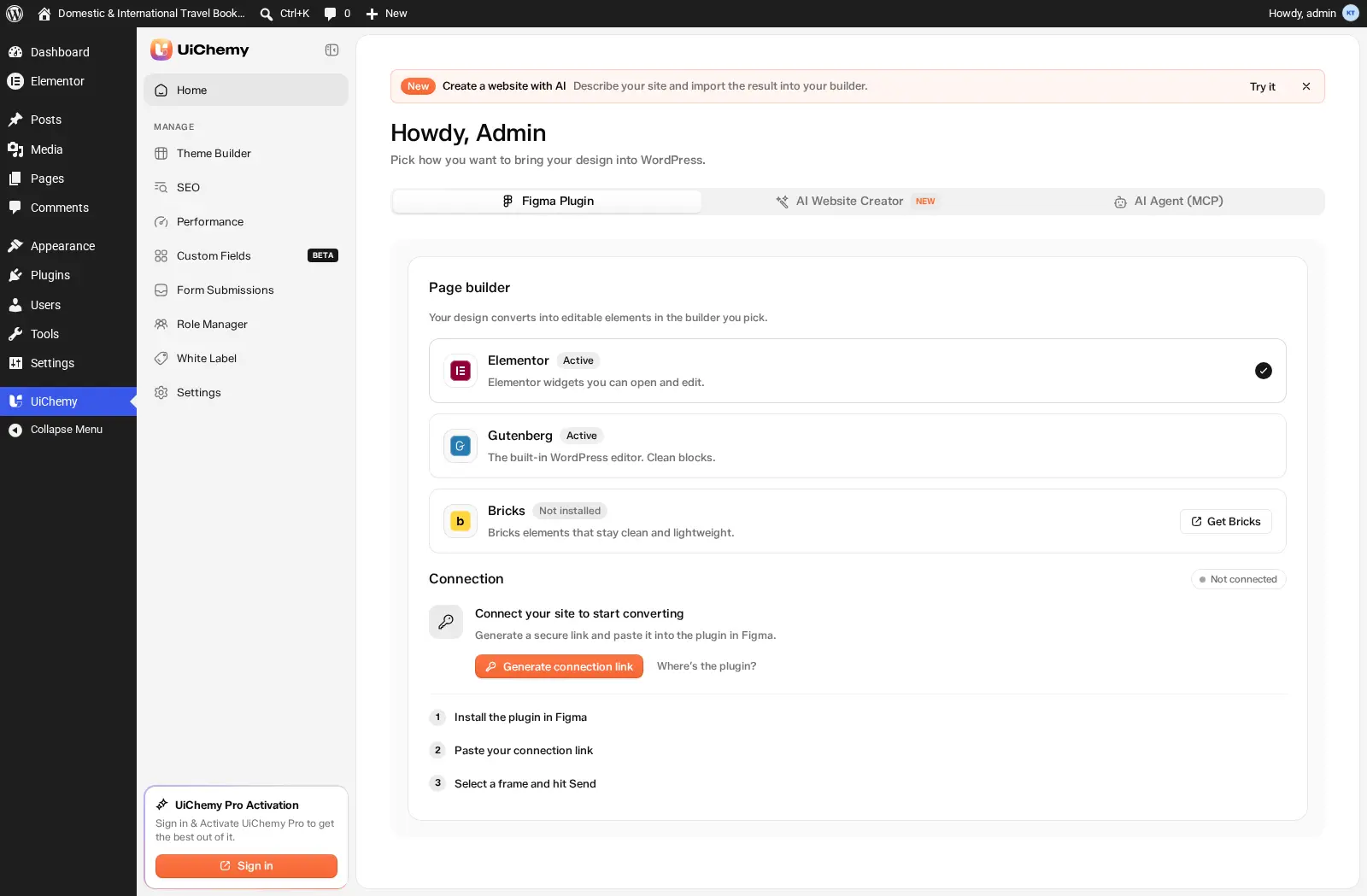
The Figma Plugin tab: Page builder and Connection
Page Builder
The Figma Plugin tab starts with Page builder: Elementor, Gutenberg, and Bricks, each with an Active or Not installed badge. Pick the one you work in, a tick marks your current choice. Bricks shows a Get Bricks link if it isn't installed yet.
Connection
Below that, Connection links this site to the UiChemy Figma plugin. It starts as Not connected.
Keep your Connection Link private. Anyone with it can send designs to your site.
See full instructions: Connect Your Site.
The tab also lists the three steps to follow from here, install the UiChemy plugin in Figma, paste your connection link, then select a frame and hit Send, plus a Where's the plugin? link if you don't have the Figma plugin yet.
Installing UiChemy Pro
The UiChemy Pro Plugin card sits at the bottom of the UiChemy sidebar, just above your account name. It offers a one-click upgrade, no ZIP download or manual upload needed. What it shows depends on whether Pro is already on your site:
| Card says | Button | What happens |
|---|---|---|
| "Unlock Theme Builder, Role Manager and White Label. We'll install it for you." | Install & Activate | UiChemy downloads, installs, and activates Pro. A "UiChemy Pro installed and activated" message confirms it. |
| "It's already installed on this site, it just needs switching on." | Activate | Pro is switched on. A "UiChemy Pro activated" message confirms it. |
| "A newer UiChemy Pro is available. Your licence and settings are kept." (UiChemy Pro update) | Update now | Pro is updated to the newest version. |
Both messages add: "Version [x.x.x] is ready. Pro features are unlocked on this site." The card names three highlights, but Pro unlocks much more. See Free vs Pro.
Example: Pro is already installed, so the card shows Free and Activate. Click Activate, and "UiChemy Pro activated. Version 5.3.0 is ready. Pro features are unlocked on this site." appears at the bottom right. Role Manager and White Label lose their crown icons, ready to use.
Pro features (AI Chat, full dynamic data, advanced Theme Builder templates, Fonts and Images, Module Studio, Role Manager, White Label, and more) are unlocked immediately, with no licence key needed. See Install and Activate UiChemy for the full Pro install walkthrough.
If It Doesn't Work
Frequently Asked Questions
Next Steps
Figma Plugin
Design in Figma and send it straight to WordPress, covers both AI Express Mode and Classic Mode.
AI Website Creator
Bring in a full site you generated with AI Website Creator and publish it here.
AI Agent (MCP)
Build or edit pages from tools like Claude Desktop, Cursor, Codex, or Antigravity.