How to Generate Invoice on Renewal Purchase?
Download a PDF invoice for a UiChemy Pro renewal purchase from your Purchase History.
To generate an invoice for your renewal purchase, follow these steps:
- Visit the Posimyth Store and log in using the same login details you used at checkout.
- Navigate to the Purchase History section from your dashboard.
- Locate the specific renewal transaction you want an invoice for.
- Click Download Invoice next to the renewal order, your invoice downloads as a PDF.
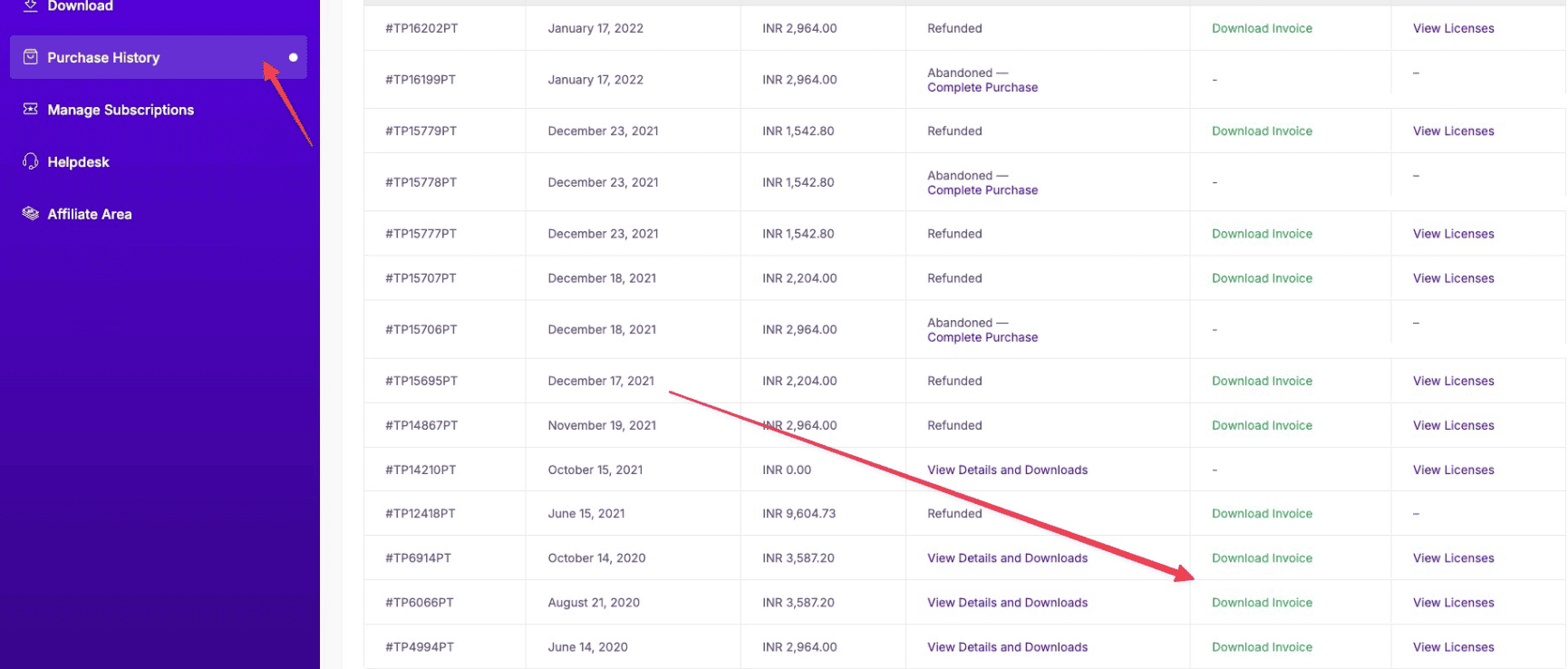
Your renewal invoice is then downloaded, ready to store for your records.
If you run into any issues generating your invoice, reach out to our support team, we're happy to help.
Frequently Asked Questions
What should I do if the Download Invoice button isn't working?
Confirm you're logged into the Posimyth Store with the same credentials used at checkout. Try clearing your browser cache or switching browsers, if it persists, reach out to support.
What format will my renewal invoice be downloaded in?
As a PDF, this keeps formatting consistent across devices, making it easy to store and share.
Are there any issues I might encounter while generating an invoice?
Common ones include being logged out, or not finding the right transaction in Purchase History, double-check your login and the correct section first.
What information will be included in my renewal invoice?
Typically the purchase date, transaction ID, and an itemized list of what was purchased.
Is there a way to access my invoices later if I forget to download them?
Yes, log back in, go to Purchase History, and download it whenever you need it.