How to Upgrade Your UiChemy Plan to Pro
Two ways to upgrade your UiChemy plan to Pro, and how to fix the User Limit Reached error.
Upgrading to a Pro account in the UiChemy Figma plugin unlocks advanced features for a smoother, more efficient design workflow. You can upgrade in two ways:
- Upgrade the existing license from the plugin
- Purchase a new Pro license from the pricing page
Both processes work the same way across all UiChemy plugins, Figma to Elementor, Figma to Bricks, and Figma to Gutenberg.
Method 1: Upgrade the Existing License from the Plugin
- Open the UiChemy plugin in Figma.
- Click the Hamburger Menu.
- Click Pricing (Upgrade Now).
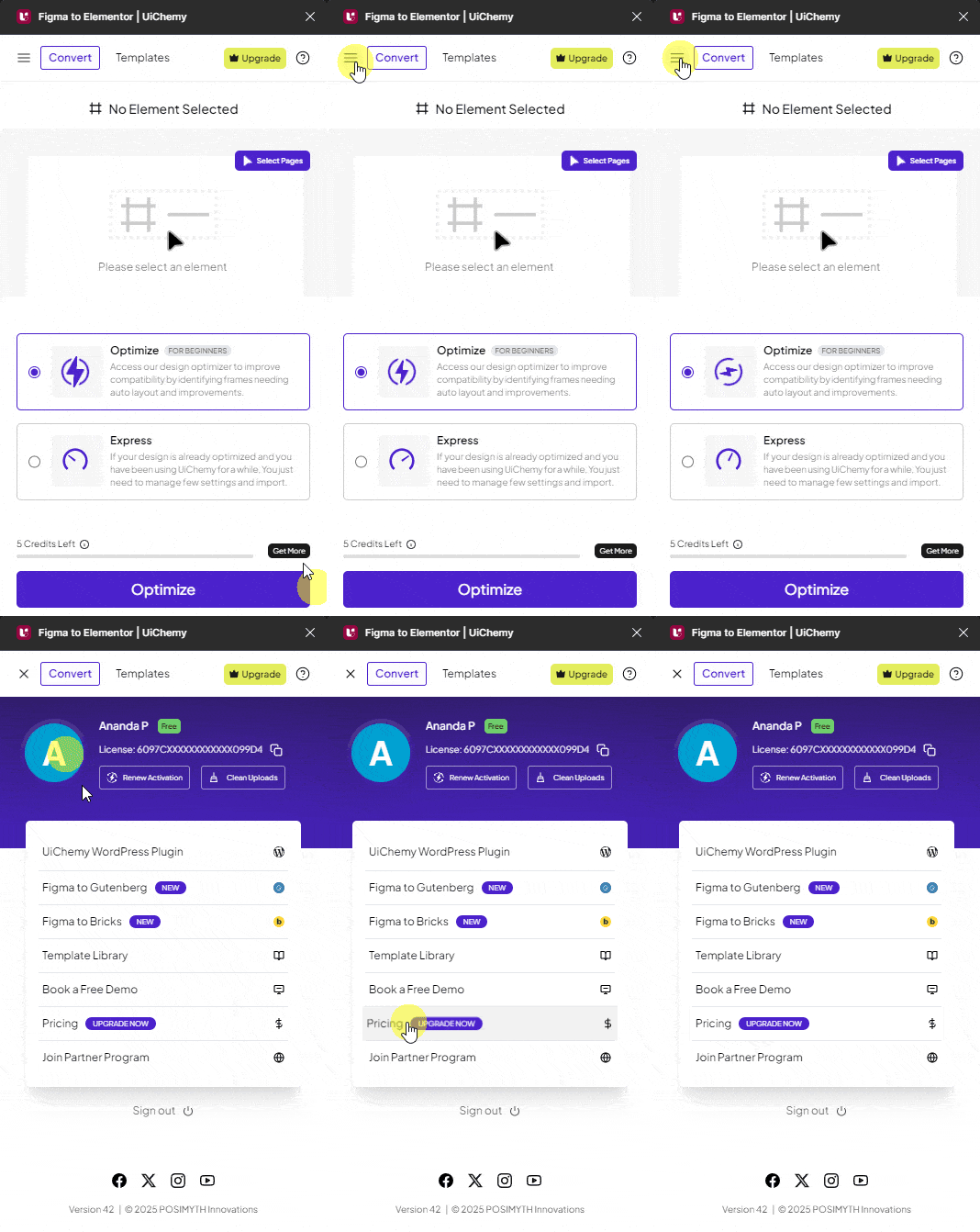
- This takes you to the UiChemy pricing page, select a suitable Pro plan and complete checkout.
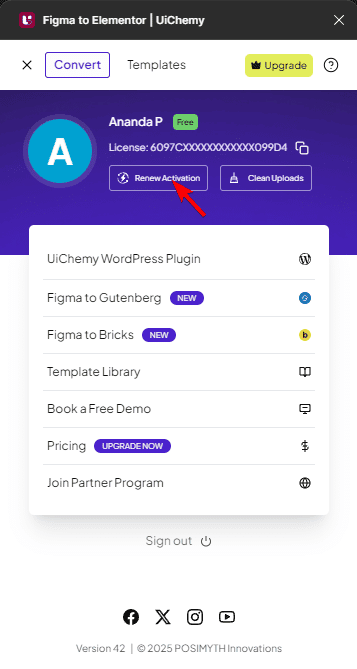
- Go back to Figma and open the UiChemy plugin.
- Click the Hamburger Menu.
- Click Renew Activation, this upgrades your existing license.
Method 2: Purchase a New Pro License from the Pricing Page
If you've already purchased a new Pro license, activate it like this:
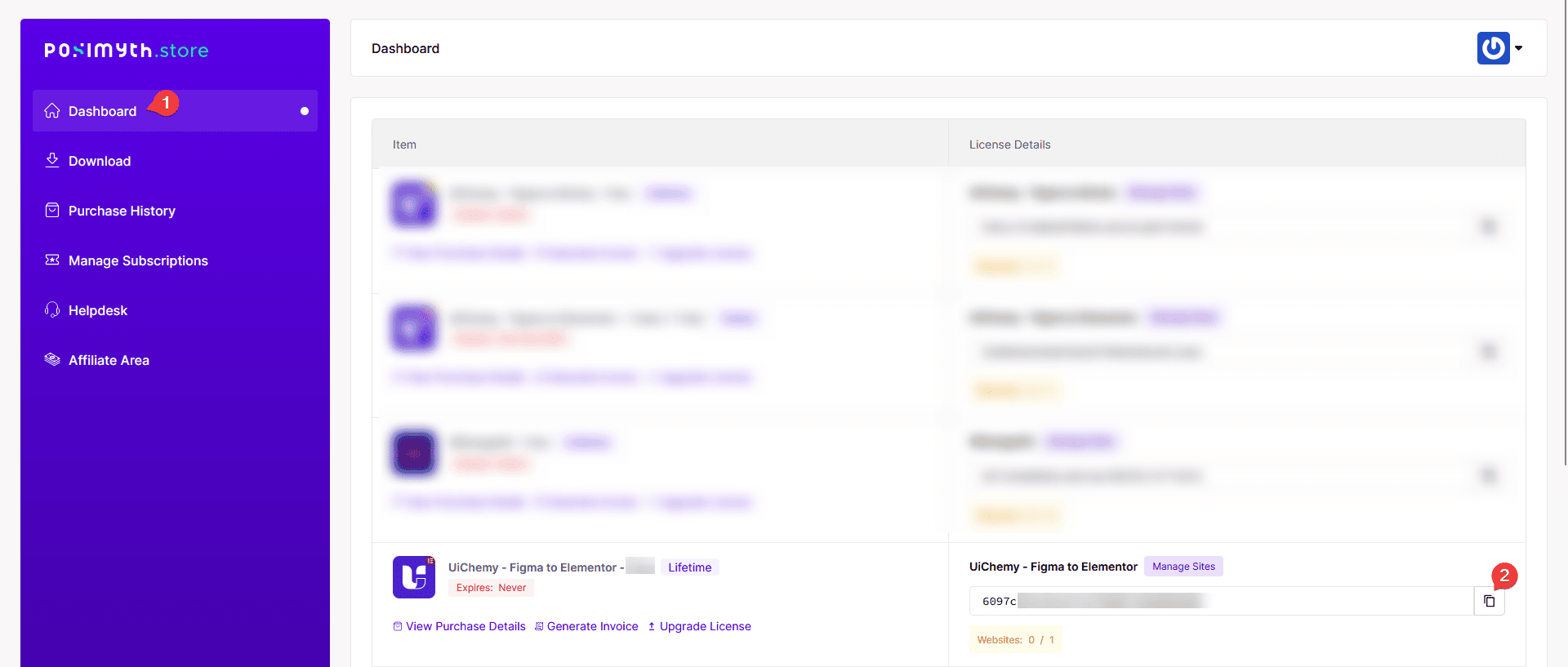
- Go to store.posimyth.com and sign in.
- In your dashboard, find your Pro plan and copy the license key.
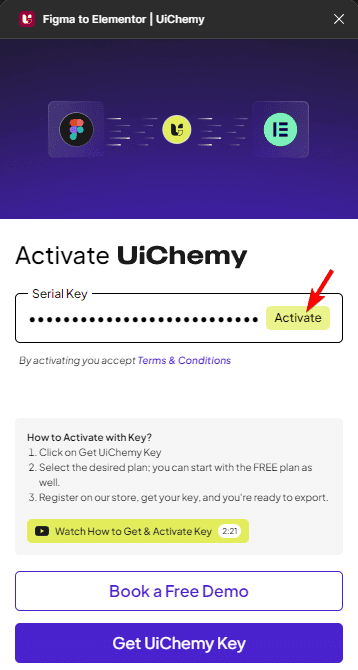
- Open the UiChemy plugin in Figma.
- Log out of your existing account/license key.
- Paste the new Pro license key in the plugin and activate it.
Fixing the "User Limit Reached" Error
While activating your license key, you might see User Limit Reached!, this happens because your current plan allows 1 user, and that slot is already in use.
To fix this, reset the user limit:
- Go to store.posimyth.com and sign in.
- In your Dashboard, go to the Manage Sites section under UiChemy.
- Reset the user limit, or deactivate an existing user to free up a slot.
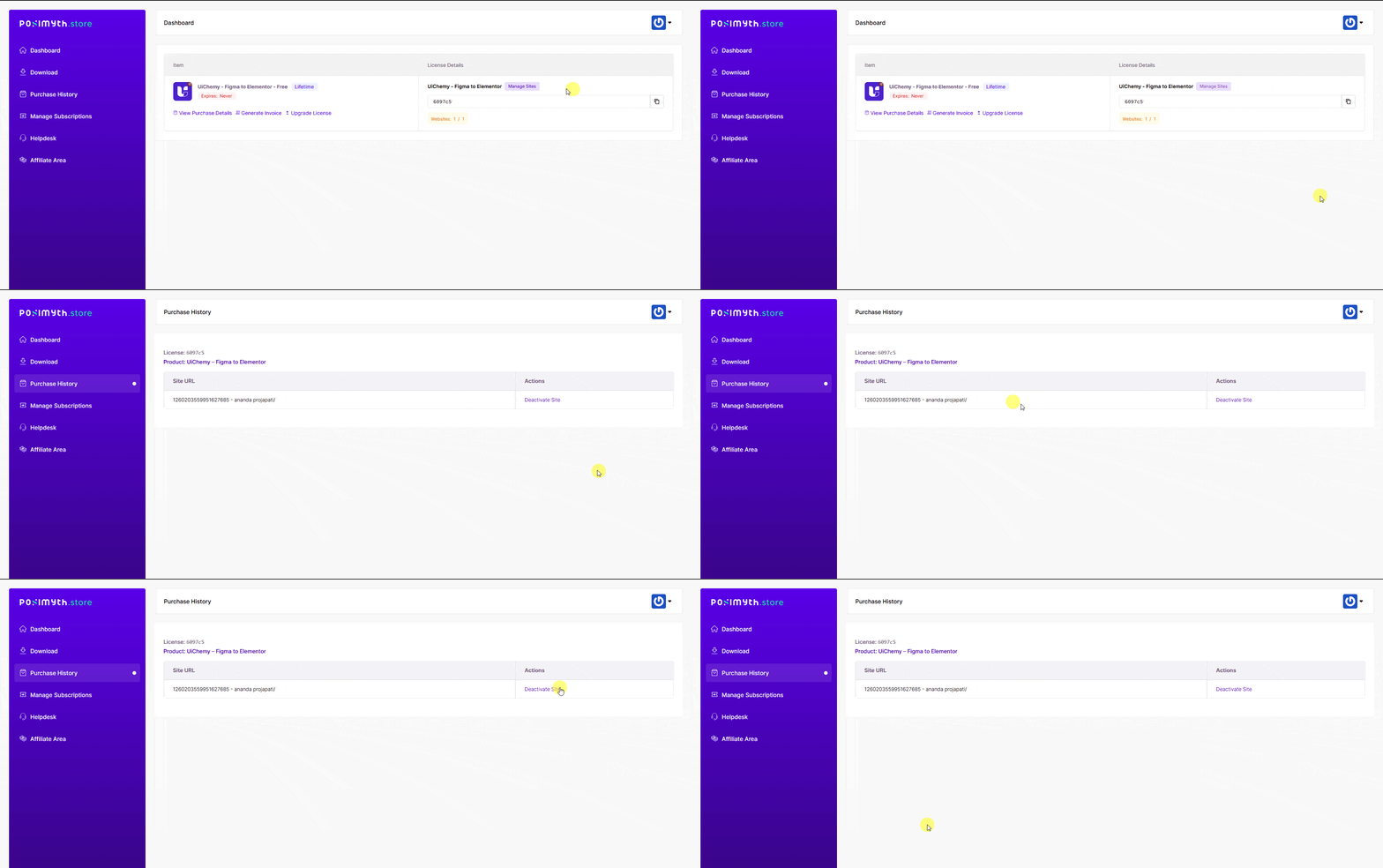
- Try activating the Pro license key again from the UiChemy plugin in Figma.
Frequently Asked Questions
What should I do if I encounter the "User Limit Reached" error while upgrading?
Sign in at store.posimyth.com, go to Manage Sites, and reset the user limit or deactivate an existing user to free up a slot.
What happens if I purchase a new Pro license for UiChemy?
You'll need to activate it in the plugin, sign in, copy your license key, log out of your existing account in the plugin, paste the new key, and activate it.
Are there any specific steps to follow when upgrading to a Pro plan?
Yes, either upgrade your existing license from the plugin (Hamburger Menu → Pricing → Renew Activation), or purchase a new license and activate it manually.
Does the upgrade process differ for different UiChemy plugins like Figma to Elementor?
No, the process is identical across Figma to Elementor, Figma to Gutenberg, and Figma to Bricks.
What are the benefits of upgrading to a Pro account?
Access to advanced features that make your design-to-WordPress workflow smoother, with more customization and flexibility.