

How to Fix Direct Import Errors (URL Unreachable, Token Mismatch, Connection Error)
Fix the common UiChemy Direct Import errors, URL Unreachable, Token Mismatch, Connection Error, and missing page builder plugins.
When connecting the UiChemy Figma plugin to your WordPress plugin, or during export with the Direct Import feature, you may run into a few common errors. Here's what causes each one, and how to fix it.
Keeping the UiChemy WordPress Plugin updated to the latest version is highly recommended, install any available update before troubleshooting further.
Connection Fix Guides in the Add Site Box
In the Figma to Elementor plugin (Classic Mode and AI Express Mode), you don't have to guess what went wrong. When Connect fails, the Add Site box shows a guide for the exact problem it found, with steps, a Retry button, and often a Connection troubleshooting link. Here's what each guide means.
Local Site Guides
Local sites are supported in the Figma to Elementor plugin. If you paste a local address, the guide tells you how to make it reachable:
- This looks like a LocalWP site (
.local): in LocalWP, open Preferences, then Advanced, set Router mode to localhost, click Apply, and reconnect with the newlocalhostaddress. - This looks like a WordPress Studio site (
.wp.local): in Studio, open Site settings, then Edit site, uncheck Use custom domain, click Save, and reconnect with thelocalhostaddress. - This is a LocalWP Live Link: Live Links can't be used. Switch LocalWP to localhost router mode and generate a fresh Connection Link on the
localhostaddress. - This looks like a local development site (
.test): serve the site on alocalhostaddress or a public https URL. - Figma cannot reach this network address (a LAN IP): use
localhostif the site runs on the same computer, or a public URL or tunnel such as ngrok. In a browser you can allow Local network access for figma.com. The Figma desktop app can't, so open the file in your browser. - Could not reach your local server (
localhost): check that the local site is running and the port is right, then look for CORS errors in the Figma console (Plugins, then Development, then Open console).
For local sites, turn on This is a locally hosted setup in the Add Site box. It appears after the first failed attempt and makes the plugin connect directly from your browser. See Connect a local WordPress site.
Error: URL Unreachable
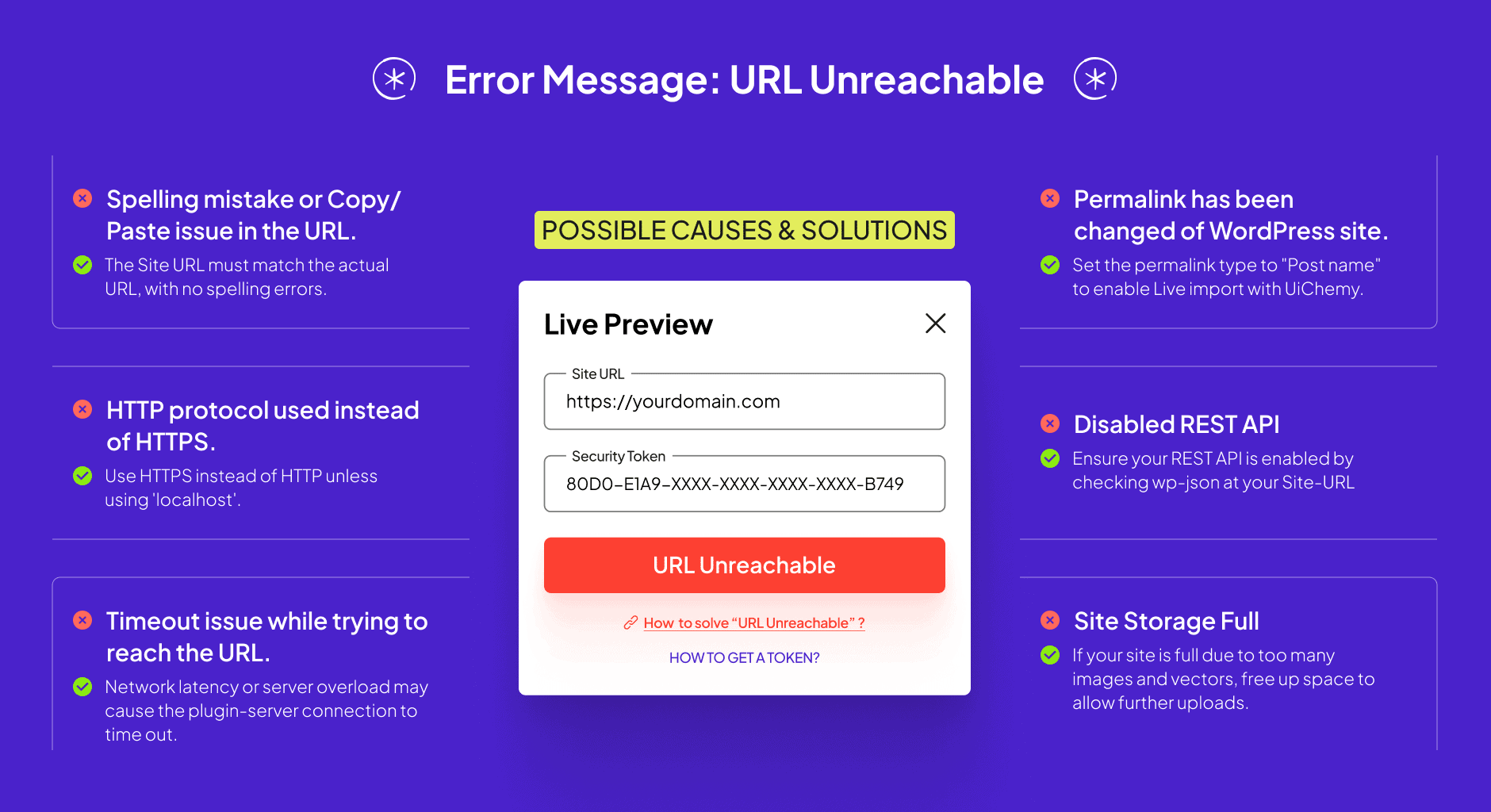
Possible causes and fixes:
- Connection Link copied incompletely, generate a fresh Connection Link in the UiChemy dashboard and paste it into the Figma plugin again, without extra spaces or missing characters.
- HTTP used instead of HTTPS, unless you're using
localhost, using HTTP instead of HTTPS results in an unreachable connection. Make sure the protocol is correct. - Timeout reaching the URL, this can happen from network latency or server overload. Retry after confirming a stable connection.
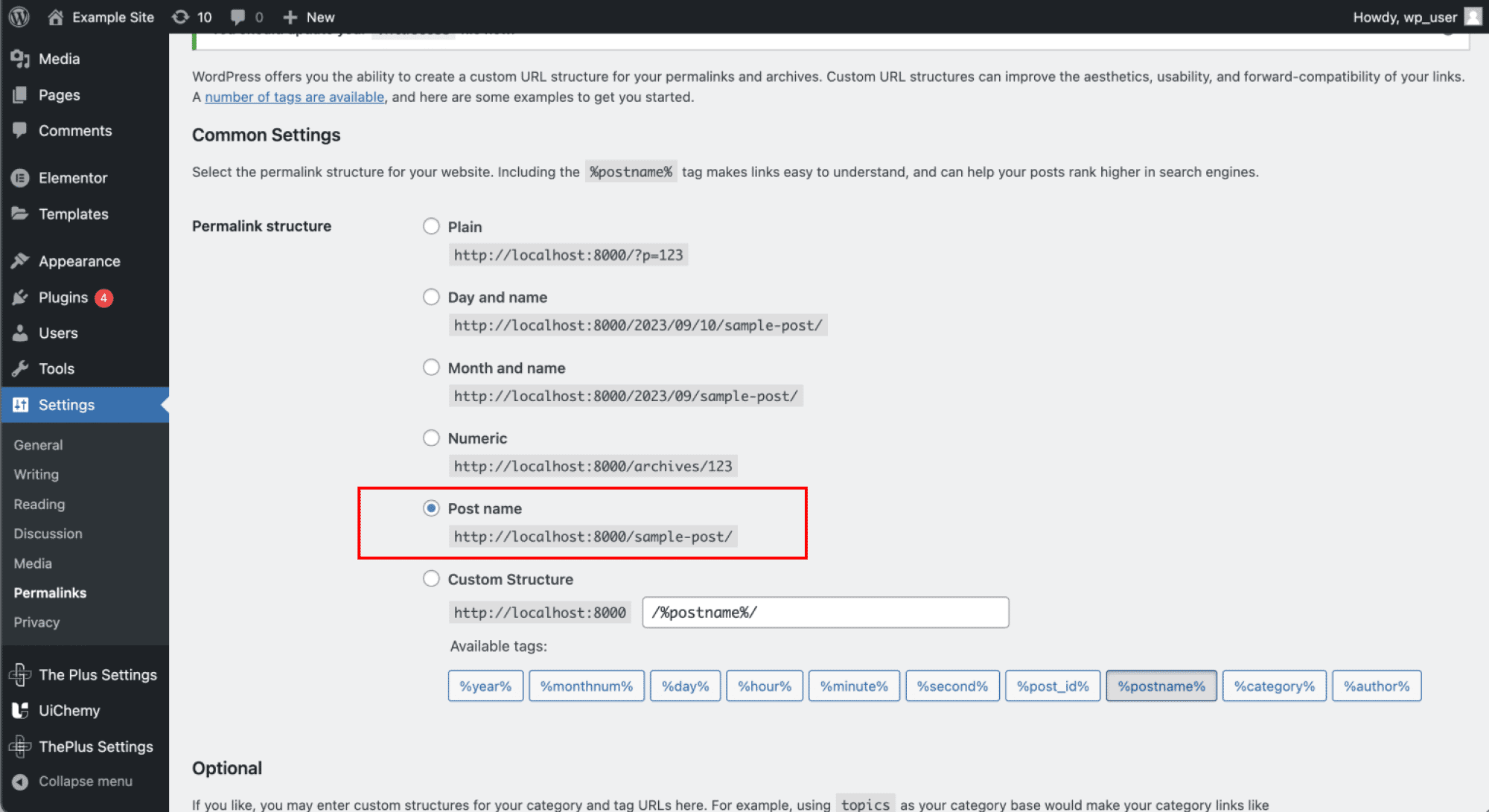
- Permalink structure changed, set the permalink type to Post name to enable Direct Import.
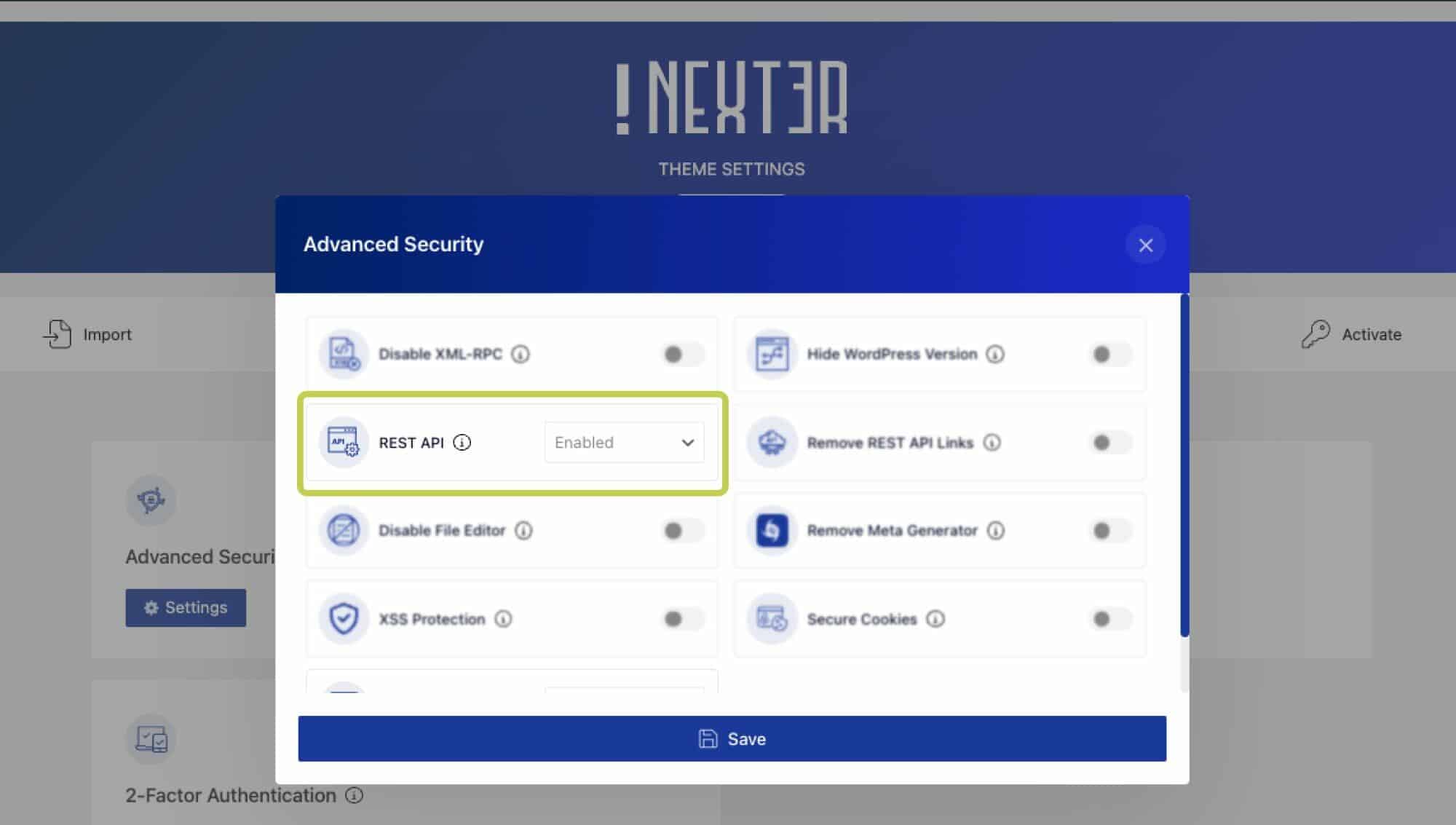
- REST API disabled, check by visiting
your-site.com/wp-json. If you get a 4XX error, your REST API is disabled by an access-control plugin, enable it and try again.
For example, in the Nexter theme: go to Nexter Settings → Security → Advanced Security → REST API, select Enabled, and save.
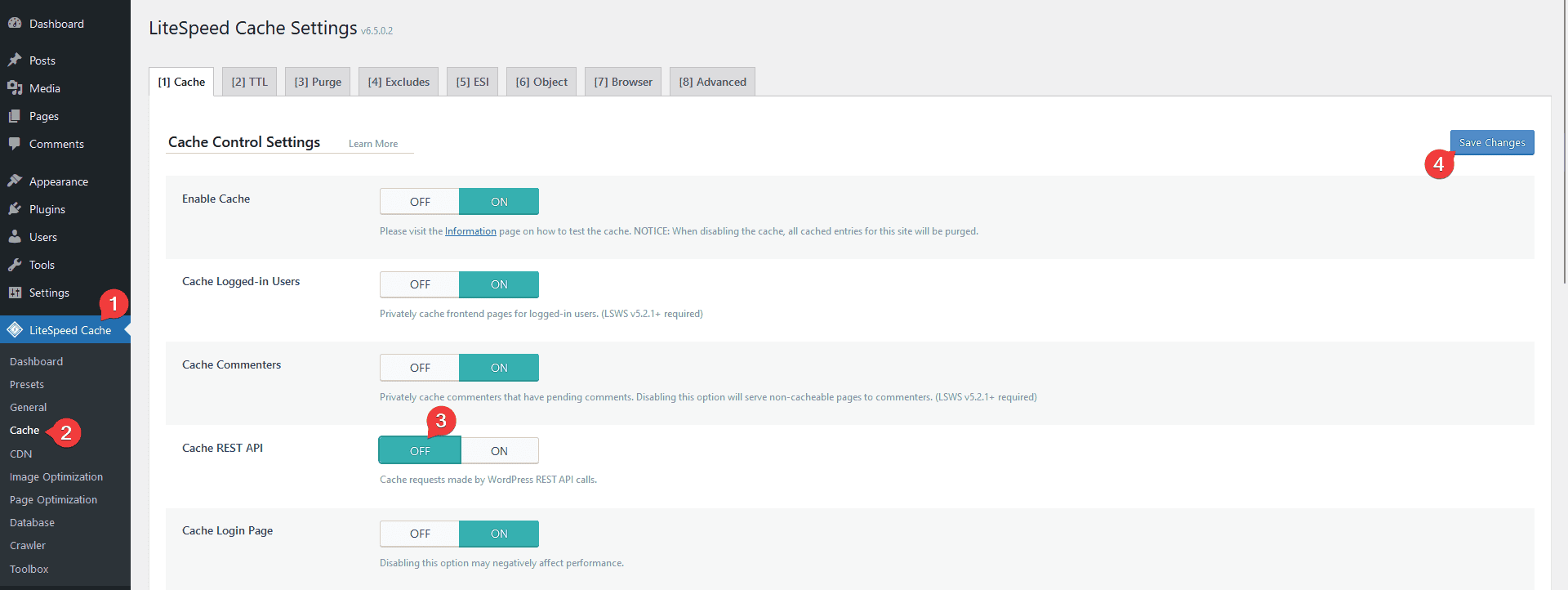
- LiteSpeed Cache REST API caching, if you're on LiteSpeed Cache (common on Hostinger and similar hosts) with Cache REST API turned on, this can cause URL Unreachable errors, especially on a second connection attempt. Turn off Cache REST API in the LiteSpeed Cache plugin.
- Site storage full, if too many images/vectors have been uploaded, your site may stop accepting new uploads.
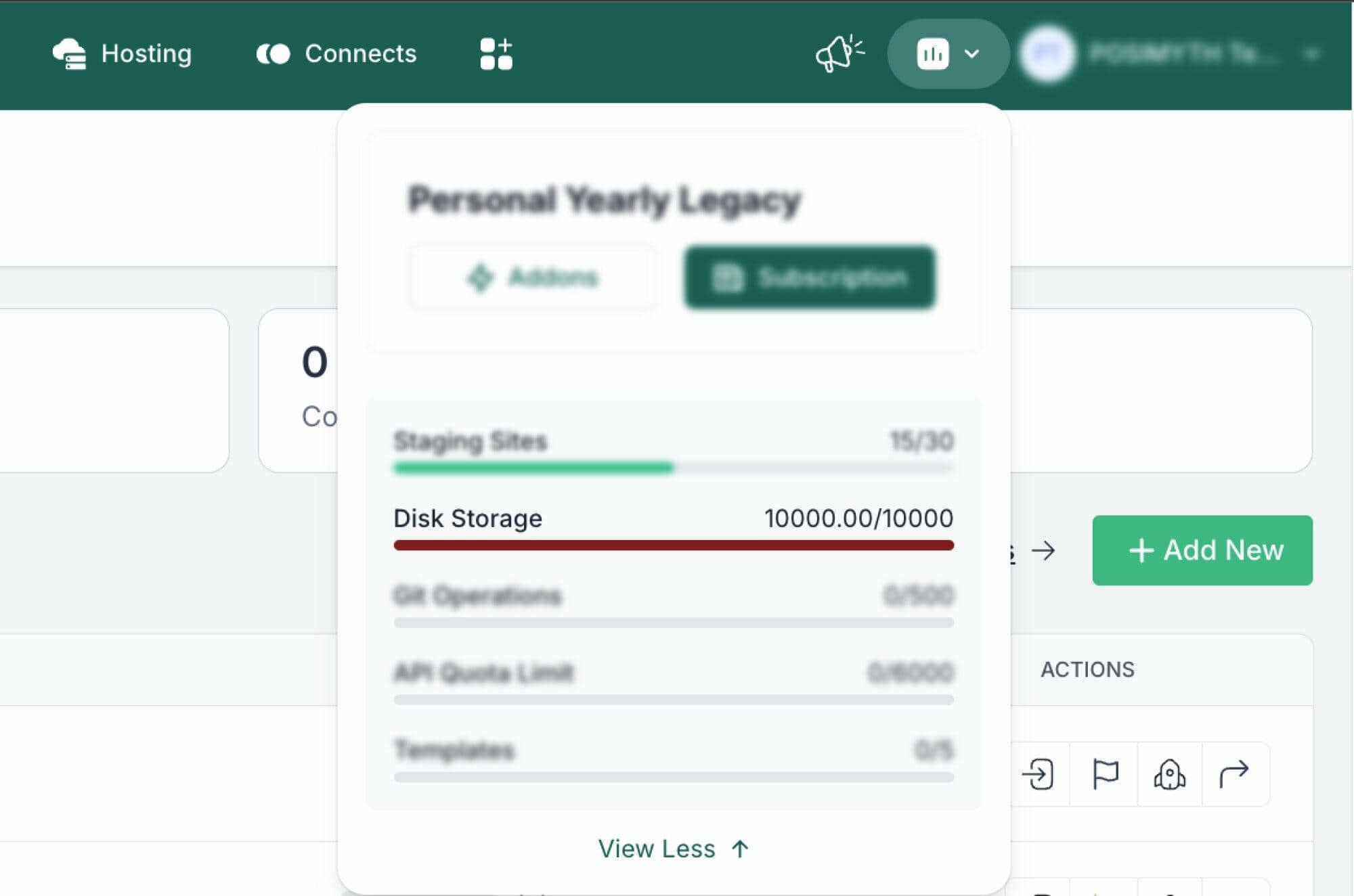
To free up space:
- Go to Templates/Pages, select any no longer in use, and move them to Trash.
- Empty the Trash.
- Go to Media, select unused images, and click Permanent Delete.
If your media library is especially crowded, you can use a WordPress plugin to clear unused images faster, at your own risk.
Error: Token Mismatch
This message comes from the older Site URL plus Security Token setup. The current Figma to Elementor plugin shows Invalid Credentials! instead (see the connection fix guides above). The fixes below still apply: regenerate the Connection Link and paste it again.
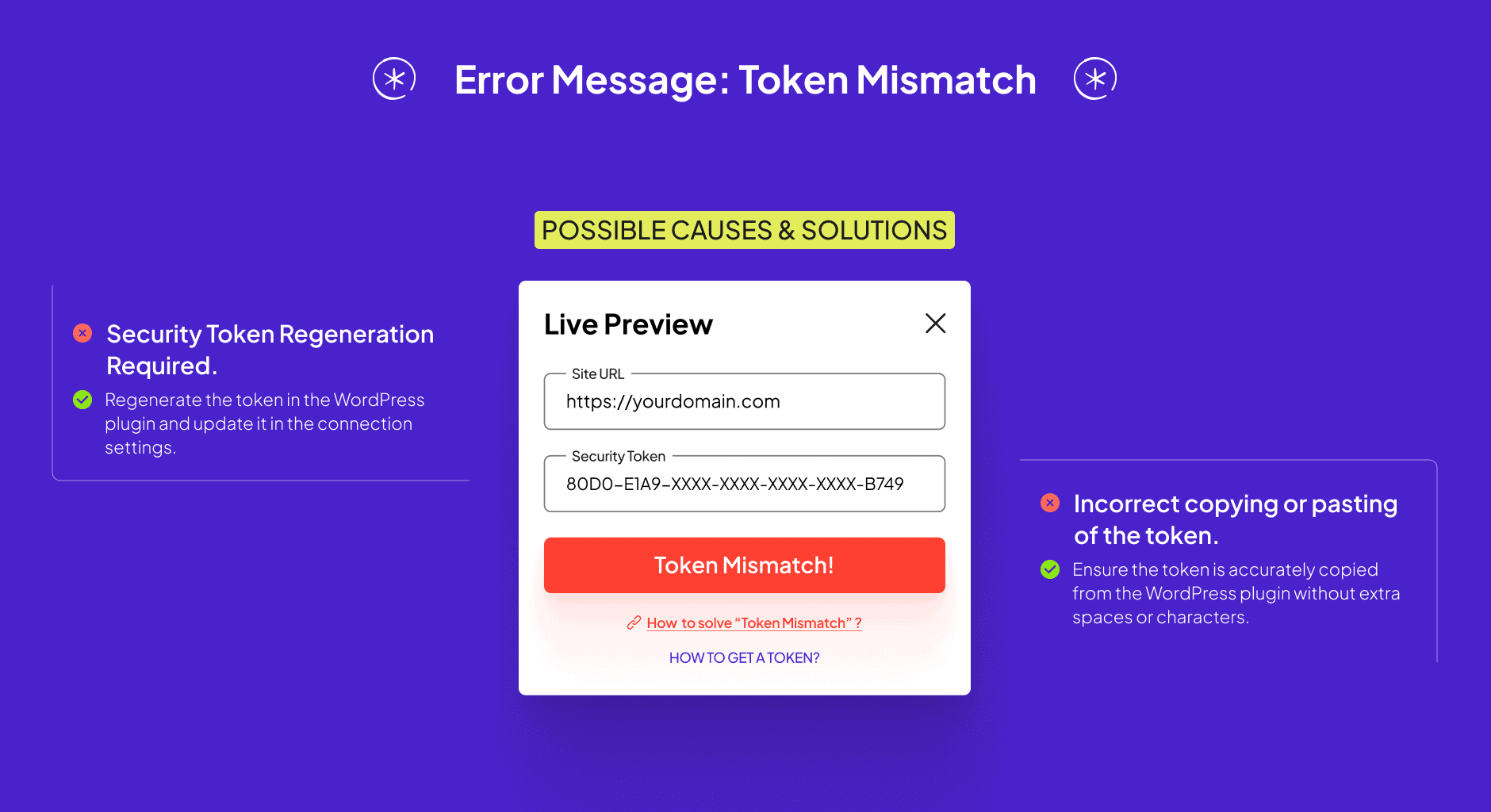
Possible causes and fixes:
- Connection Link needs regenerating, the link may no longer be valid. Generate a fresh Connection Link in the UiChemy dashboard (Home → Connection) and paste it into the Figma plugin.
- Incorrect copy/paste of the Connection Link, make sure the link is copied exactly, without extra spaces or characters. Even a small discrepancy causes a mismatch.
Error: Connection Error
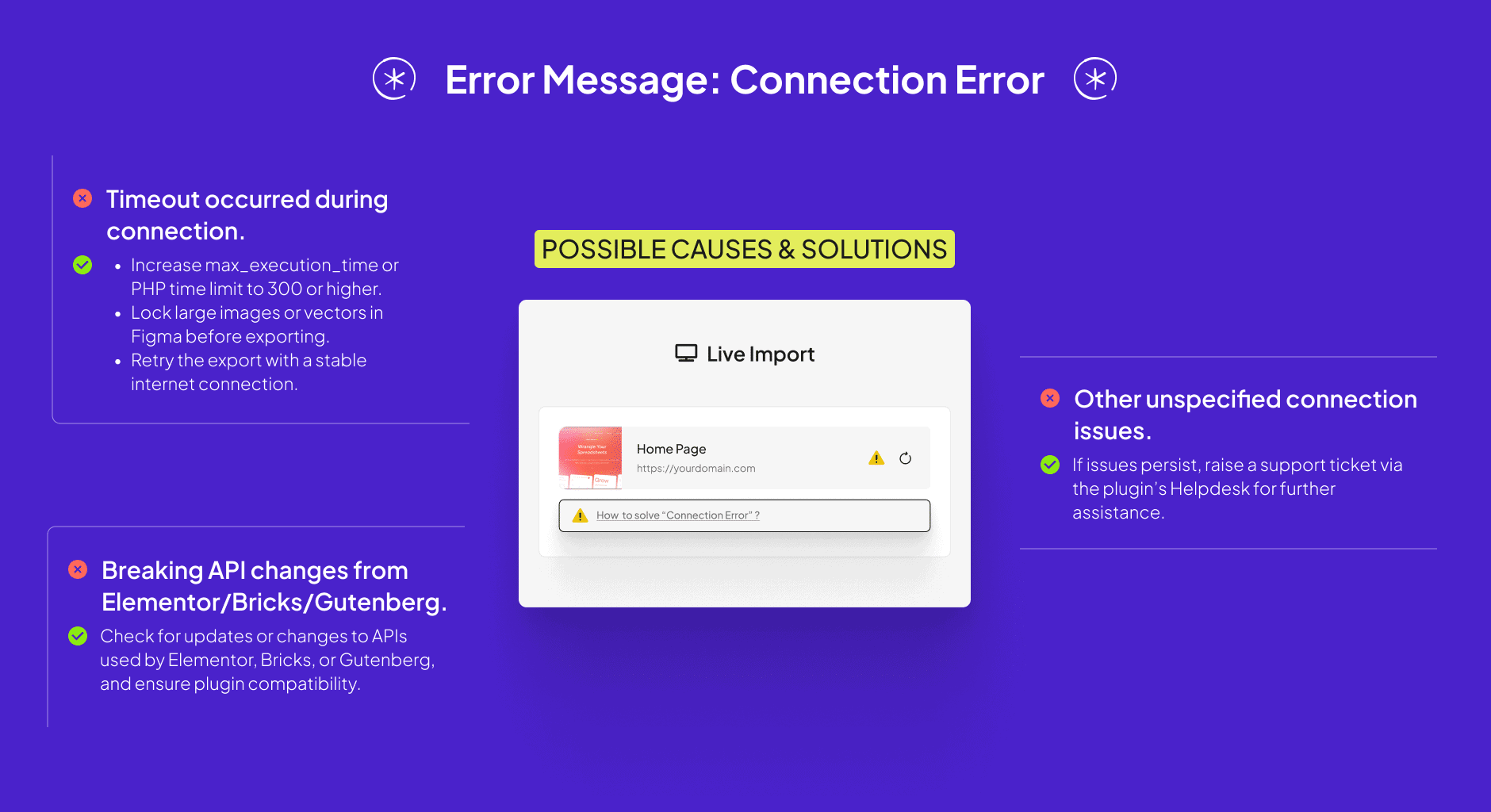
Possible causes and fixes:
- Timeout during connection:
- Max Execution Time, a low
max_execution_timecan cause the import to time out. Increase it to 300 or higher. - Image locking, exporting a design with many heavy, unlocked images or vectors can time out during upload. Lock the groups of images/vectors in Figma before exporting.
- Internet issue, network latency or server overload can cause a timeout. Retry after confirming a stable connection.
- Max Execution Time, a low
- Elementor out of date, if the plugin says to update your Elementor plugin to the latest version and retry, update Elementor on your site, then connect again.
- Breaking API changes from Elementor/Bricks/Gutenberg, check for recent updates or announcements from these platforms and confirm compatibility with the plugin.
- Other connection issues, if none of the above apply, raise a support ticket via the Helpdesk for further investigation.
Error: Elementor Not Installed
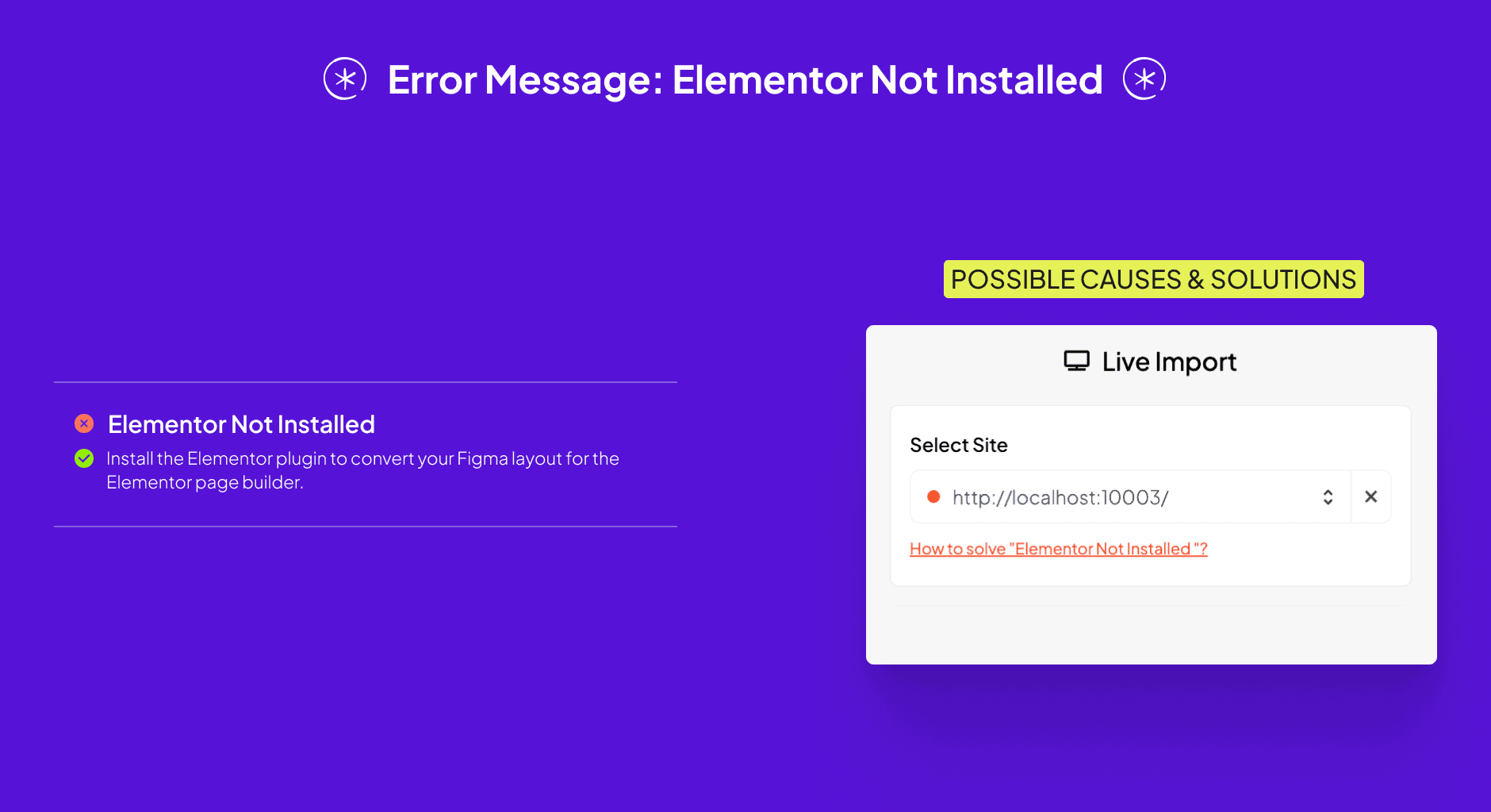
This appears if you're converting your Figma layout for Elementor without having the Elementor plugin installed. Install Elementor before converting.
Error: Nexter Blocks Not Installed
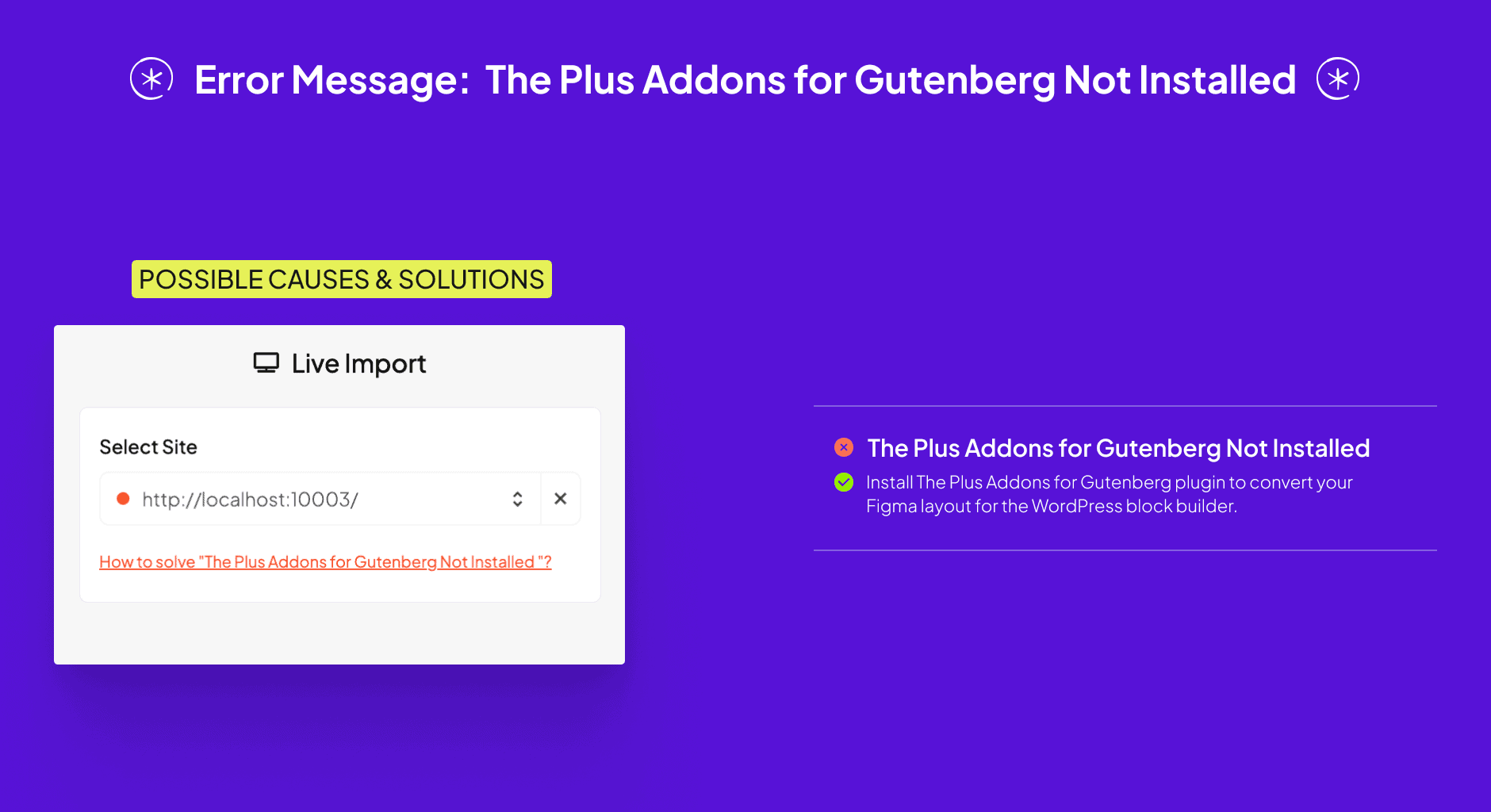
This appears if you're converting your Figma layout for the WordPress block editor without the Nexter Blocks plugin installed. Install it before converting.
Error: Bricks Not Installed
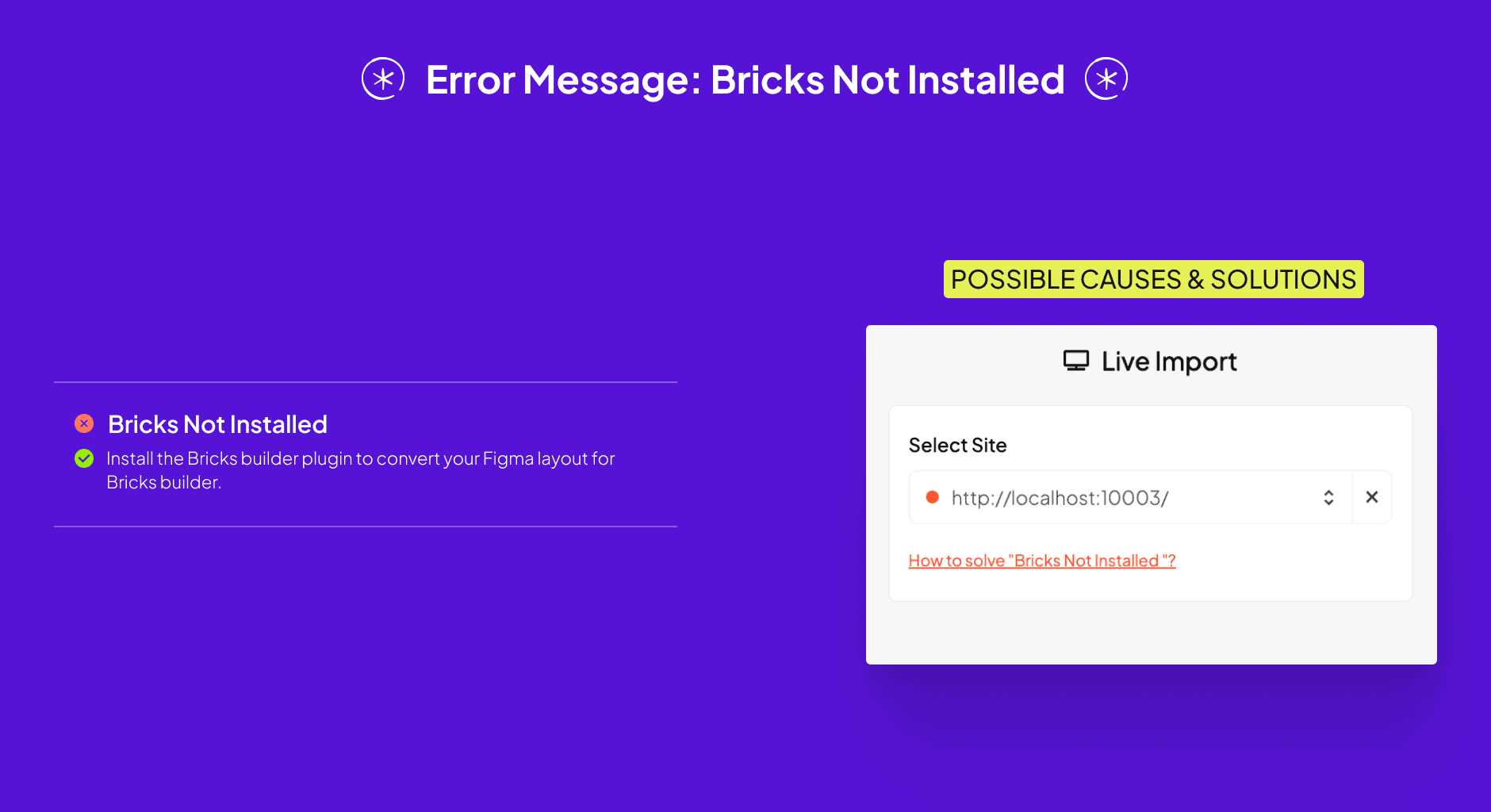
This appears if you're converting your Figma layout for Bricks without the Bricks Builder plugin installed. Install it before converting.