

Viewing Your Existing Licenses
See UiChemy licenses you previously purchased from the Posimyth store.
If you bought UiChemy from the Posimyth store before it moved to app.uichemy.com, those licenses carry over to your account under Legacy Licenses.
Linking a Legacy License Automatically
You don't need to enter a license key manually.
- Go to app.uichemy.com and sign up or sign in.
- Use the same email address you used to purchase your license.
- UiChemy automatically finds it and attaches it to your account.
This works with any sign-in method, Google, Facebook, Posimyth Store, or email and password, as long as the email matches.
Viewing Your Licenses
Click your name and plan at the bottom-left of the dashboard, select Account Settings, then click Legacy Licenses under Manage Plans in the left sidebar.
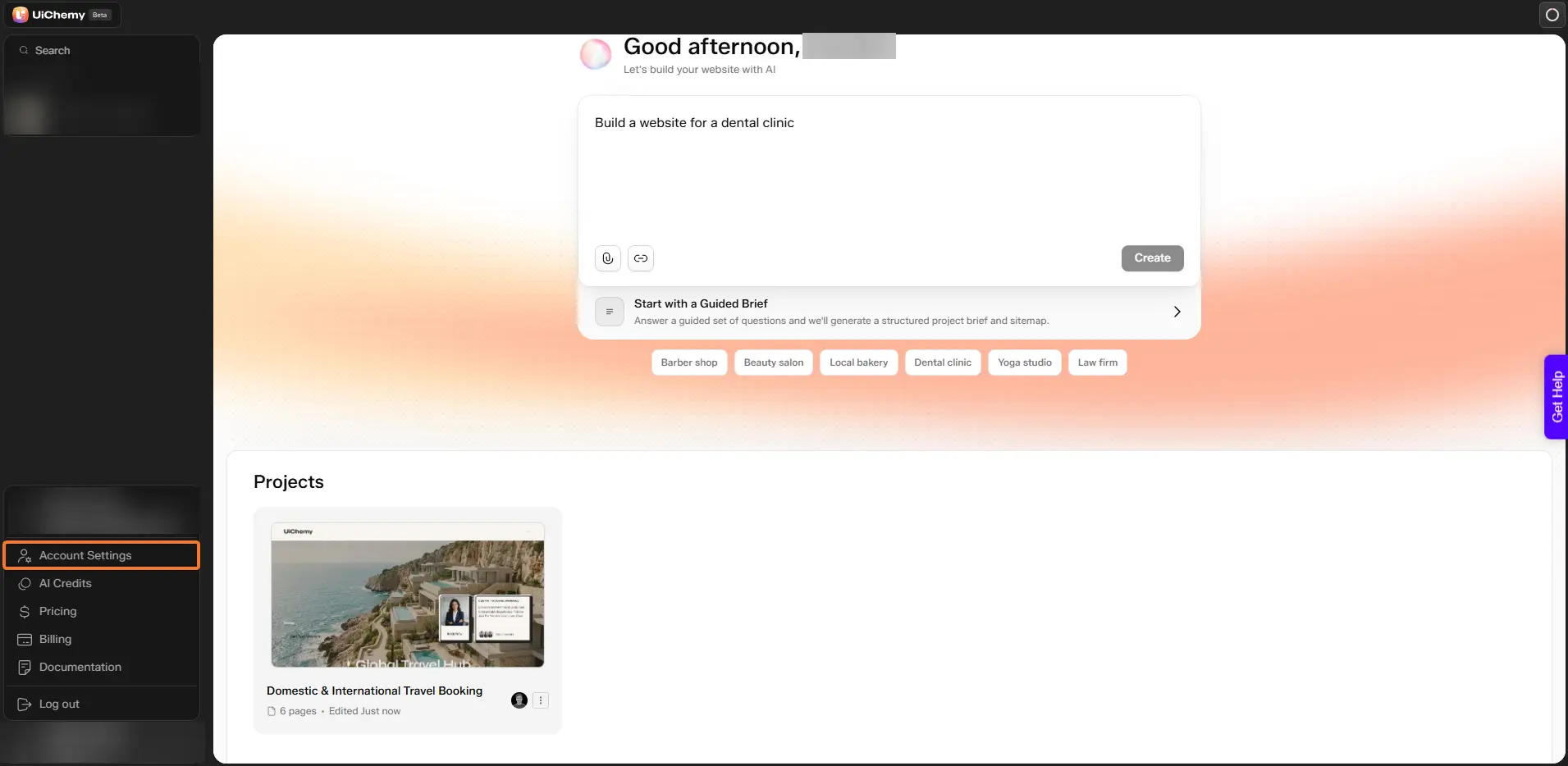
Click your name and plan at the bottom-left, then select Account Settings
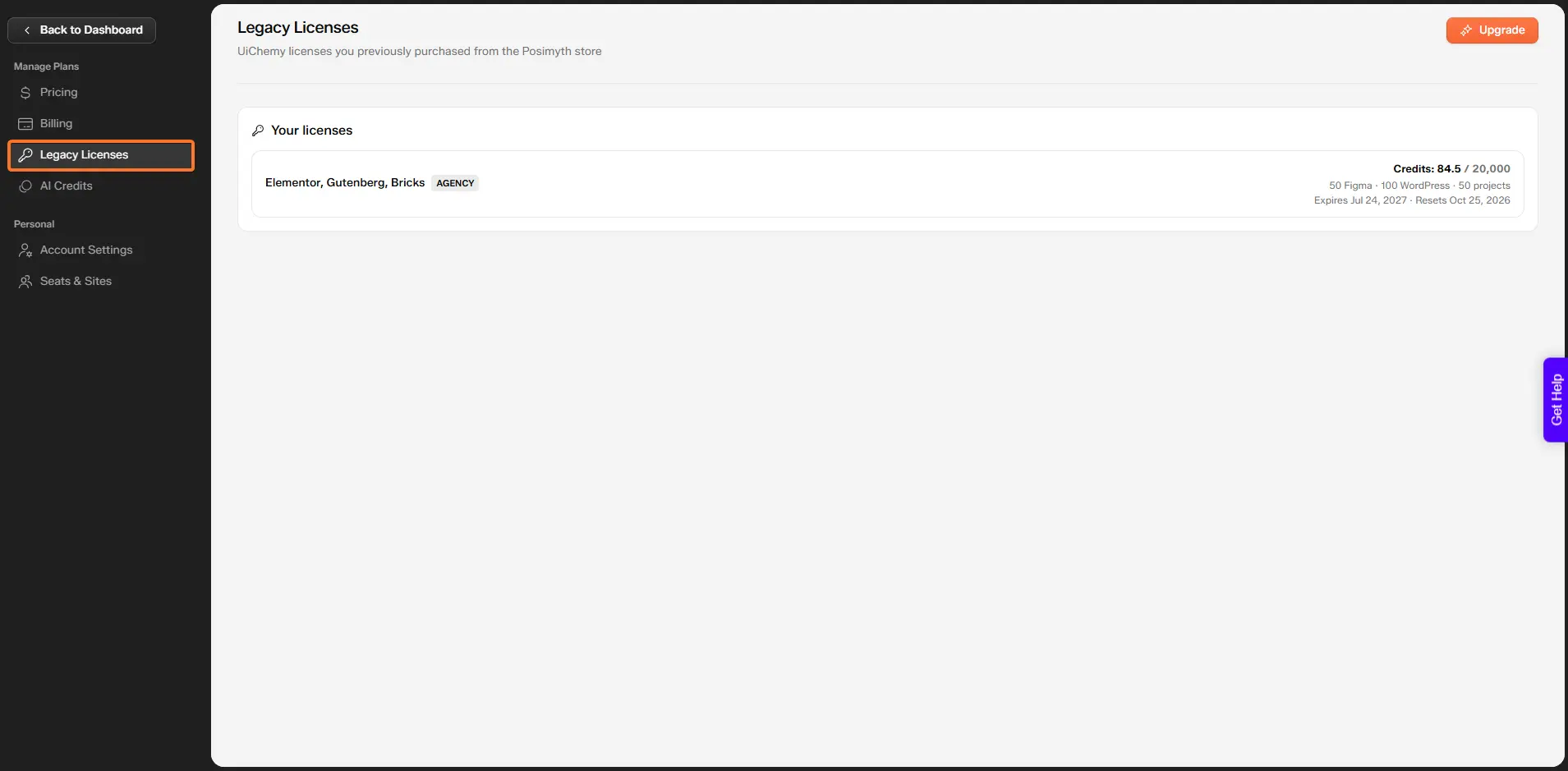
Legacy Licenses under Manage Plans, with your license details
Each license lists:
- Which builders it covers, for example Elementor, Gutenberg, Bricks.
- Its plan tier, Designer, Studio, or Agency.
- A masked license key.
- Credits, how many have been used out of the total allocated. Licenses that include a Classic pool also show Classic Credits separately.
- A license that only adds WordPress sites is labelled Agency Bundle.
- How many Figma seats, WordPress sites, and projects it allows.
- Whether it's Lifetime or has an expiry and reset date.
A license with 0 total credits or seats has no active allocation, check its expiry date to see if it's still valid.
Click Upgrade to move to a current pricing plan.