

How to Generate an Invoice
Download an invoice for your UiChemy subscription from the Invoice history section of the Billing page.
Every time you subscribe to a plan on the UiChemy Pricing page, an invoice is generated for that order. You can download it anytime from the Invoice history section of your Billing page and keep it for your records.
Before You Start
You need an active plan. If you haven't subscribed yet, choose one on the UiChemy Pricing page, or compare what each plan includes in Pricing & Plans.
Download Your Invoice
Open the account menu
On your UiChemy dashboard, click your name and plan (for example, Studio plan) at the bottom-left of the sidebar.
Go to Billing
Click Billing in the menu that opens. You're taken to the Billing page.
Scroll to Invoice history
Scroll to the bottom of the page to find the Invoice history section.
Download the invoice
Click the download icon at the right end of the invoice row. The invoice saves to your device, open it from your downloads folder to check the details.
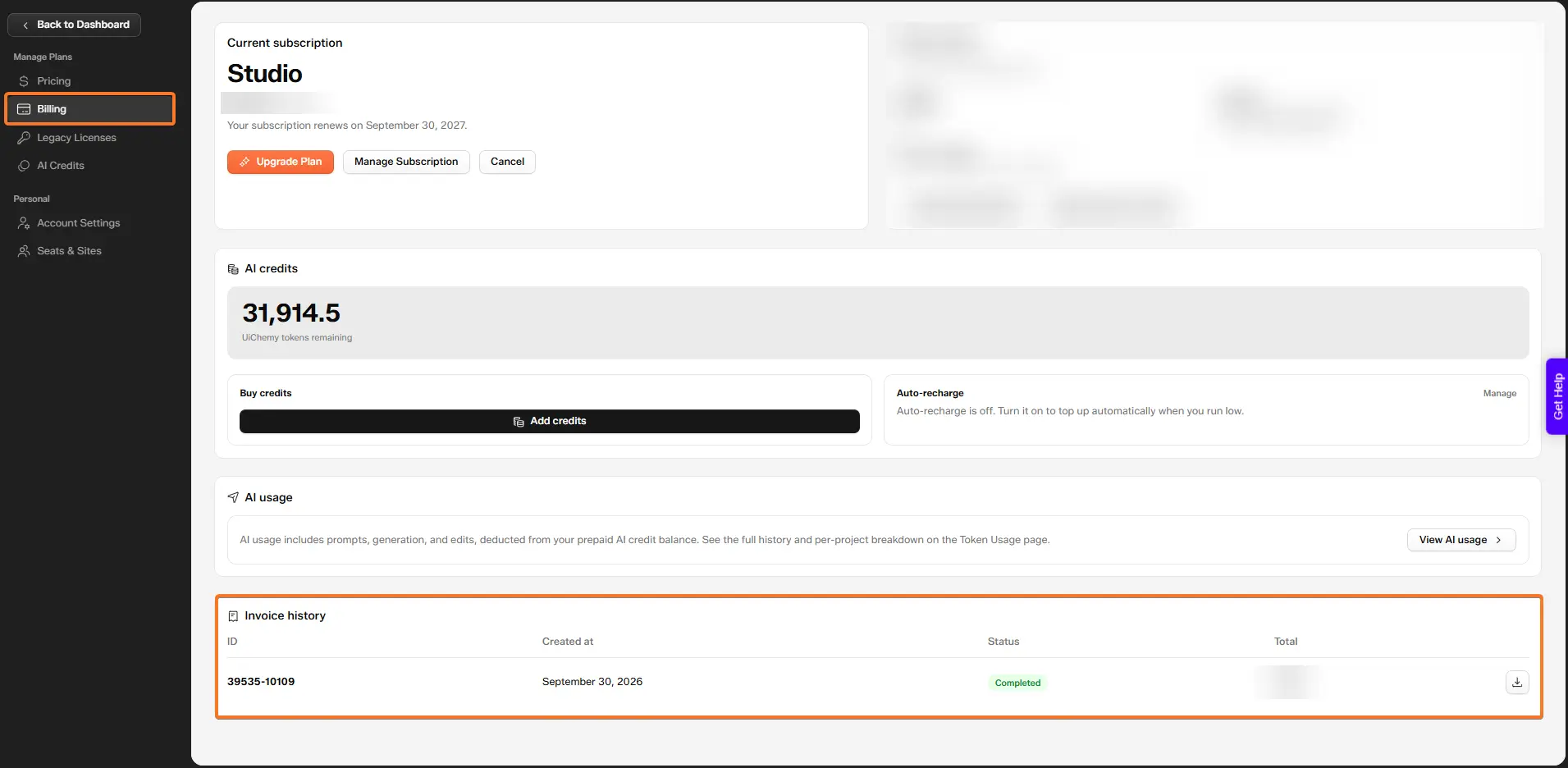
The Billing page, with Invoice history and the download icon at the bottom
What's in Invoice History
Each row is one invoice:
| Column | What it shows |
|---|---|
| ID | The invoice number |
| Created at | The date the invoice was created |
| Status | Whether the payment went through, for example Completed |
| Total | The amount charged |